Global‑e Checkout
Note
The storefront screenshots that you may here are made on the basis of either standard SFCC SFRA or the SFCC SiteGenesis Demo Site.
The look and feel of the logo on your Global‑e Checkout page will be adapted to your design, according to the requirements that you provide Global‑e.
Once the customer clicks on the "Checkout" CTA on the Cart/Basket page - he/she will be redirected to the Login page if the Customer is not authenticated yet, which is standard default SFCC behavior.
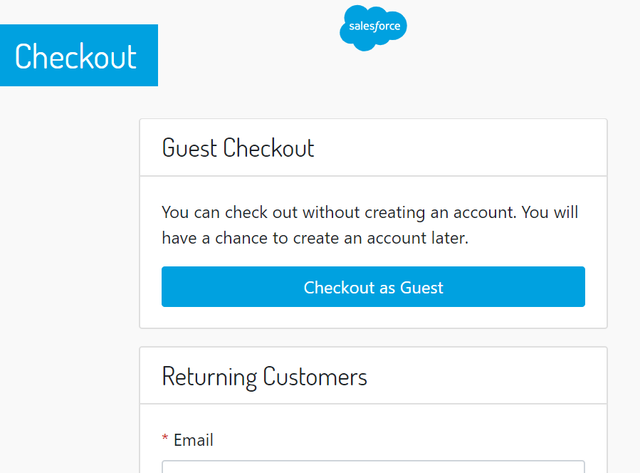
If the customer clicks on Checkout as Guest or the Customer is already registered and logged in, and the selected country is Operated by Global-e - then he/she will be redirected to the Global-e Checkout page.
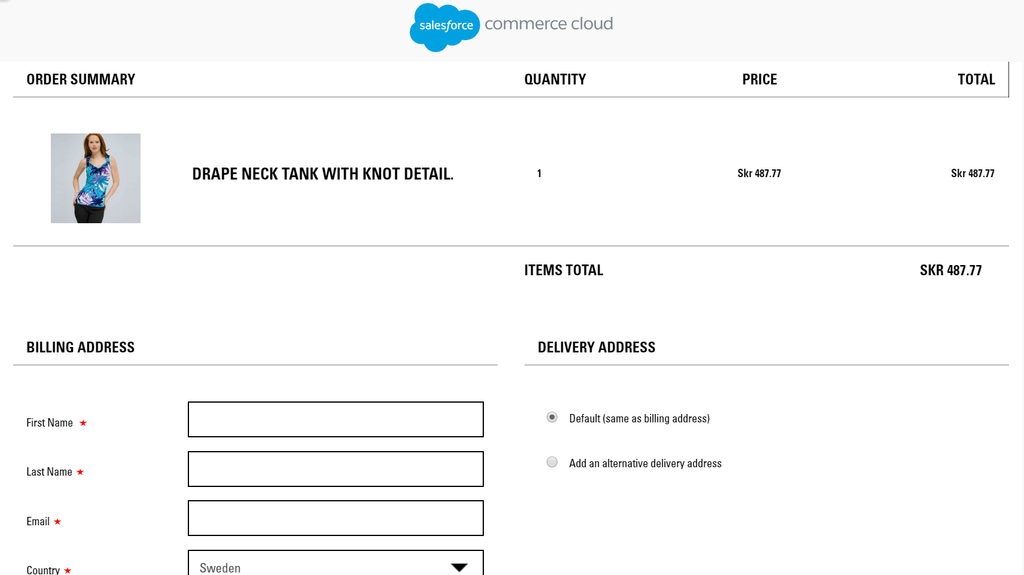
If the Customer is registered, logged in, and has any addresses in his/her SFCC Profile Address Book, then the default (or the first available) address, complying with the selected country and all required fields (like Post Code, State, etc.) will be pre-populated:
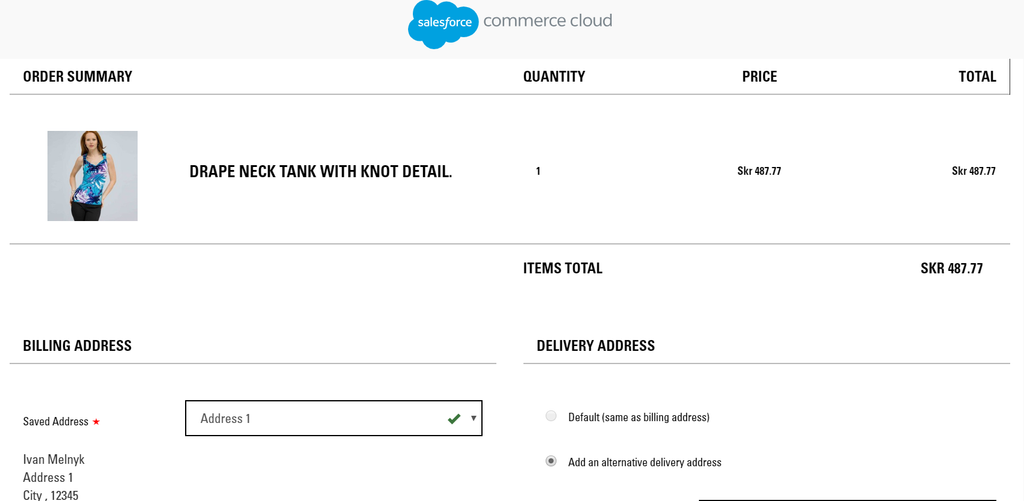
Customers will be able to select any other available and valid address from their Address Book or enter a new one.
Checkout Flow
As Global‑e checkout takes place outside of the SFCC ecosystem, orders are first created on the Global‑e side and then using a set of APIs they will get created on SFCC. This document describes the order creation flow as part of the default functionality of the Global‑e SFCC cartridge.
Global‑e checkout journey:
Send Cart API - as Global‑e checkout takes place in an iframe served from Global‑e servers, it’s necessary to send all basket information to Global‑e to have a clone of the basket in order to display it on Global‑e checkout. The response for this API will be a cartToken that holds the same cart from the Global‑e side.
Reserve inventory - Global‑e will reserve the inventory for a configurable amount of time while the customer is creating his order using basket.reserveInventory()
Show checkout - to show the checkout Global‑e cartridge is adding iframe.isml template which is the container page that renders the Global‑e checkout iframe using the cartToken we received from SendCart API.
Validate Cart - validate cart functionality checks if products exist and if all products in the payload have the quantity that is available (see custom hook handler cartridges\int_globale\cartridge\scripts\globale\hooks\onGlobaleValidateCart.js). If there is no inventory for that product, the customer will see a popup on checkout indicating an issue with the order and will be redirected back to the cart page after clicking OK on the pop-up. No order will be created on SFCC or Global-e side.
Order creation - after the checkout is completed and the order was created on the Global‑e platform, it’s necessary to create it on the SFCC side as well, due to the API limitations, it’s only possible to convert a basket to an order with its inventory reservation when we’re bounded to the original session. To do that, the Global‑e iframe will send a post message to the container page and then using an ajax request, orderCreate() API from the Global‑e cartridge will get called to create the order. Order creation can fail for a few reasons such as session expiry, stock issues or basket changes. In case the order will fail due to one of those, a retry mechanism on Global‑e servers will try to re-create the basket and convert it to an order based on the stored basket information.
Send Order To Merchant API - newly created orders status will be “Created” and will only contain a piece of bare information about the transaction. A few moments after, the Global‑e service will send an API call to SFCC to update all the international transaction information onto the order.
PerformPayment API - once payment passed all the fraud checks, payment notification will be sent to SFCC, the order status will change to “New”, the Payment status will change to “Paid” and the Export status will change to “Ready for export “.
Stock Validation
The out-of-box functionality for stock validation on the Global-e side is to do a check against the inventory stored in SFCC.
This is done when a user clicks the Place Order button on checkout. The code however can be customized to include third-party product availability checks.
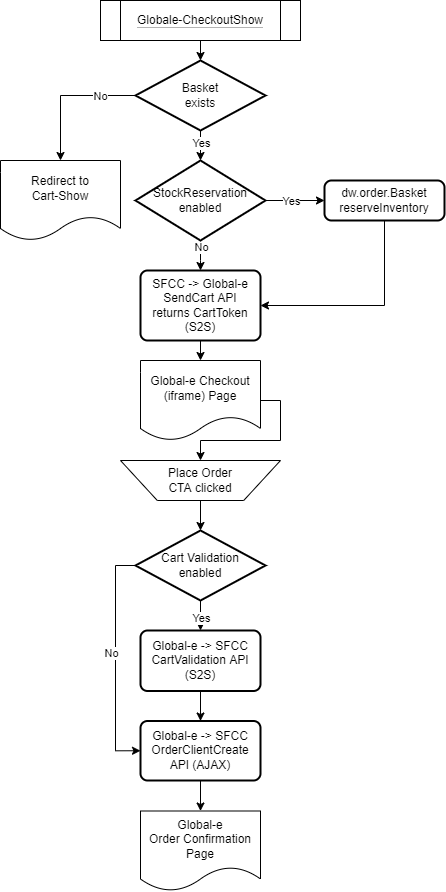
Once global-e checkout is initiated, we check if stock reservation site preference is enabled. The main use of this is to reserve the basket inventory for the designated time in Global‑e checkout. This feature is optional for our merchants.
There are site preferences that handle the stock reservation functionality
Enable Stock Reservation - Reserve basket inventory before Send Cart request.
Stock reservation Time - The amount of time in minutes for stock to be reserved in Global‑e checkout, default is 30 minutes.
After that, we send basket data to Global‑e using the Send Cart API and the Global-e checkout is loaded. When the “Place order” CTA is clicked, the ValidateCart endpoint is called. We have settings on the Global‑e side that enable this feature, if enabled the code linked with this endpoint is called. Validate cart functionality checks if products exist and if all products in the payload have the quantity that is available (see file stockValidation.js).
If there is no inventory for that product, the customer will see a pop-up on checkout indicating an issue with the order and will be redirected back to the cart page after clicking OK on the pop-up. No order will be created on SFCC or Global‑e side.
When cart validation functionality is disabled, the user will see the confirmation page, but the SFCC order will not be created due to an inventory issue and SFCC logs will indicate the product does not have inventory. Order will be created on the Global-e side but it will be marked as failed.
When the inventory check is successful order will get created in SFCC with the status ‘CREATED’ and on the Global-e side as well.
Third-party Inventory Calls
To integrate third party API calls in Global-e code please check the custom hook handler cartridges\int_globale\cartridge\scripts\globale\hooks\onGlobaleValidateCart.js.
Test The Global‑e Checkout
If you want to pass a fraud check automatically while you testing the Global‑e Checkout (on SFCC Sandbox, Development, Staging), use a special phone number (for security reasons we are not putting it here, Global‑e Account/Project Manager or QA to provide) in the Billing Address form. You can also use test Credit/Debit Cards (for security reasons we are not putting it here, Global‑e Account/Project Manager or QA to provide).
Please always try to use valid and real addresses in Billing/Shipping address forms.