Global‑e Country Switcher
Standard Country Switcher
If you want to use the Standard Global‑e Country Switcher (enabled by default) - you don't have to do anything on your platform, it is already available in our cartridge.
You need only to provide the requirements and design of your Country Switcher to your Global‑e Project/Account manager and it will be configured on the Global‑e side only.
Once the predefined event (by default defined in int_globale_{architecture}/cartridge/client/default/js/geScriptLoader.js) is triggered on your storefront - Global‑e Client JS SDK will show the Country Switcher pop-up.
Once the customer has selected Country/Currency and clicked on the Save/Submit button - the Country Switcher pop-up will be closed and the page will be refreshed staying on the same URL or redirecting to the predefined Site URL to the selected Country (if it's configured so).
You can change the look & feel of the Standard Global‑e Country Switcher by providing your design (HTML CSS and JS) to your Global‑e Account/Project Manager.
The global-e country switcher is very flexible and can be adapted according to your needs.
Global‑e cartridges allow:
Display Global‑e country switcher on operated and non-operated by Globale SFCC sites. On the non-operated SFCC sites is possible to display the Global‑e country switcher just by adding
‘int_globale_sfra_popups'/ int_globale_sitegenesis_popups’that contains a simple version of Global‑e integration and is used only for displaying the country switcher.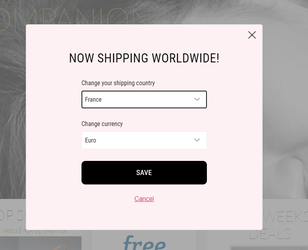
Redirect to the same page in the scope of one site or across different SFCC sites. In the current context 'redirect' means in case of the changing country/language/currency. The redirect works properly only if at the end of the site’s path is existed action/page location (for example homepage, cartpage, etc.)
Define allowed/disallowed countries for the site. Global‑e country switcher allows defining allowed/disallowed countries for the site. For disallowed countries, the pop-up will be displayed in blocking mode without 'close' buttons.
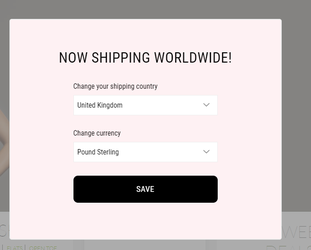
Define allowed/disallowed countries for the locale. Global‑e country switcher allows defining allowed/disallowed countries for the locale. For disallowed countries, the popup will be displayed in blocking mode without 'close' buttons.
Define only one allowed country for the locale. Makes sense to use only if each country has its own locale.
Preselect the default country on the site regardless of the customer's country. Makes sense to use only for a site where is allowed one country.
Use different domains across SFCC sites and set the correct country during redirection.
Use language selector for countries. Global-e country switcher allows using multiple languages in the scope of one country.
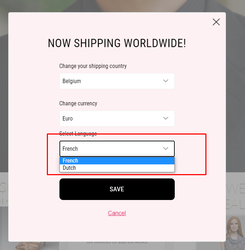
Set the right language of the welcome pop-up depending on the selected language in the selector.
Installation of Global‑e country switcher on non-operated by Globale SFCC sites
The installation of the Global‑e Salesforce B2C Commerce cartridge(s) is as simple as uploading Global‑e cartridges, adding them to the cartridge path of the Site, importing metadata, setting the configuration in Organization and Site Preferences, and running GlobaleSettings Job.
Upload Global-e Core cartridge int_globale and the extension cartridge, according to the architecture you are using on your storefront (int_globale_sfra_popups for SFRA or int_globale_sitegenesis_popups for SiteGenesis), to your Salesforce B2C Commerce Digital with using either the following npm command in terminal: for SiteGenesis extension cartridge only (which will upload int_globale and int_globale_sitegenesis_popups cartridges)
For SFRA extension cartridge (which will upload
int_globale and int_globale_sfra_popupscartridges):npm run uploadCartidge:sitegenesis:popups
When using your Studio (eclipse):
npm run uploadCartridge:sfra:popups
Note: Before you upload the cartridges to your Salesforce B2C Commerce Digital you might need to build your CSS and JS files.
Add Cartridges
Administration > Sites > Manage Sites > (Your Site) > [Settings Tab]
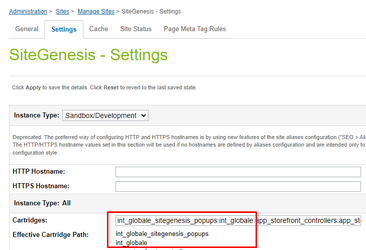
Please add Global‑e cartridges as shown in the following screenshots.
SiteGenesis Pipelines or Controllers. Please add two Global‑e cartridges before your brand cartridges (from left to right) - int_globale_sitegenesis_popups and int_globale, as shown on the screenshot:
 |
SFRA. Please add two Global‑e cartridges before app_storefront_base cartridge and after your brand cartridges (from left to right) - int_globale_sfra_popups and int_globale, as shown on the screenshot:
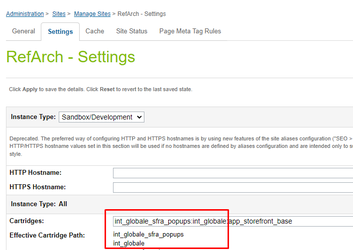 |
Metadata
The details of import metadata are described in the Global‑e integration guide document.
Configuration Details
Required Configuration Settings
To activate the Global‑e country switcher on the site, the following settings must be configured on the SFCC and Global-e sides.
Required Site preferences (Marchant Tools > Site Preferences > GLOBALE) that should be configured:
Global‑e Enabled - should be enabled!
Global‑e API URL
Client JS Merchant ID
Merchant GUID
All mandatory preferences that are not used but needed for saving changes.
Shipping switcher Configuration: This configuration is added on the Global-e side.
Make sure to send Global-e your requirements regarding the behavior/view of the country switcher.
Once the configuration settings above are ready, run the job 'GlobaleSettings'.
Note
The default implementation of the Global-e country switcher works out of the box with Global-e cartridges.
The selected country is determined and set in the SFCC backend as well as in the int_globale_{architecture}/cartridge/client/default/js/geScriptLoader.js file. The file includes a logic/function that displays the Global-e country switcher one time, if your geolocation country exists in the country list and is not equal to the selected country (then you can switch to geolocation country).
Configuration Examples
Language switcher: Custom/Site Custom Object attribute 'Languages Switcher Configuration'
Example 1: 2 Languages for 1 country. In the current case for Switzerland(CH) are assigned 2 languages(German, French).
{

"SITE_ID": {

"enabled": true,

"countriesConfig": {

"CH": [

"de_CH",

"fr_CH",

"it_CH"

]

},

"languagesConfig": {

"de_CH": {

"culture": "de",

"label": "German"

},

"fr_CH": {

"culture": "fr",

"label": "French"

}

}

}

}
Example 2: Default configuration for the site, used as a fallback if the configuration for the site does not exist
{

"SITE_ID": {

"enabled": true,

"countriesConfig": {

"CH": [

"de_CH",

"fr_CH",

"it_CH"

]

},

"languagesConfig": {

"de_CH": {

"culture": "de",

"label": "German"

},

"fr_CH": {

"culture": "fr",

"label": "French"

}

}

},

"defaultSiteConfig": {

"enabled": true,

"countriesConfig": {

"CH": [

"de_CH",

"fr_CH",

"it_CH"

]

},

"languagesConfig": {

"de_CH": {

"culture": "de",

"label": "German"

},

"fr_CH": {

"culture": "fr",

"label": "French"

}

}

}

}
Country switcher: System/Organization preference ‘Global‑e Shipping Switcher Configuration'
Example 1: Redirect to the same page in the scope of one site.
{"SITE_ID": {"redirectToSamePage": true}}Example 2: Redirect to the same page across different SFCC sites.
{"SITE_ID": {"redirectToSamePageAcrossSites": true}}Example 3: Define allowed/disallowed countries for the site. For site is allowed only one country 'US'
{

"SITE_ID": {

"blockingMode": {

"siteRules": {

"allow": "US"

}

}

}

}
For site is disallowed only one country 'US, all other are allowed
{

"SITE_ID": {

"blockingMode": {

"siteRules": {

"disallow": "US"

}

}

}

}
Note
If the preference does not include configuration for "allow/disallow" countries then all countries are allowed from the countries list. You should not configure both "allow" and "disallow" properties for one site. It should be configured to only "allow" or "disallow". If one site were configured both("allow" and "disallow") then it will be taken only configuration for "allow" countries and skipped for "disallow".
Example 4: Define allowed/disallowed countries for the locale. For locale 'en_GB' is allowed only one country 'UK'
{

"SITE_ID": {

"blockingMode": {

"localeRules": {

"en_GB": {

"allow": "UK"

}

}

}

}

}
For locale 'en_GB' is disallowed only one country UA, all others are allowed.
{

"SITE_ID": {

"blockingMode": {

"localeRules": {

"en_GB": {

"disallow": "UA"

}

}

}

}

}
Example 5: Define allowed/disallowed countries for the locale. Stick to locale. This configuration should be used only if each country has its own locale…and in this case for locale will be allowed the country that is configured on SFCC locale’s level.
{

"SITE_ID": {

"blockingMode": {

"localeRules": {

"stickToLocale": true

}

}

}

}
Example 6: Preselect the default country on the site regardless of the customer's country. According to the current configuration always(by default or if the customer changes the country in the scope of the same site) will be select 'US' country,
{

"SITE_ID": {

"defaultCountryCode": "US"

}

}
Example 7: Use different domains across SFCC sites and set the correct country during redirection. This setting allows fixing the issue when the Global‑e country switcher is used on a few SFCC sites with different domains. Implementation details: during redirect are added additional GET parameters(glCountry/glCurrency) and these parameters are removed from URL when a redirect is finished.
{

"SITE_ID": {

"addGeParametersToUrl": true

}

}
Custom Country Switcher
If you think that the functionality of Standard Global‑e Country Switcher is not enough for your needs you can always design and implement your own.
Normally you will need to render the list of Countries and Currencies in your custom Country Switcher and when the customer selects Country/Currency - the Country Switcher will save the selected Country/Currency into Global‑e Cookie and refresh the page or redirect to the Site URL configured to the selected Country (according to your logic).
In case using your custom country switcher is needed to update the ‘GlobalE_Data’ cookie and run GE init. It can be done in a few ways:
The easiest way is to add get parameters ‘glCountry’ and ‘glCurrency’ with value to the URL of the endpoint which changes the countries. * @param {string} glCountry – Selected Country Code * @param {string} glCurrency’ – Selected Currency Code
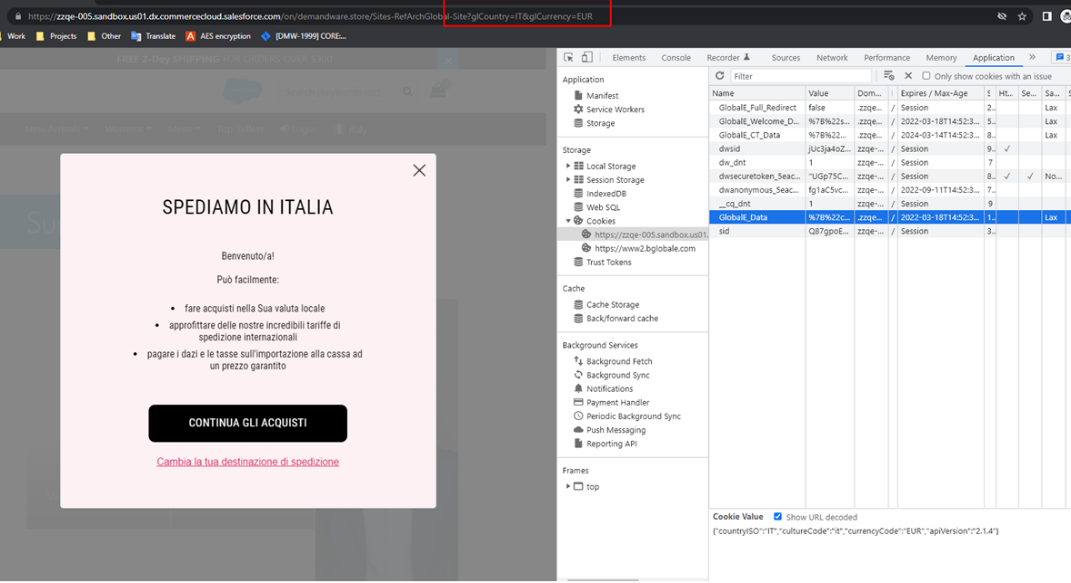 OR
OR In case the country is changed in the endpoint which handles the switching of the country please add 1 row of the endpoint which handles the switching/redirect to the new country:
* @param {string} countryCode - Country Code (require('*/cartridge/scripts/globale/globaleInit'))(countryCode);
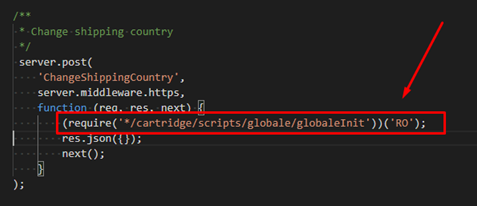 |
Country list
The list of all available Countries for the Merchant can be obtained from GLOBALE_COUNTRIES Custom Object. Each Global‑e Country:
is an instance of Country configured on the Global‑e side, and stored into GLOBALE_COUNTRIES Custom Object by running scheduled GlobaleSettings Job
has Name ("name" {string} custom attribute of Custom Object)
has ISO2 Country Code ("code" {string} custom attribute of Custom Object)
can be operated/non-operated by Global‑e ("isOperatedByGlobalE" {boolean} custom attribute of Custom Object)
has default ISO3 Currency Code ("defaultCurrencyCode" {string} custom attribute of Custom Object)
can have a Site URL, where the customer should be redirected to if the customer selects this country ("siteUrl" {string|null} custom attribute of Custom Object)
Country Site redirect URL
The Site URL on the Global-e side for each operated or non-operated country (present in the Country Switcher) can be empty, set as a string (static URL), or set as a special format, which should be used on the SFCC side for generating the real static URL.
If empty (or not set) - the customer will not be redirected to any custom Site URL, the page will be just refreshed and the customer will stay on the same page with the same URL parameters.
If set as a string (static URL) - it should contain http(s):// or www. in it, so the script in the int_globale cartridge will properly identify it. In this case, the customer will be redirected to the URL specified for this country.
If set in the special format action
|SiteID|locale[|hostName|[URLParameters]]- the end Site URL should be first generated by Salesforce B2C Commerce Digital (by default in int_globale cartridge), returned to front-end and then used as the final Site redirect URL.
Here are the parameters of the special Site URL format:
action : Standard SFCC action (i.e. "Home-Show")
SiteID (optional) : Standard SFCC SIte ID (i.e. "SiteGenesis"). If present, will be used to replace the Site ID in the URL.
locale : Standard SFCC request locale (i.e. "en_US")
hostName (optional): The host, which is different from the main host of the current storefront. It must be defined properly in SFCC BM for any available Site, otherwise, it won't work. If present, it will be used to replace the current storefront host in the URL.
URLParameters (optional) : Any additional URL parameters denoted by vertical line ("|") which should be passed to the end Site URL, in format parameter1=value1|parameter2=value2|...|parameterN=valueN. If present - will be added as additional URL parameters to the final Site redirect URL.
For example, the following Site URL (configured on the Global‑e side for selected Country) "Home-Show|RefArch|en_US|demo.merchant.com|source=12345678" will be parsed and generated to the "https://demo.merchant.com/s/SiteGenesis/home?source=12345678" final Site redirect URL.
Currency list
The list of all currencies supported by Global‑e can be obtained from GLOBALE_CURRENCIES Custom Object. Each Global‑e Currency:
Is an instance of Currency configured on the Global‑e side, and stored into GLOBALE_CURRENCIES Custom Object by running the scheduled GlobaleSettings Job.
Has Name ("name" {string} custom attribute of Custom Object).
Has ISO3 Currency Code ("code" {string} custom attribute of Custom Object).
Has Currency Symbol ("symbol" {string} custom attribute of Custom Object).
Has Max Decimal Places ("maxDecimalPlaces" {int} custom attribute of Custom Object).
Apply and Update
Once the Country and/or Currency is selected in your custom Country Switcher, you must save it properly to a Global-e Cookie.
Use the snippet below to save the selected Country/Currency to a Global-e Cookie and reload the page:
GlobalE.UpdateCustomerInfo(countryISO2, currencyISO3, redirect);
Find more information and samples here.
Note
The Global-e Checkout is used only for Global-e-operated Countries. For all non-operated by Global-e Countries, the domestic Checkout is shown