Google Pay Express
Introduction
Google Pay Express streamlines the checkout process, allowing shoppers to complete their purchases quickly and securely.
How it Works
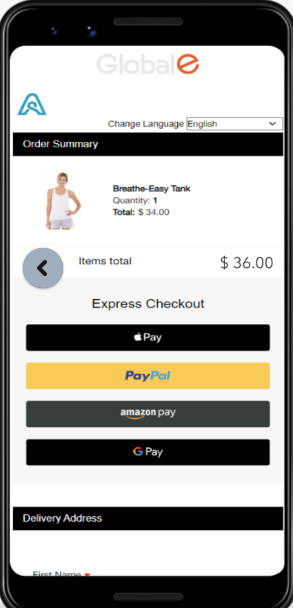
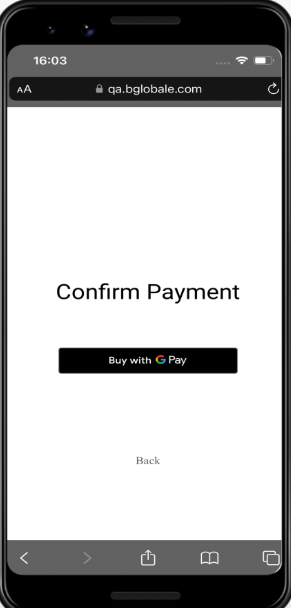
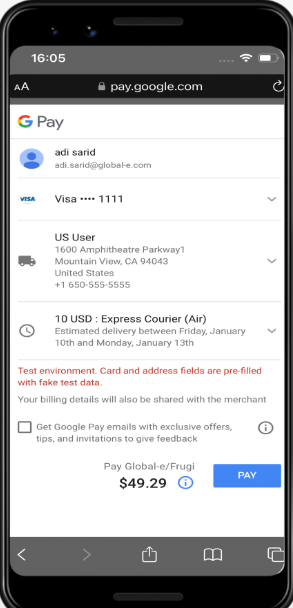
When shoppers click the Google Pay Express button on the checkout page, they are redirected to the Google Pay wallet widget. Here, they can confirm their billing and shipping addresses, and contact details, and view the total amount, including shipping and taxes.
In the case of Optional DDP, the customer pays D&T on checkout.
The Customer Journey
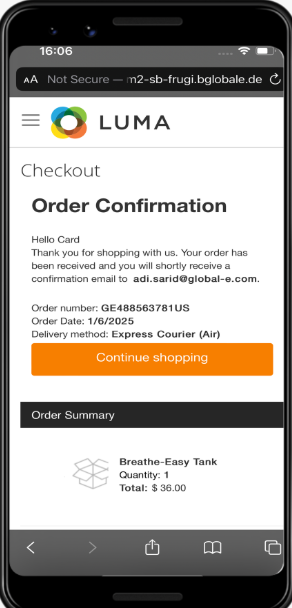
Follow the steps below to pay with Google Pay Express.
1. Select Google Pay from Checkout page. | 2. Confirm Google Pay. | 3. Enter/Select your payment method and shipping address. | 4. And that’s it! Your order is confirmed. | ||||
|
|
|
|
Supported Regions
Google Pay Express is only available in countries with languages with Latin characters:
|
|
|
Limitations
Note the following limitations:
Shipping Options: "Pick from store"/ “Store Collection” is not supported.
Additional Requirements: If additional consent or ID information is required on the checkout page, Google Pay Express will not be available as this data cannot be collected from the wallet widget.
Test Payments with Google Pay
To test payments using Google Pay see Test card suite | Google Pay API forAndroid | Google for Developers.
Login to your email account (does not have to be Gmail).
Click to join the group.
Simulate a payment with Google Pay:
Go to your online store.
Fill your cart.
Go to the Checkout page.
Select Google Pay.
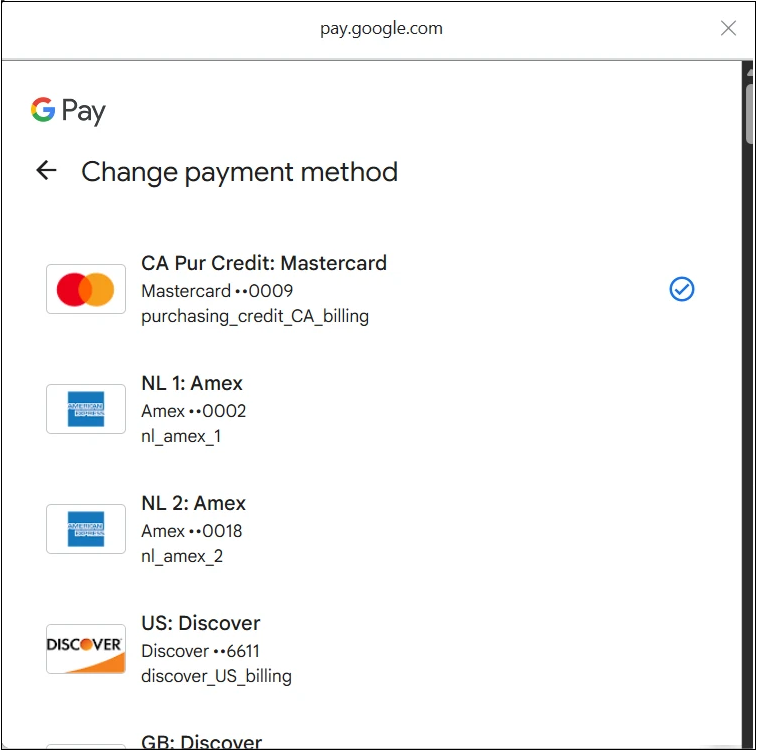
Select the test credit card type and simulate transactions:
Note
To simulate 3DS flow, use American Express and Discover cards.