

- Understand how eligibility appears to customers in the New Return Portal.
- Configure eligibility conditions in the admin dashboard using return policy rules.
- Set up Tracking Fallback settings to prevent missing delivery dates from affecting eligibility logic.
- Test your setup safely using Preview Mode (no RMAs created).
- Access to the Admin Dashboard
- Permissions to edit Settings (including Return Policy and Store Settings)
If you can’t see these menus, confirm your role/permissions with your team.
- List all scenarios you want to allow or deny, such as “Final sale items not eligible” or “Eligible for 30 days from delivery”.
-
Decide which eligibility level each scenario belongs to:
- Order-level (such as order creation/delivery date, order tags, payment type)
- Customer-level (such as location, customer type, customer tags)
- Item-level (such as item tags, price paid, discount code, vendor)
- RMA-level (such as total value or weight of items selected in the return)
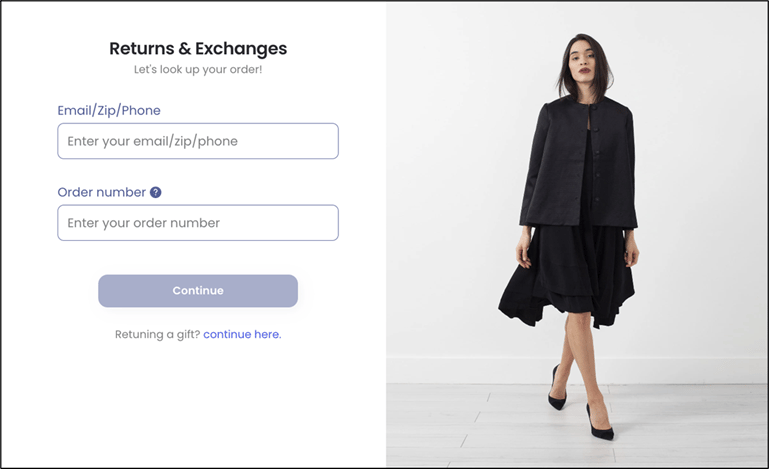
To view eligibility in the New Return Portal
- Access the New Return Portal.
-
Enter the customer’s order ID and the required identifier (email, ZIP, or phone number).
-
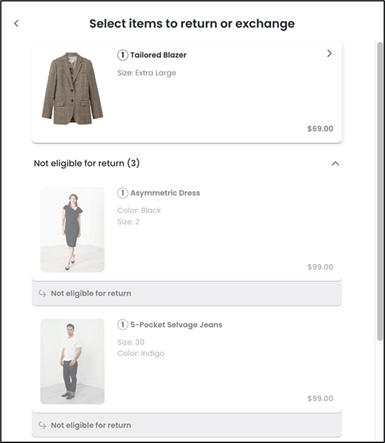
Load the order and review the item list:
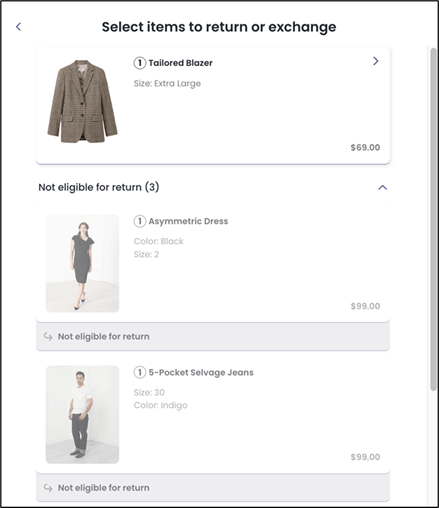
- Eligible items are selectable.
- Ineligible items are shown as not eligible and cannot be selected.
To access the return policy rules region on the Admin Dashboard
- Navigate to Settings > Return Policy.
- Locate a policy rule.
To create a new rule
- Navigate to Settings > Return Policy.
- Click ADD RULE.
- On the Details page, configure the rule basics.
- For example, you can configure rule name, resolution, return method. Note that fields may vary by account.
- At the bottom of the page, click Eligibility.
To edit an existing rule
- Navigate to Settings > Return Policy.
- (Optional) Click EXPAND ALL to find the rule quickly.
- Click the pencil icon to the far right correspond to the policy rule you want to edit.
- Click Eligibility.
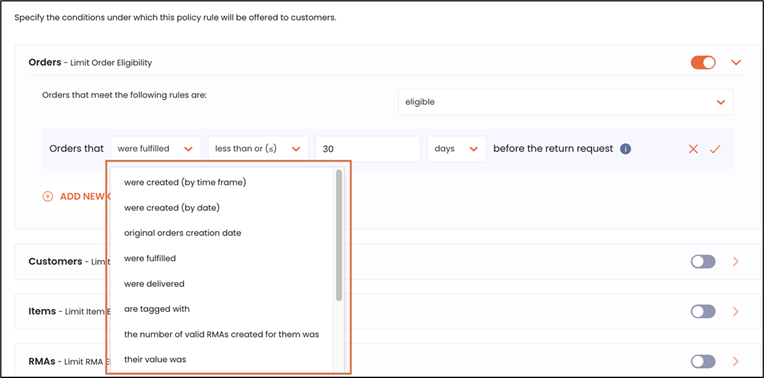
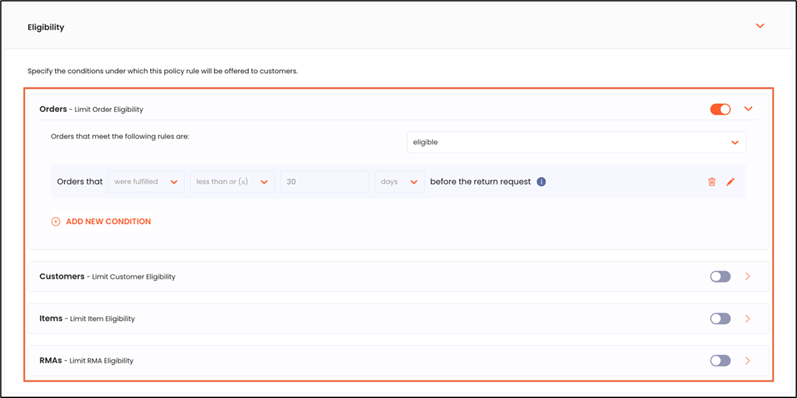
- Eligibility based on order creation time frame
- Eligibility based on order creation date
- Eligibility based on original order creation date (days or months)
- Eligibility based on order fulfillment date (if fulfillment date is missing, the fallback is order creation date)
- Eligibility based on order delivery date (if delivery date is missing, the fallback depends on Tracking Fallback settings)
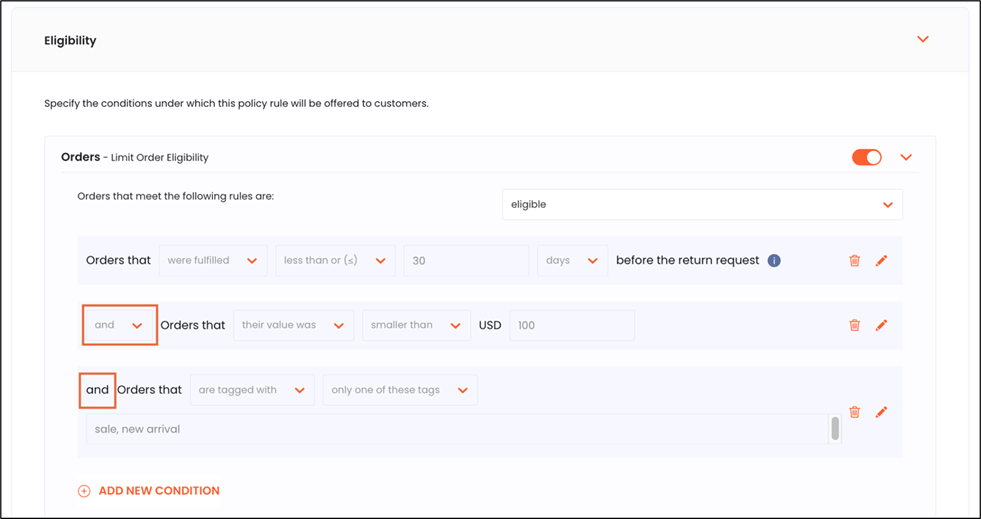
- Eligibility based on order custom attributes (all/some/none; comma-separated; not case sensitive)
- Eligibility based on the number of RMAs created (for the order)
- Eligibility based on order value
- Eligibility based on payment type (including whether paid with gift cards: only/partially/without)
- Eligibility based on included items
- Eligibility based on custom attribute
- Eligibility based on purchase source or sales channel
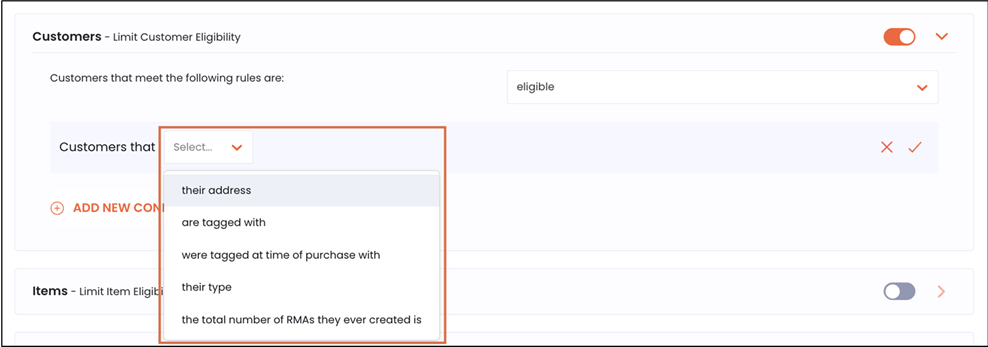
- Eligibility based on the customer’s location (uses OR logic across selected locations)
- Eligibility based on customer attribute (current attributes)
- Eligibility based on customer type (Registered/Guest)
- Eligibility based on the number of RMAs created by the customer
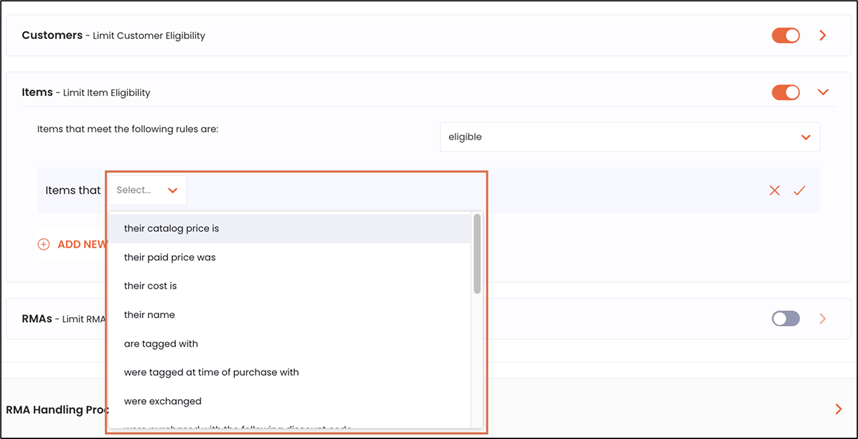
- Catalog price, paid price, cost
- Item name (contains/is and opposites; comma-separated; not case sensitive)
- Item attributes
- Number of exchanges
- Discount codes (contains/is and opposites)
- Discount value (amount/percentage/comparative price percentage)
- Total compare-at price and discount % (discount codes not included)
- Return reason (limit offered resolutions based on the selected reason)
- Item weight, vendor, collection ID, custom attribute (key/value)
- Item fulfillment
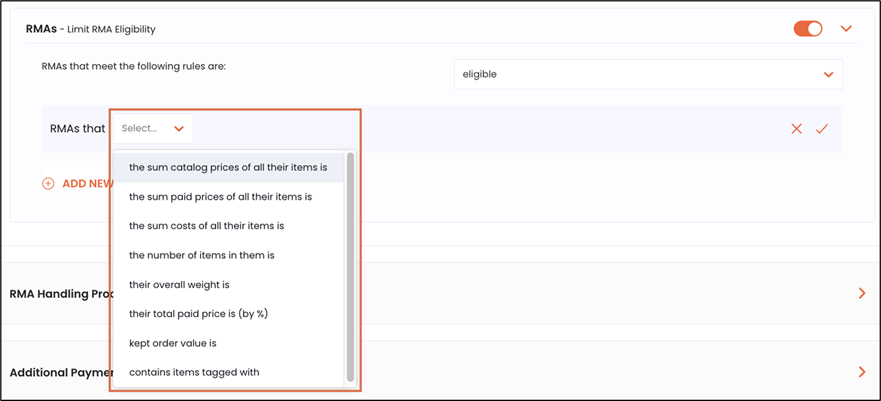
- Percentage of the order value
- Total listed price, total paid price, total cost
- Number of items being returned (raw item count)
- Overall weight
- Percentage of the order value
- Kept order value
To activate and save policy rules
- Enable Activate Policy Rule.
- Click the save icon located in the top right corner of the page.
Saved changes will not affect the New Return Portal unless the rule is activated.
To configure tracking fallback
- Navigate to Settings > General.
- Expand the Tracking Fallback section.
-
Set When to refer to orders to Delivered.
Used when checking eligibility conditions, such as Orders that were delivered…, with a missing delivery date.
-
Set When to refer to in-transit return shipments as Delivered.
This is used for automations triggered by a return shipment’s status.
- Click the save icon in the top right corner of the page.
To run step-by-step verification
-
Test safely using Preview Mode:
- Navigate to the Admin Dashboard Home page.
-
Click PREVIEW MODE.
A new tab opens with the New Return Portal and a Preview Mode label (top right-hand corner of the page).

-
Enter a real order ID and test different scenarios (eligible vs not eligible items).
Preview Mode lets you test without creating RMAs or sending notifications.
-
Confirm the customer-facing behavior in the New Return Portal:
- Verify that eligible items are selectable, and ineligible items are marked not eligible.
-
Confirm the specific scenario you configured (such as date window, tags, reason, etc.) behaves as expected.
-
Do one of the following:
- If you created a real RMA - in the Admin Dashboard, verify your eligibility settings.
-
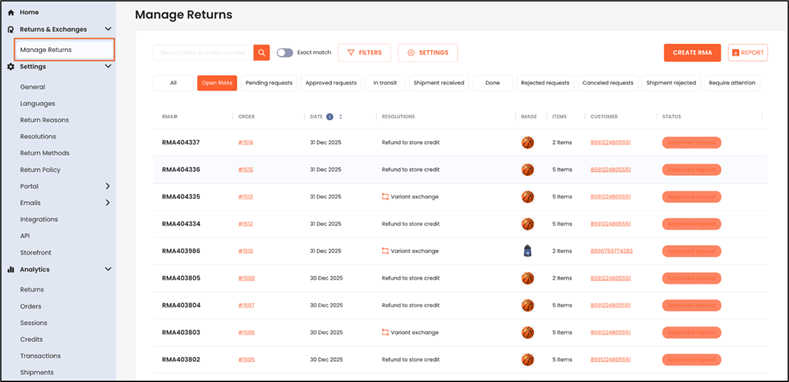
If you tested outside of Preview Mode and submitted a real return - navigate to Manage Returns and open the RMA to review what was returned and the results.
Frequently Asked Questions
This section includes some frequently asked questions and their answers.