Accessing Your Policy Rules
Because Global-e configures automation per policy rule, you can combine manual and automatic processing across different scenarios.
To access a policy rule
In the left menu, navigate to to Settings > Return Policy.
The Settings – Return Panel is displayed.
On the right side of the screen, click Expand all.
Click the pencil icon located to the right of the policy rule you want to update.
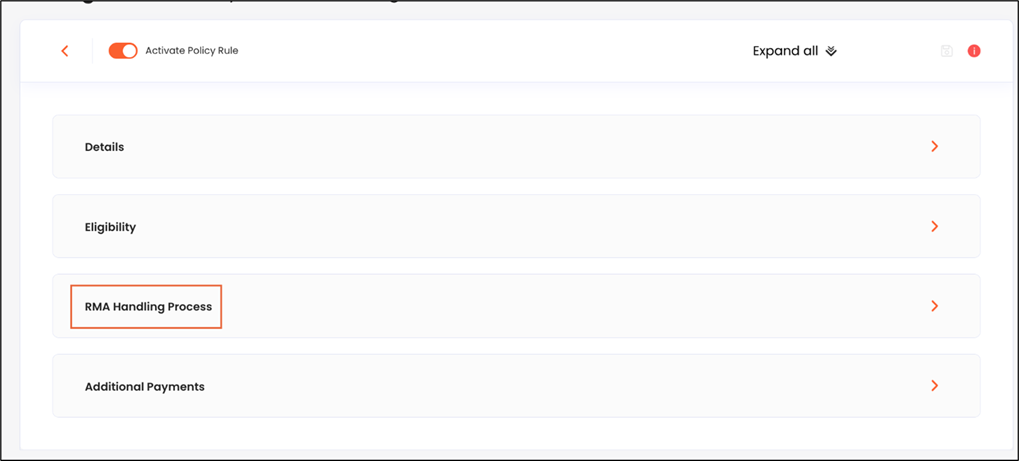
The selected policy rule’s details are displayed.
Expand the RMA Handling Process section.
Do one or more of the following:
Configure Auto-Approval
Configure Auto-Refund
Set Auto-Mark as Done
Set Mark as Done after Partial Validation
Enable item validation
Validate items
Verify and monitor your automation results