Country Switcher Pop-up
For added convenience, Global‑e offers the option to customize the appearance and content of the Country Switcher, aligning it with your brand identity and design.
From here you can view, modify, and manage elements related to your Switcher Popup screen. This page includes a text editor containing some default template text to display as your site’s popup message. It also includes a Preview panel located to the right of the text editor.
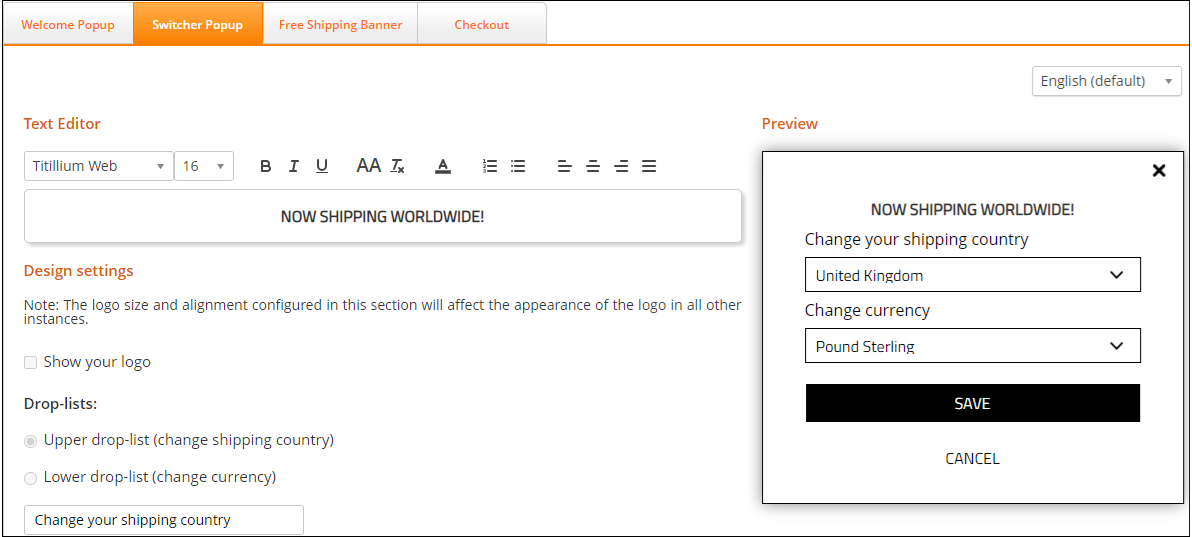
Follow steps 1 and 2 in Accessing the Customisation Page.
Click Switcher Popup.
Modify the following design elements as needed:
Text editor
Design settings
Click Save or Cancel.
The following figure shows the structure of the Country Switcher customisable elements.
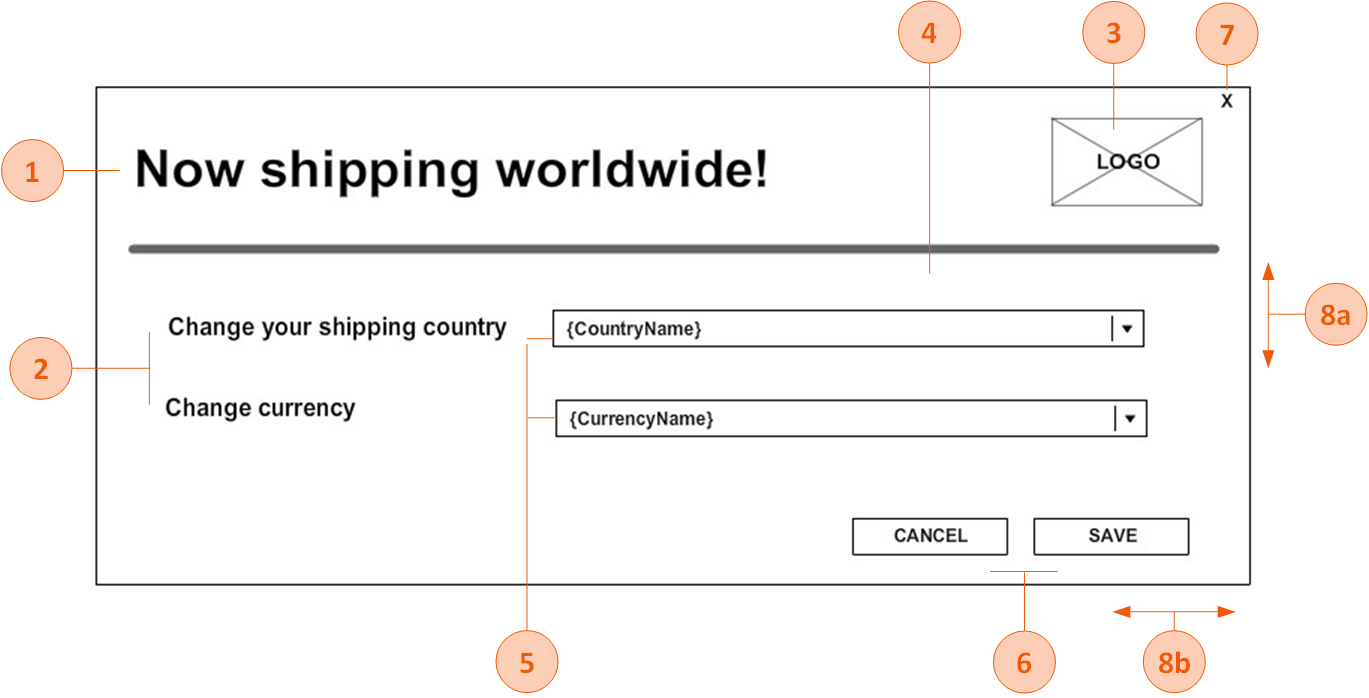
The following table lists the Country Switcher pop-up elements that can be customised.
Note
If fonts are not Google fonts, the merchant has to provide the font files in ttf /otf format.
# | Element | customisable |
|---|---|---|
1 | Title | Font style, font size, font colour |
2 | Text | Font style, font size, font colour |
3 | Logo | Image |
4 | Background | Background colour, background image |
5 | Drop-downs | Font style, font size, font colour, arrow style, background colour, location (next to the text/below the text) |
6 | Buttons | Each button can be customised differently Font style, font size, font colour, button colour, button width, button height, button location coordinates (left, top) |
7 | X (close) button - on/off | If the X button is part of the pop-up, the image of the button can be part of the background image, and button location coordinates (left, top). |
8 | Size | 8a. Pop-up height 8b. Pop-up width |