

standardcode and mididentifier to Global-e at checkout.
From plugin 1.17.2 on WooCommerce 9.2 or later, standardcode can come straight from WooCommerce’s native GTIN, UPC, EAN, or ISBN field.
mididentifier is a product attribute that you list in the plugin. Your SKU is already sent separately, so there is no new SKU field to add.
For what each identifier is, see The three identifiers on the overview page.
Prerequisites
Which plugin version you need
mididentifier (NS-PID) is always a custom product attribute. The plugin version you need depends on where you keep standardcode (S-PID):
- If
standardcodeis in WooCommerce’s native GTIN, UPC, EAN, or ISBN field: you need Global-e WooCommerce plugin 1.17.2 or later, on WooCommerce 9.2 or later. Older WooCommerce versions don’t have the native field. Note that you’ll still need to addmididentifieras a custom attribute. - If
standardcodeis a custom attribute: you need Global-e WooCommerce plugin 1.8.0 or later. Add bothstandardcodeandmididentifieras custom attributes.

What you need to do
-
S-PID — Standardised Product Identifier (
standardcode). Use one of these:-
Native field (WooCommerce 9.2+, plugin 1.17.2+). Fill in GTIN, UPC, EAN, or ISBN. For a simple product, it’s under Product data, then Inventory. For a variable product, fill it in on each variation (Variations, then open the variation). You can also fill it in on the parent product’s Inventory tab: any variation without its own value uses the parent’s value. No plugin setting is needed for this field.
Simple product: Product data, then Inventory.
 Variable product: the field on each variation.
 Variable product: the parent’s Inventory tab, used for variations without their own value.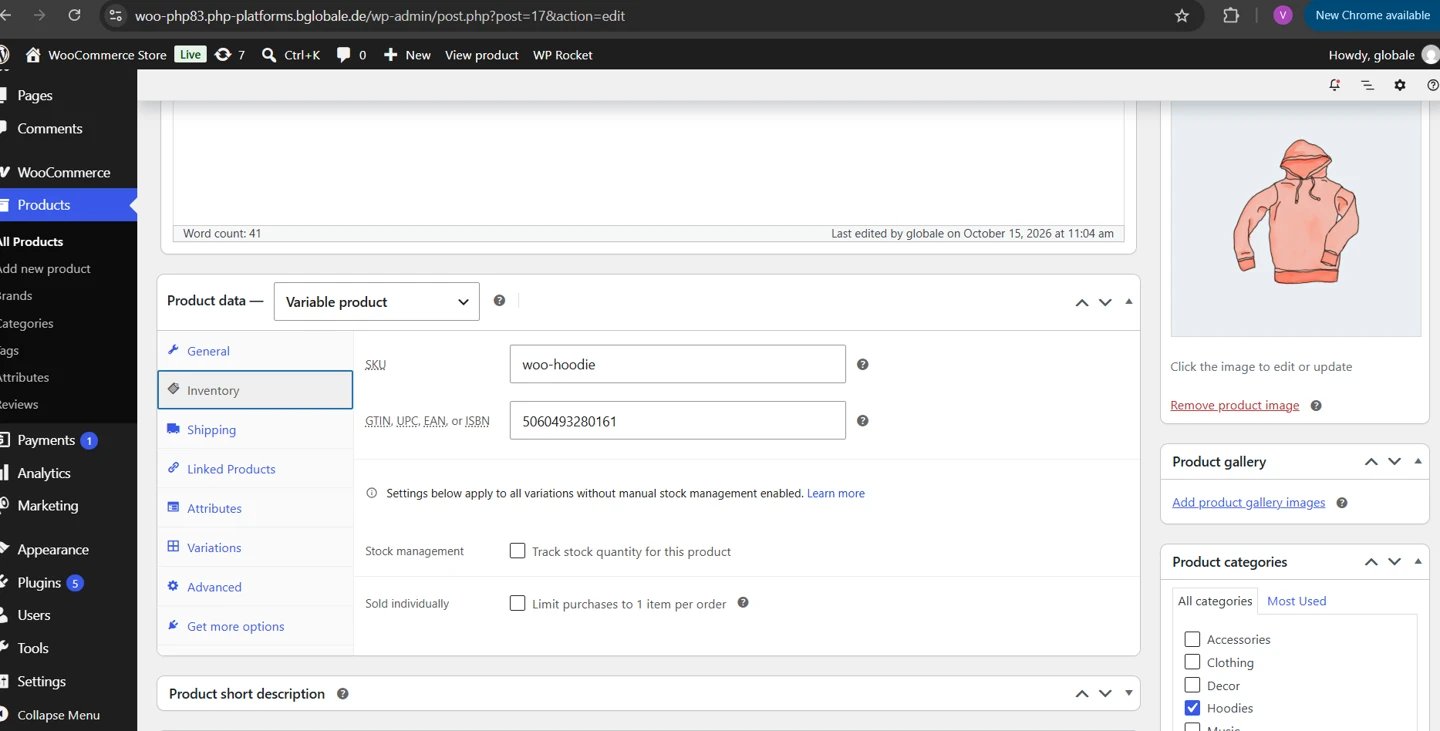
-
S-PID attribute (WooCommerce below 9.2). Navigate to Products, then Attributes, and create an attribute named exactly
standardcode. Assign values on each variation that can appear in the cart, and list it in the plugin in step 3.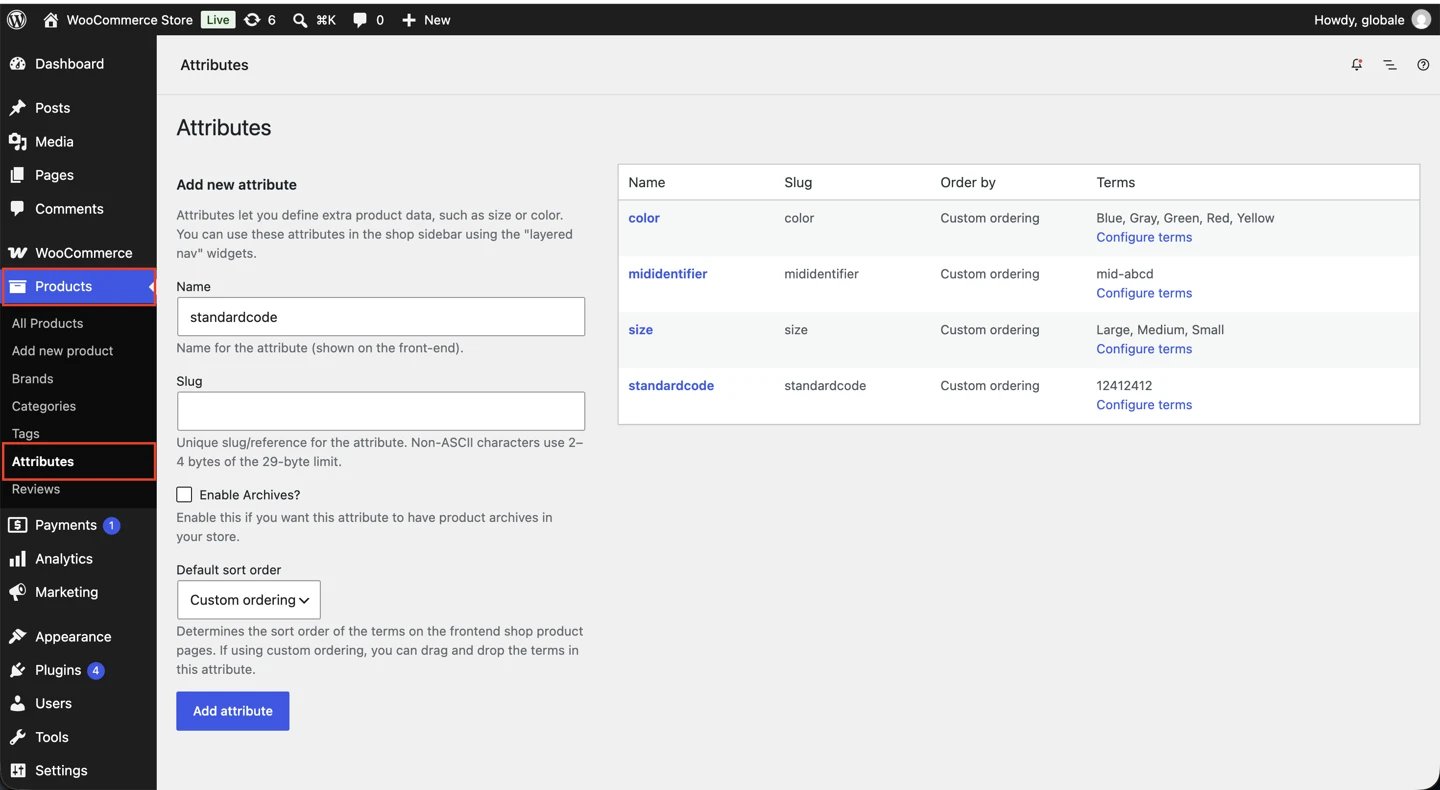
-
Native field (WooCommerce 9.2+, plugin 1.17.2+). Fill in GTIN, UPC, EAN, or ISBN. For a simple product, it’s under Product data, then Inventory. For a variable product, fill it in on each variation (Variations, then open the variation). You can also fill it in on the parent product’s Inventory tab: any variation without its own value uses the parent’s value. No plugin setting is needed for this field.
-
NS-PID — Non-Standardised Product Identifier (
mididentifier). Navigate to Products, then Attributes, and create an attribute named exactlymididentifier. Assign values on each variation that can appear in the cart.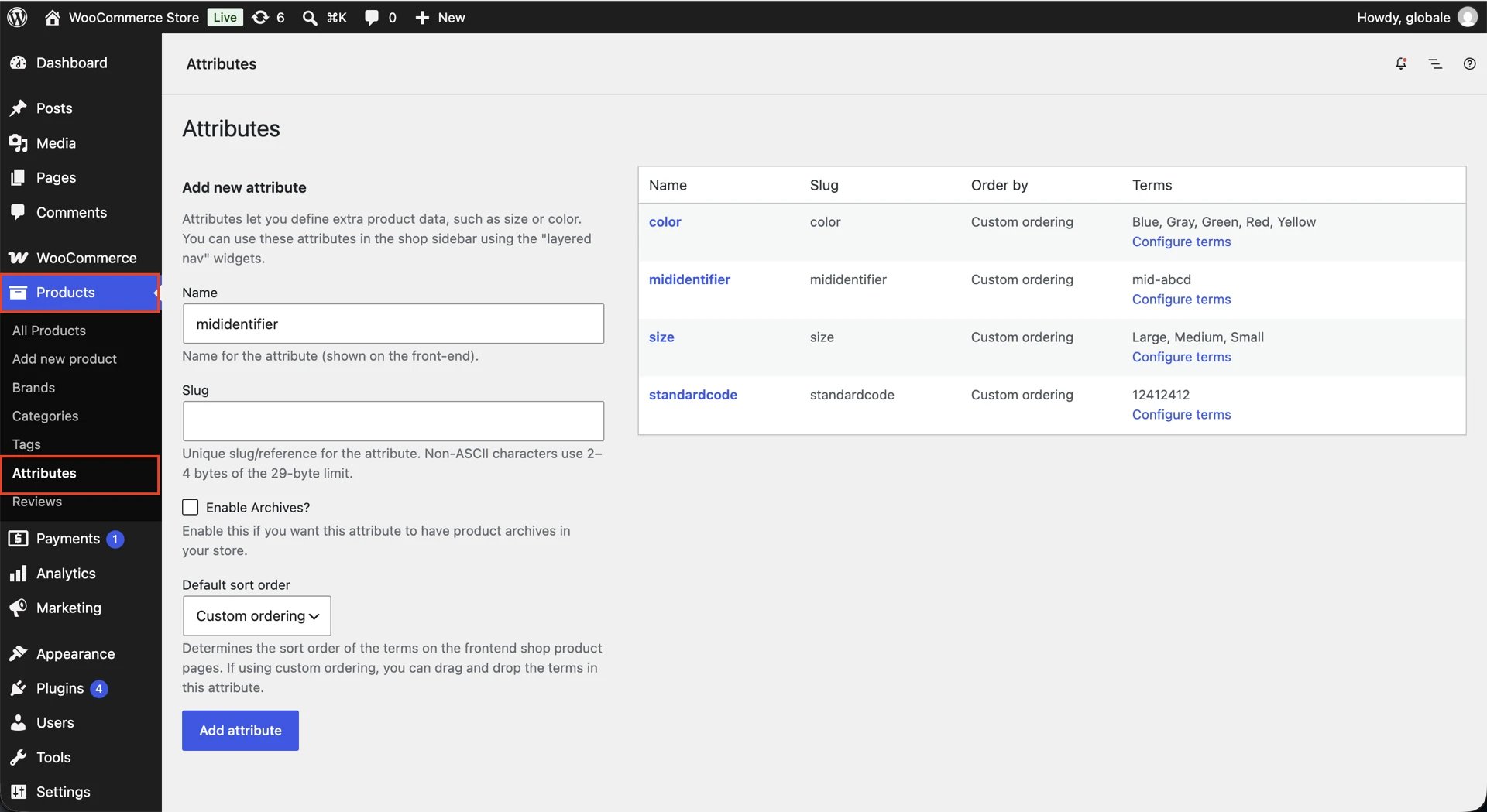
-
List the attributes in the plugin. Navigate to WooCommerce, then Settings, then Integration, and click Global-e Cross-Border Integration.
Under the Products section, in Extra Product Attributes, add
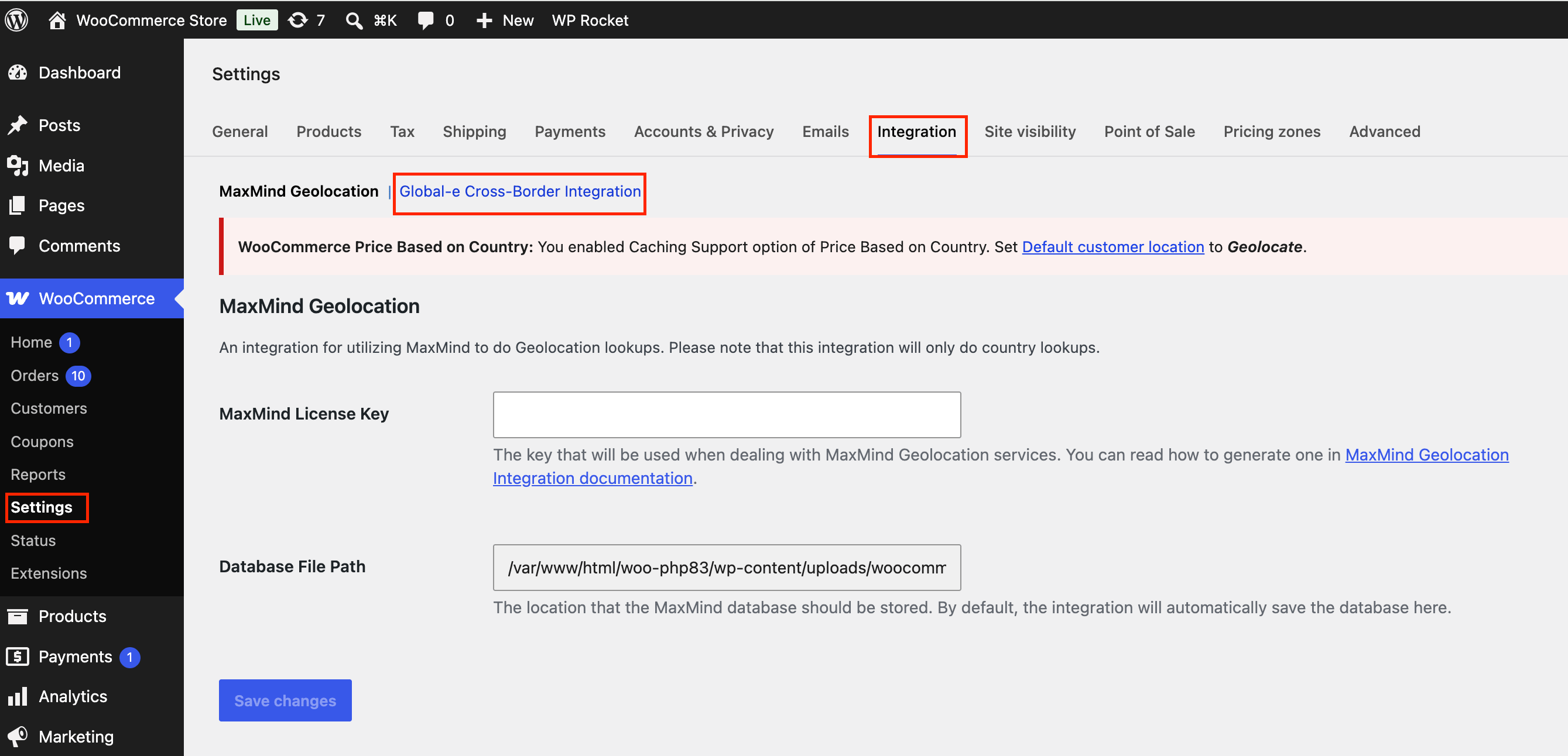
mididentifier. Addstandardcodetoo if you use the attribute for S-PID.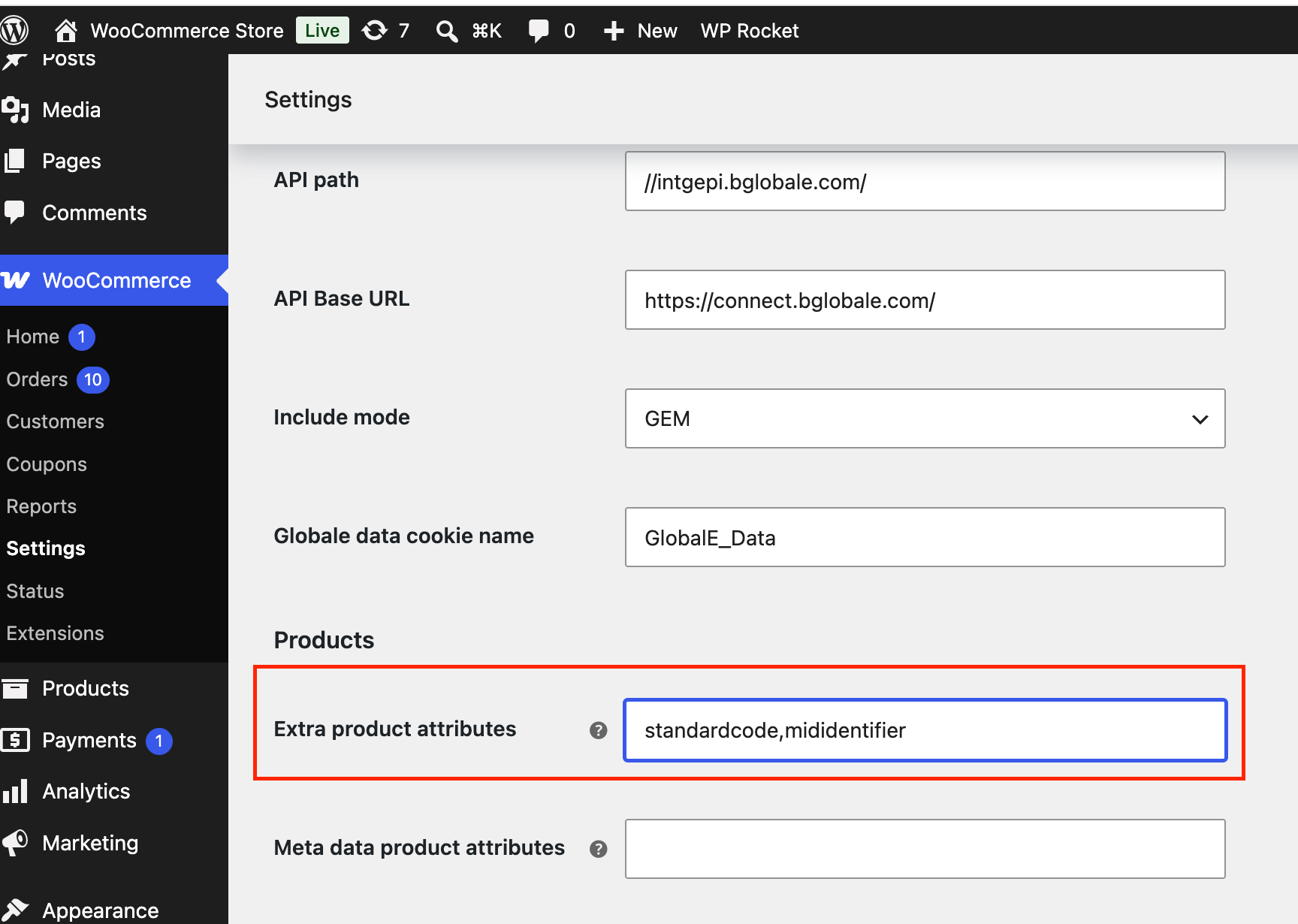
- Save the configuration, place a test order, and confirm both keys appear when values exist and are omitted when blank.
How the plugin picks standardcode
For each cart line, the plugin uses the first value it finds:- The
standardcodeattribute, when it is listed in Extra Product Attributes and has a value - The variation’s native GTIN, UPC, EAN, or ISBN field
- The parent product’s native GTIN, UPC, EAN, or ISBN field
- Otherwise the key is not sent
standardcode is ever sent per line. If you already use the standardcode attribute, it keeps taking priority after you upgrade, so nothing changes until you decide to move to the native field. On WooCommerce versions older than 9.2 there is no native field, so only the attribute is used.
Key points
- One pair of values per variation. Fill in each variation that can appear in the cart. For the native GTIN, UPC, EAN, or ISBN field, a variation without its own value uses the parent product’s value.
- The plugin sends the attributes you list. Make sure
mididentifier(andstandardcode, if you use the attribute) is listed in Extra Product Attributes. - Omit, don’t fake. Leave the value empty when you have none. Never enter NA, 0 or -.
- When values are read: at checkout, when the customer proceeds to Global-e. Updated catalog values apply on that variation’s next checkout.