Monitoring Analytics
The Analytics section in the admin dashboard lets you monitor:
Return activity and performance
Order-level return trends
Customer interactions in the Return Portal
Financial transactions related to returns
Customer gift cards, and discount codes
This guide describes how to access each analytics page and review key insights. You can also export data and download reports for further analysis.
Accessing Analytics
Navigate to Analytics from the left menu.
Select one of the following:
Returns
Orders
Sessions
Transactions
Credits
Returns Analytics
The Returns page shows return activity during the selected timeframe.
Accessing Returns Analytics
Navigate to Analytics > Returns from the left menu.
Select one of the following:
Monitoring and Analyzing RMA Status
The RMA Status tab provides a centralized analytics dashboard for monitoring and analyzing returns activity. It presents high-level KPIs such as the number and value of RMAs, returned items, time and logistics cost savings, and Portal NPS, alongside visualizations that track trends over time and distributions by policy rules and return methods. Together, these insights enable merchants to understand returns volume, financial impact, operational efficiency, and customer experience at a glance, even clearly indicating when no data is available to ensure transparency and consistency in reporting.
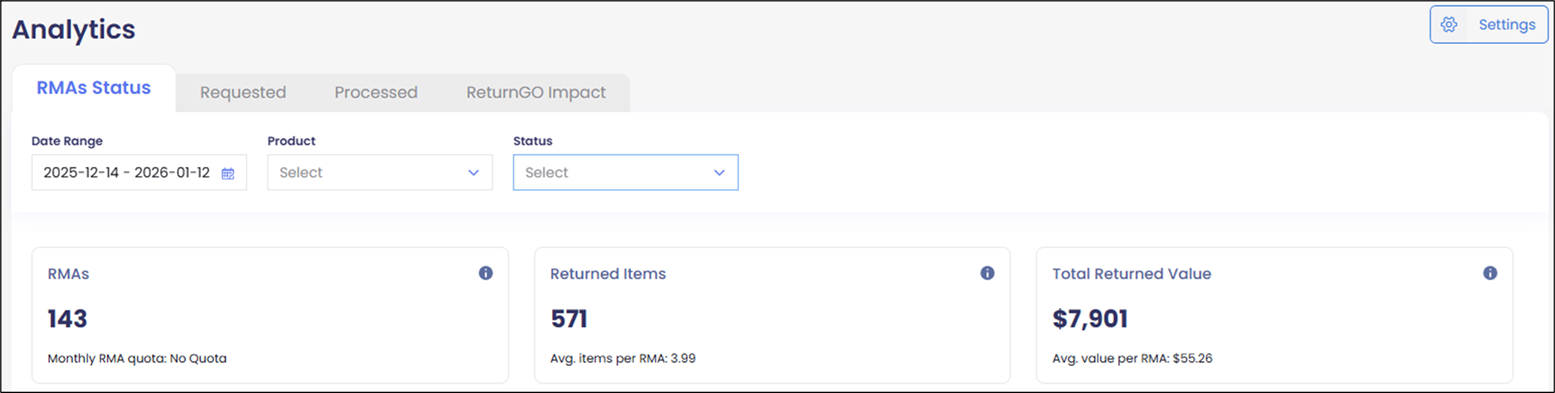
Select RMA Status.
Select a date range from the Date Range calendar.
The displayed data refreshes daily.
Select a product from the Product menu.
Select a status from the Status menu.
Analyzing Requested Returns
The Requested tab provides detailed insights into retained revenue and return behavior, with flexible filtering by date range, product, return reason, and status. It highlights the total revenue retained from non-refunded items, along with the number of items retained, giving a clear view of value preserved through returns management decisions. Complementary breakdowns show the top return reasons and most-returned products by refunded item count, enabling merchants to quickly identify recurring issues, product-specific trends, and opportunities to optimize sizing, fulfillment, or policy strategies.
Select Requested tab.
Select a date range from the Date Range calendar.
The displayed data refreshes daily with information up to the previous day.
Select a product from the Product menu.
Select a status from the Status menu.
Select one of the following resolutions:
All
Refund
Exchange
Gift Card
Store Credit
Analyzing Processed Returns
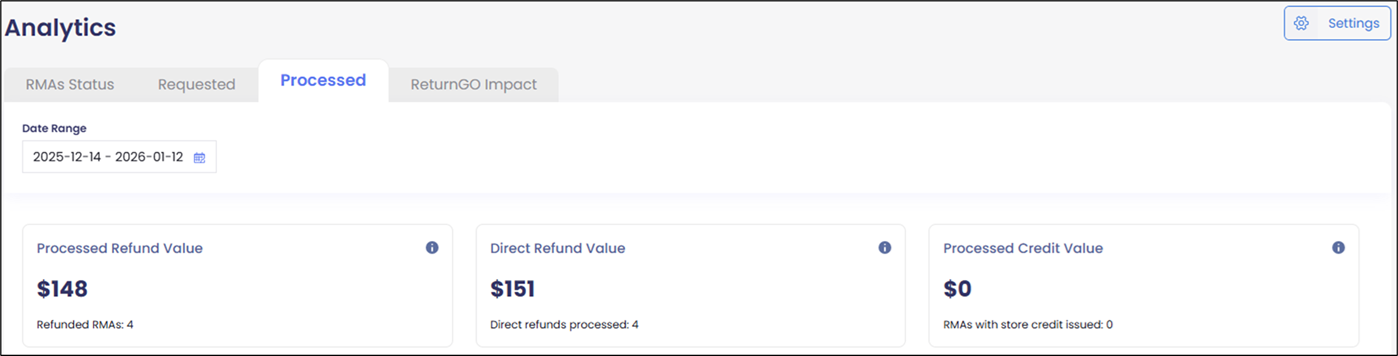
The Processed tab provides a comprehensive view of how returns are resolved and their financial outcomes. It summarizes the total value and volume of processed refunds. Visualizations further break down processed resolutions by type and track resolution activity over time, enabling merchants to understand customer resolution preferences, measure the refund strategies, and assess the overall revenue impact of returns processing.
Select Processed tab.
Select a date range from the Date Range calendar.
The displayed data refreshes daily with information up to the previous day.
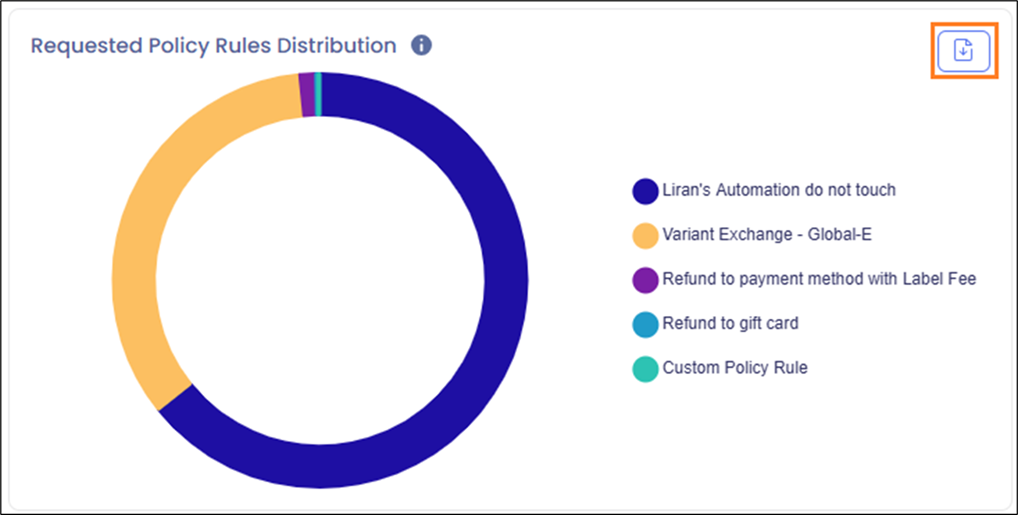
Downloading Return Data
Some graphs and data displayed can be downloaded to CSV for further analysis by clicking the download:
Order Analytics
The Orders page shows return data based on orders placed during the selected timeframe. Order Analytics applies to Shopify stores only.
From here you can view and analyze:
The amount and average of ordered items
The amount and average of returned items
The return rate
The total number of ordered items
Return rate trend chart
The resolution distribution
Number of orders and returns
The dollar amount corresponding to the orders and returns
Accessing Order Analytics
Navigate to Analytics > Orders from the left menu.
Select a date range from the Date Range calendar.
The displayed data refreshes daily with information up to the previous day.
Select a product from the Product menu.
Select an order type from the Order Type menu.
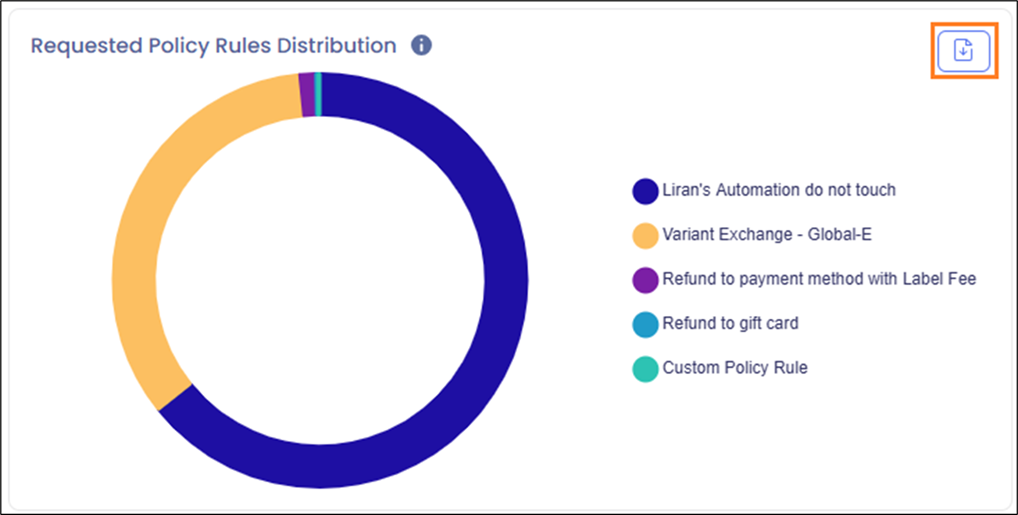
Downloading Order Data
Some graphs and data displayed can be downloaded to CSV for further analysis by clicking the download button:
Sessions Analytics
The Sessions page shows customer interactions in the Return Portal:
Accessing Session Analytics
Navigate to Analytics > Sessions from the left menu.
A table showing the following information is displayed:
ID
Date/Time (UTC)
Customer ID
Order ID
Status
Values
Action
Optional - Search by Customer ID, Order ID, or Status:
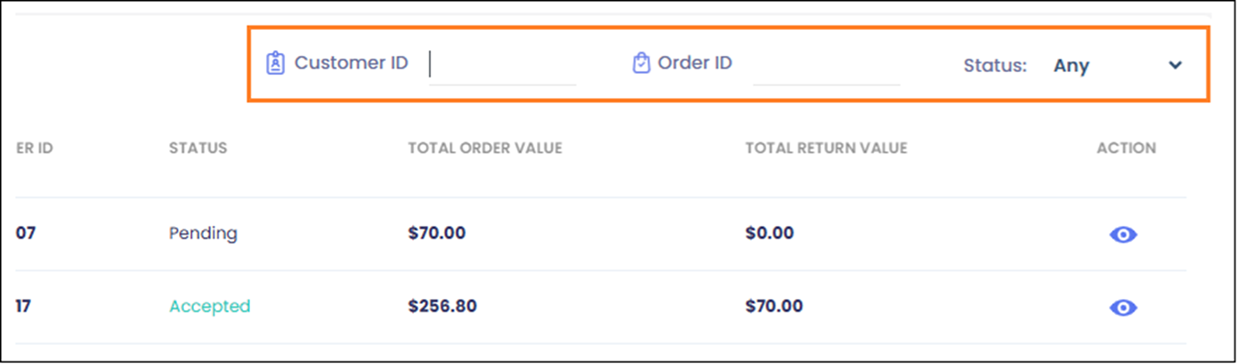
In the row corresponding to the ID you want to analyze, click the Action icon.
The session details are displayed:
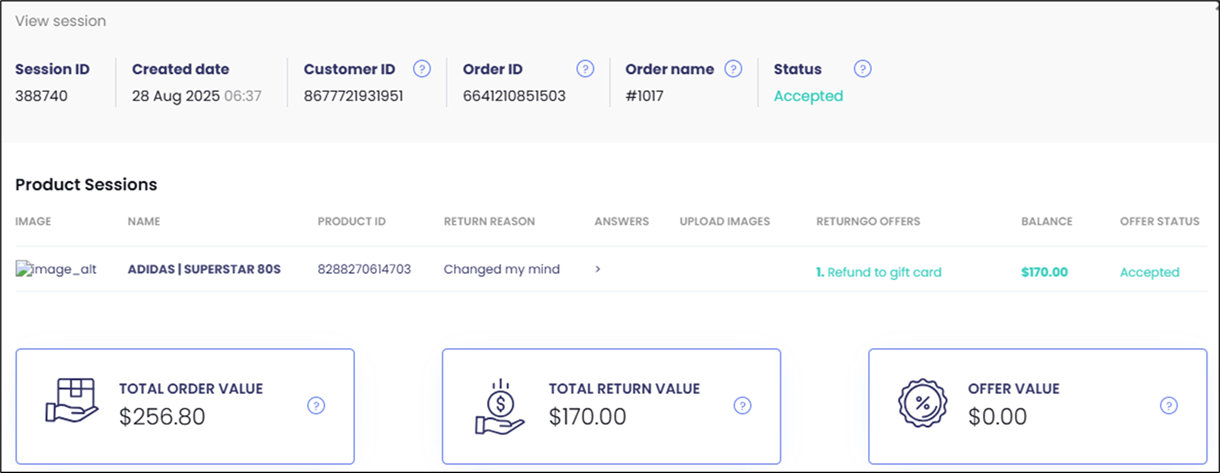
Credits Analytics
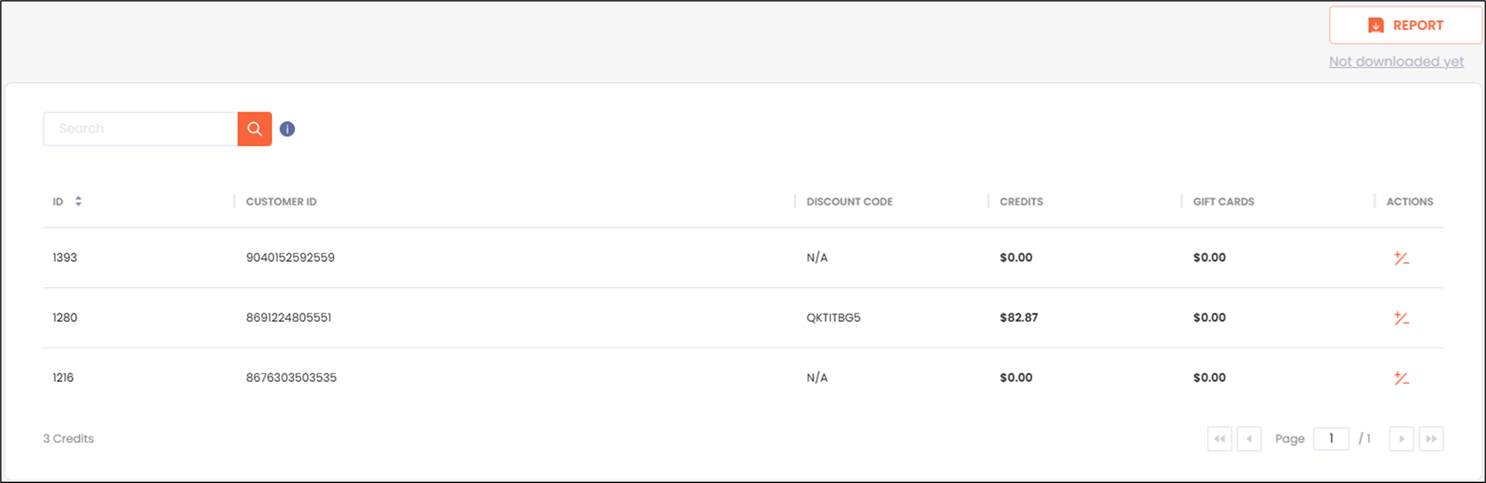
The Credits page shows customer discount codes, and gift cards:
Accessing Credits
Navigate to Analytics > Credits from the left menu.
A table showing the following information is displayed:
ID
Customer ID
Discount Code
Credits
Gift Card
Actions
Optional - Search by Customer ID.
Transactions Analytics
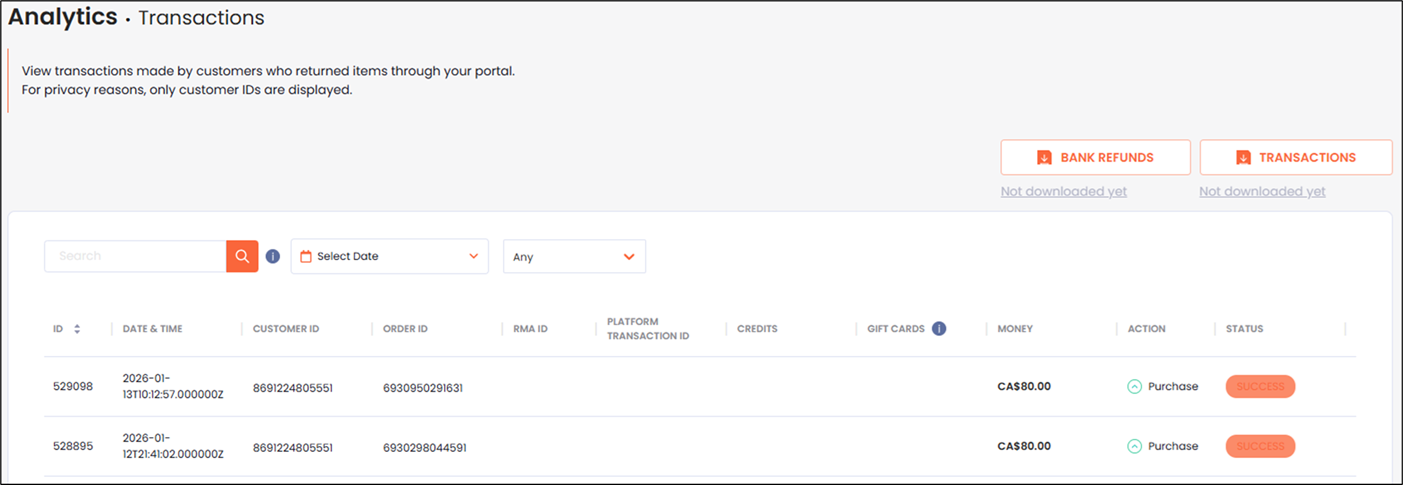
The Transactions page shows financial activity processed through the Return Portal:
Accessing Transactions
Navigate to Analytics > Returns from the left menu.
Select a date range from the Date Range calendar.
The displayed data refreshes daily with information up to the previous day.
Select one of the following statuses:
Any
Purchase
Refund
A table showing the following information is displayed:
ID
Date & Time
Customer ID
Order ID
RMA ID
Platform Transaction ID
Gift Cards, Money
Action (Refund, Invoice, Purchase, Authorization, Capture)
Status (Requested, Success, Canceled)
Downloading Transaction Reports
Follow steps 1-3 in Accessing Transactions.
Click one of the following:
Bank Refunds
Transactions
Note
Certain fields may appear blank depending on refund type or store configuration.