Installing the Global-e Extension for WooCommerce
Prerequisites
The extension setup requires:
A user on your server with permissions to run CLI commands.
A WordPress administrator account
A Global‑e merchant account
Overview
Global‑e provides you with a zipped file for installing the WooCommerce extension. Make sure you have your Merchant information available to perform this installation.
You can install the Global-e WooCommerce extension using one of the following methods:
Extracting the Zip File to the Server
Note
You can deactivate and reactivate the extension after installation if required. See Step 3 below.
Extract the Global‑e WooCommerce extension's zip file onto the server where WordPress is installed.
Copy: global-e-cross-border-for-woocommerce/ to
To:
<wp_root>/wp-content/plugins/The Global‑e plugin is now installed under
WooCommerce > Plugins > Installed Plugins >and the Global‑e includes are activated.
(Optional) Navigate to WooCommerce > Plugins > Installed Plugins.
In the Global-e Cross-Border for WooCommerce section, do one of the following:
Click Deactivate to disable the plugin Global--e CSS and JavaScript includes in WooCommerce.
Click Activate to install the plugin Global--e CSS and JavaScript includes in WooCommerce.
Uploading the File as a Plugin
Log in to WooCommerce administration.
Navigate to Plugins.
Select Add New Plugin.
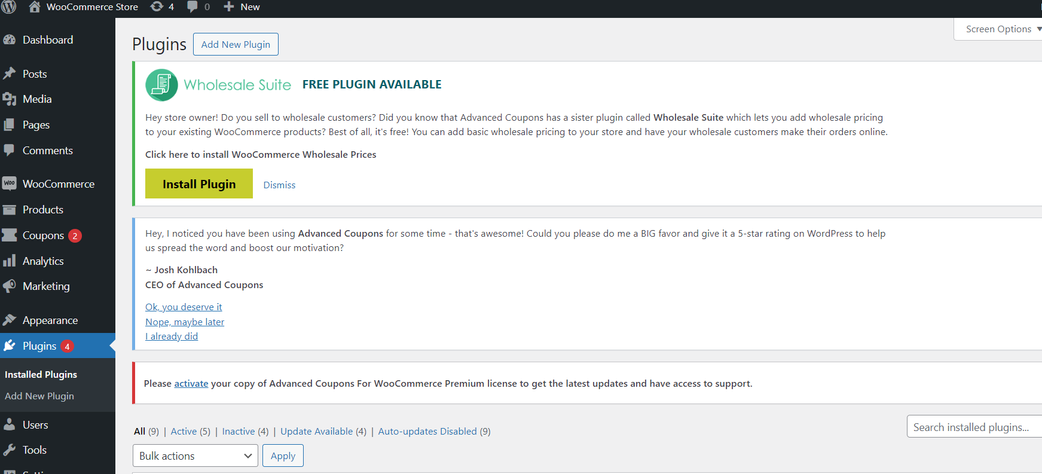
Click Upload Plugin.
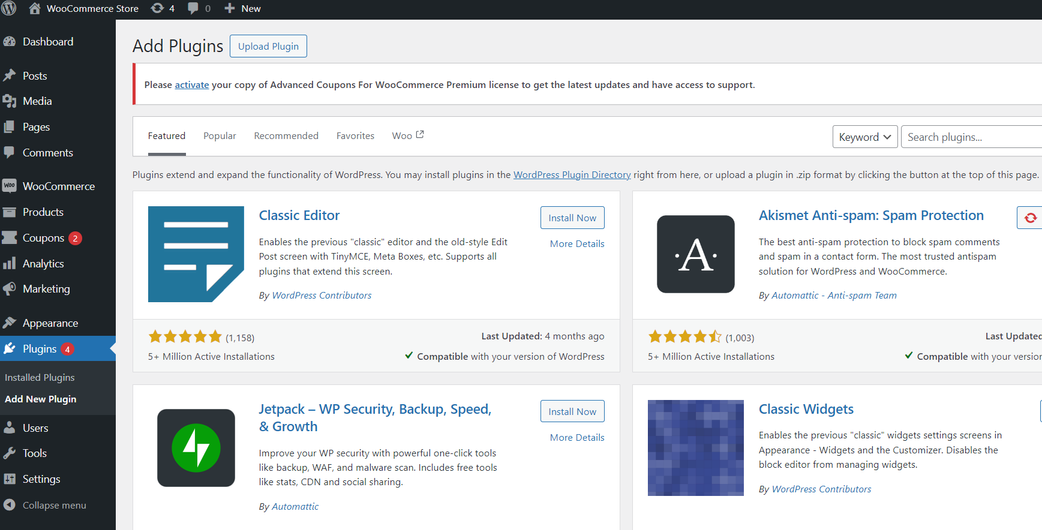
Click Choose File and select WooCommerce zip file.
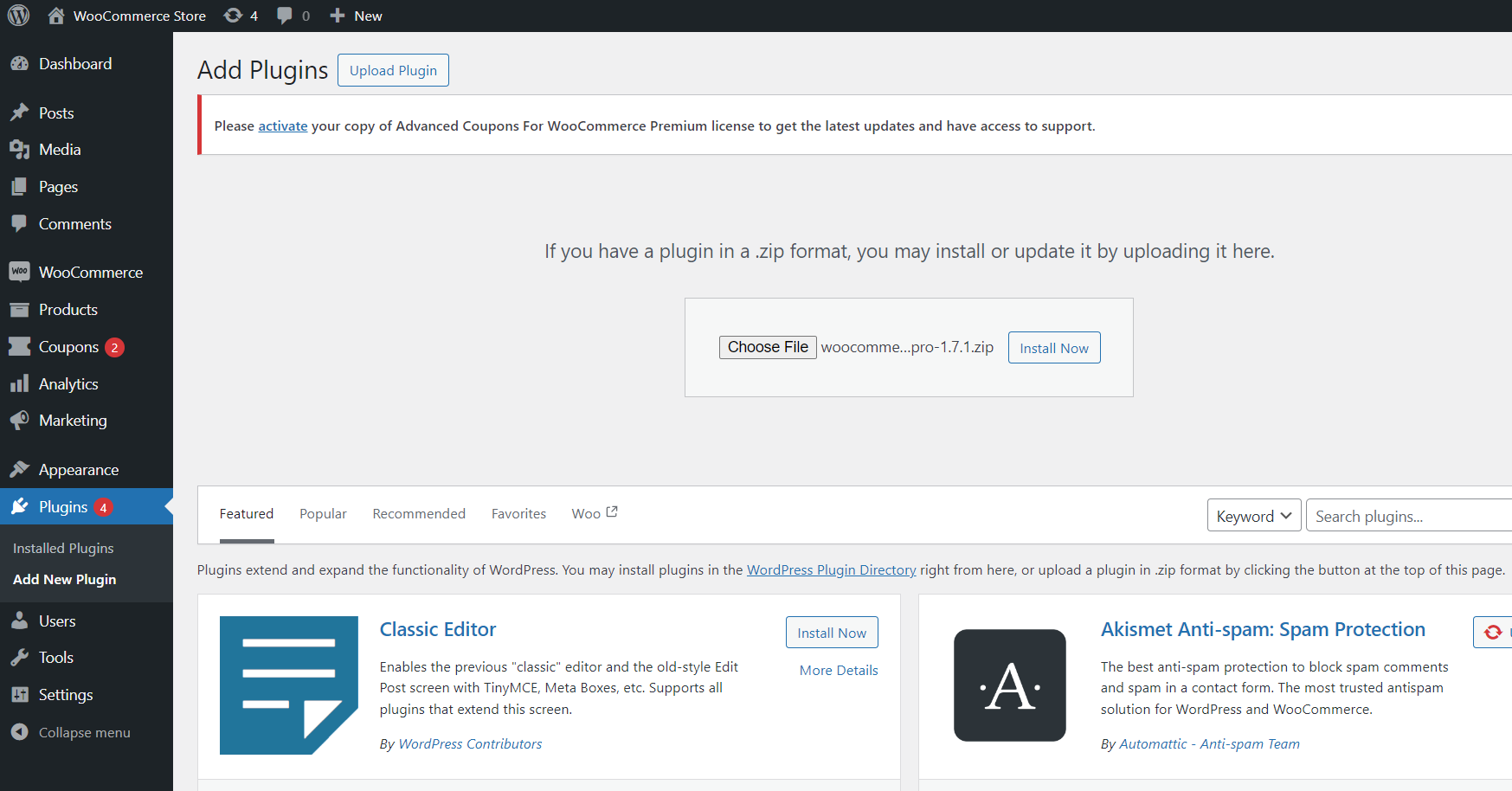
Click Install Now.
Installing the Plugin from the WordPress Marketplace
Log in to Wordpress admin.
Navigate to Plugins > Add New Plugin and search for Global-e Cross-Border Integration for WooCommerce.
Locate the Global-e Cross-Border integration for WooCommerce app and click Install Now.
Note
If you are using an older version of WooCommerce Global-e PRO Integration plugin, disable it before installing the new version. The new version (Global-e Cross-Border integration for WooCommerce) adopts the existing settings.
Upgrading The Global-e Plugin
When a new version of the Global-e Plugin for WordPress is released in the Marketplace, a notification appears in Plugins.
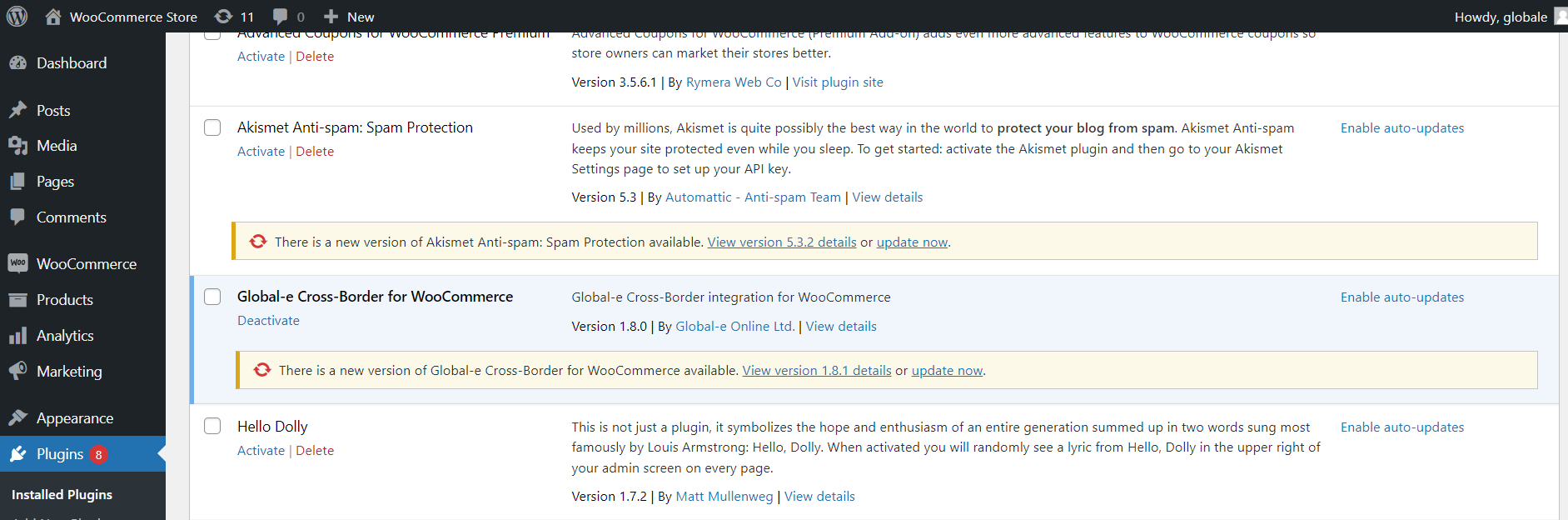
Click Plugins.
Locate the Global-e Cross-Border for WooCommerce app and click Update Now.
The newest version of the app is downloaded.