Configuring Your Welcome Popup Page
The Welcome Pop-Up displays a localized message to shoppers when they land on your store, helping communicate delivery eligibility, duties and tax logic, and any free-shipping thresholds. It supports full branding customization on Desktop and limited, fixed-size customization on Mobile.
From here, you can view, modify, and manage all elements related to your Welcome Pop-Up screen. The default language is English, with professionally translated versions available in twenty-seven languages to support your localization needs. This page includes a text editor preloaded with template content for your site’s pop-up message, along with a Preview panel located to the right of the editor.
From here you can configure the following, described below:
Message text (body and title)
Automatic text
Design settings
Preview options
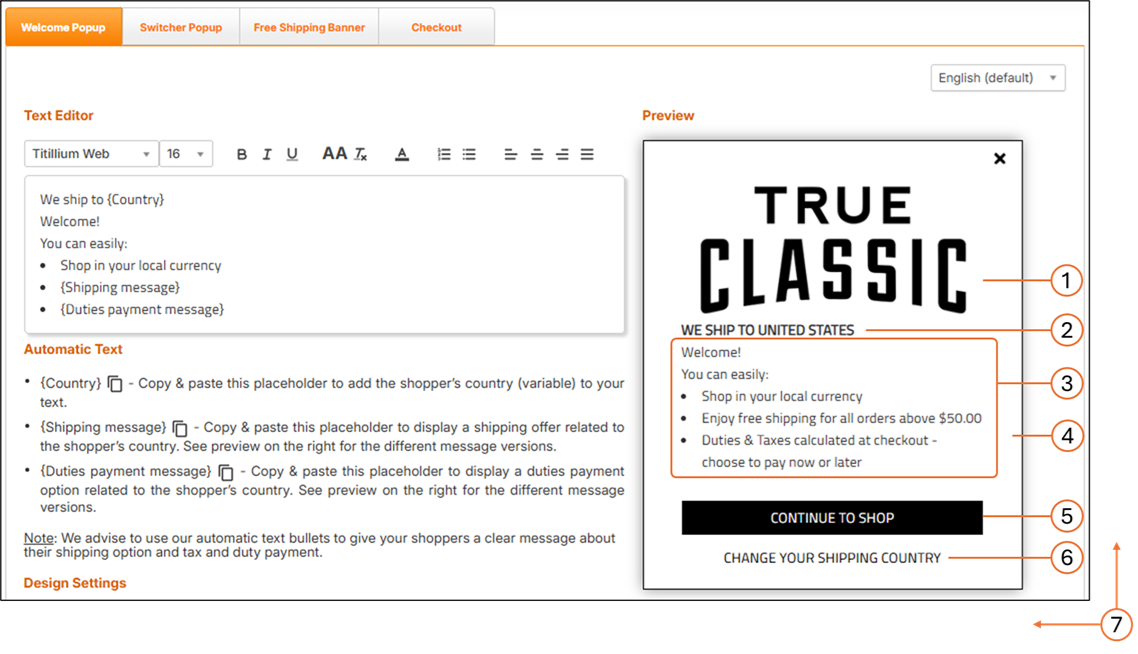
The following figure shows the Welcome Pop-Up screen on Desktop:
The following figure shows the Welcome Pop-Up screen on Mobile:
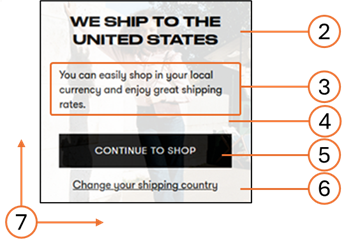
The following table lists the customizable elements for Desktop and Mobile Welcome Pop-Ups.
# | Element | Customizable |
|---|---|---|
1 | Logo | Image |
2 | Title | Font style, font size, font color |
3 | Message text | Font style, font size, font color |
4 | Background | Background color, background image |
5 | Action Button | Font style, font size, font color; button color; button width; button height; button location coordinates (left, top) |
6 | Link | Font style, font size, font colour; link location coordinates (left, top) |
7 | Size | Pop-up height; Pop-up width |
Caution
If you edit the text in one of the language versions, the text edits are only applied to that specific language version - the text in the other language versions remains unchanged. To avoid having language versions with inconsistent text, when you edit the text of a specific language, apply the same (translated) text edits to the remaining twenty-six languages.
Three placeholders for automatic text (Country, Shipping message, and Duties payment message) are incorporated in the default text. We advise that you use our automatic text bullets to convey to your shoppers a clear message about their shipping options as well as tax and duty payment.
Follow steps 1 and 2 in Accessing the Customisation Page.
Modify the following elements:
Default language setting menu located above the Preview panel.
The English language version of the Welcome pop-up is viewed by site visitors from countries that do not have a localized (translated) version of the pop-up.
Automatic text (optional) to be used in your welcome popup message:
{Country} parameter: Informs shoppers that the goods can be delivered to their country.
{Shipping message} parameter: informs shoppers about the lowest cart range required to qualify for free shipping to their country.
{Duties payment message} parameter: informs shoppers about the duties payment option required for their country during checkout.
Note
When a customer visits your store, Global-e detects their location and automatically inserts the country name, and displays the relevant messages regarding shipping and duties & taxes.
Design settings (show/hide your logo).
Preview options:
Free shipping:
Available - Minimum order required for free shipping. Default message: Enjoy free shipping for all orders above $x
Unavailable - Free shipping not available. Default message: Enjoy our great international shipping rates
To all - Free shipping on all orders. Default message: Free shipping to (your country) on all orders
Duties at checkout:
Payable - Duties are displayed separately at checkout with the option to prepay. Default message: Duties & Taxes calculated at checkout - choose to pay now or later
Hidden - Duties are incorporated in the product price. Default message: All Duties & Taxes are already included - no hidden fees
Partial - Duties are incorporated in the product price, with taxes displayed separately at the checkout with the option to prepay. Default message: All duties are already included. Taxes calculated at checkout
Button message and formatting.
Normal and hover mode text, body, and border color settings.
Note
You can reset your settings to their default configurations by clicking Reset to default at the bottom of the page.
Delivery File Format
You must deliver your mock-up in one of the following file formats:
PSD
XD
Online design (example: https://zeplin.io/)
Image (recommend format: .jpeg or .png, although other formats are supported)
PDF
Screen Dimensions for Desktop and Mobile
The following table shows the recommended element dimensions for the Desktop screens or popup windows. The Mobile Welcome popup has a fixed size.
Element | Full Client Screen Size | Element Size |
|---|---|---|
Desktop | ||
Checkout / Confirmation | W: 1920 X H: 1080px | W: 1000px - auto height |
Welcome / Switcher pop-ups | W: 1920 X H: 1080px | W: 550 X H: 500px |
Mobile | ||
Mobile Welcome Pop-Up | 375 px | 340 × 180 px (fixed) |
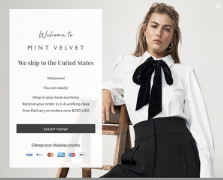
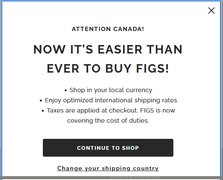
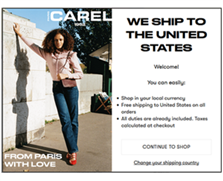
The following are some examples of Welcome popup screens:
 |  |  |  |
Note
Following Google’s 2017 Mobile Pop-Up Penalty, the mobile pop-up is disabled by default. Merchants who enable it must comply with Google’s “non-intrusive” guidelines.