Fixed Prices
The Merchant uses fixed prices to fix the price for a certain product in a specific country.
Fixed prices override Global‑e conversion calculations, giving you the ability to set prices in local currency for a specific country.
The fixed prices functionality requires that:
You request that Global-e supports fixed prices for the desired countries.
Global‑e enables fixed prices for the specified country on the Global‑e side.
Enable the fixed price in Backoffice. You can set a fixed price per country and Currency or only a Fixed Price per currency only.
Fixed price per Country and Currency
To enable fixed prices per country and currency:
Log into Backoffice.
From the left menu, select Price Settings > Prices > Price Rows
In the main area, from the Price Row menu, type in Global‑e PriceRow.
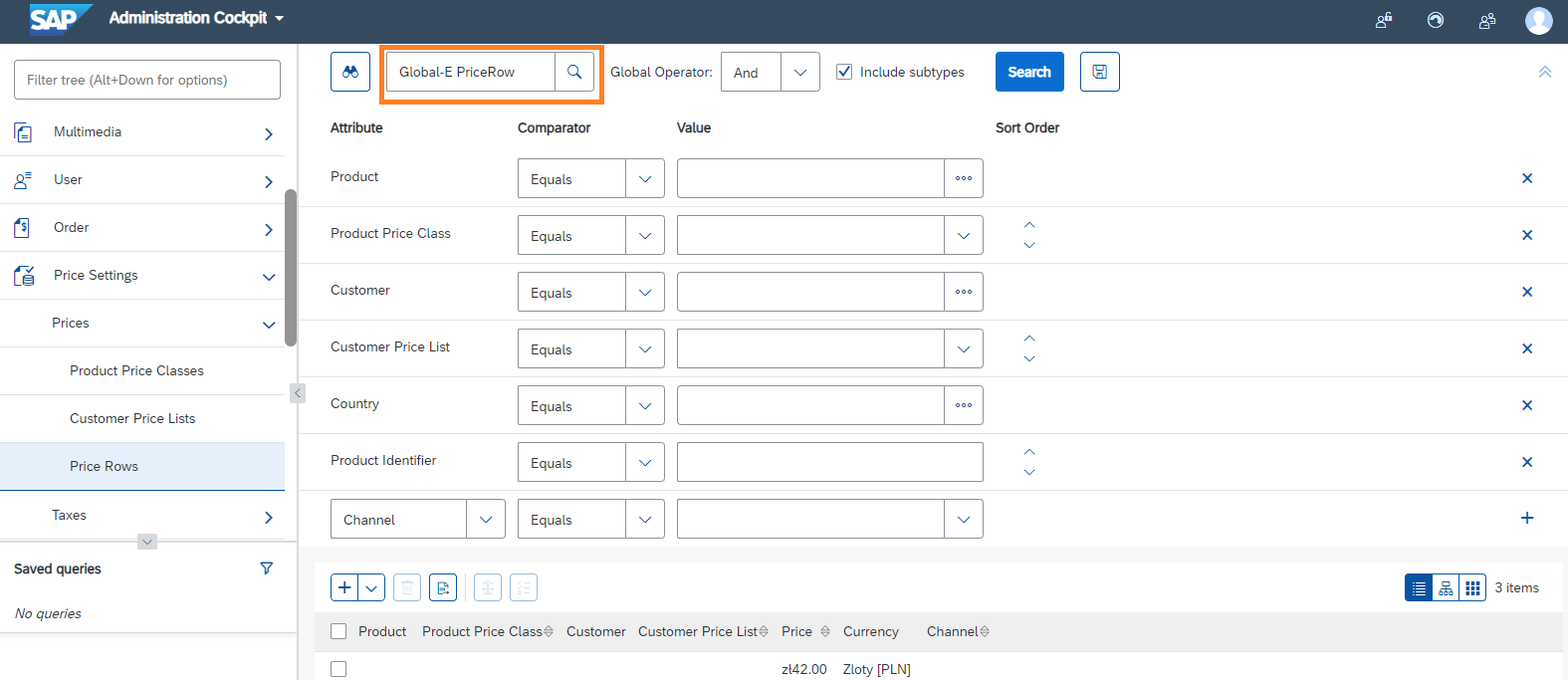
Click on the + button to create a new Global-E PriceRow.

The Create New Global-E PriceRow dialogue opens.
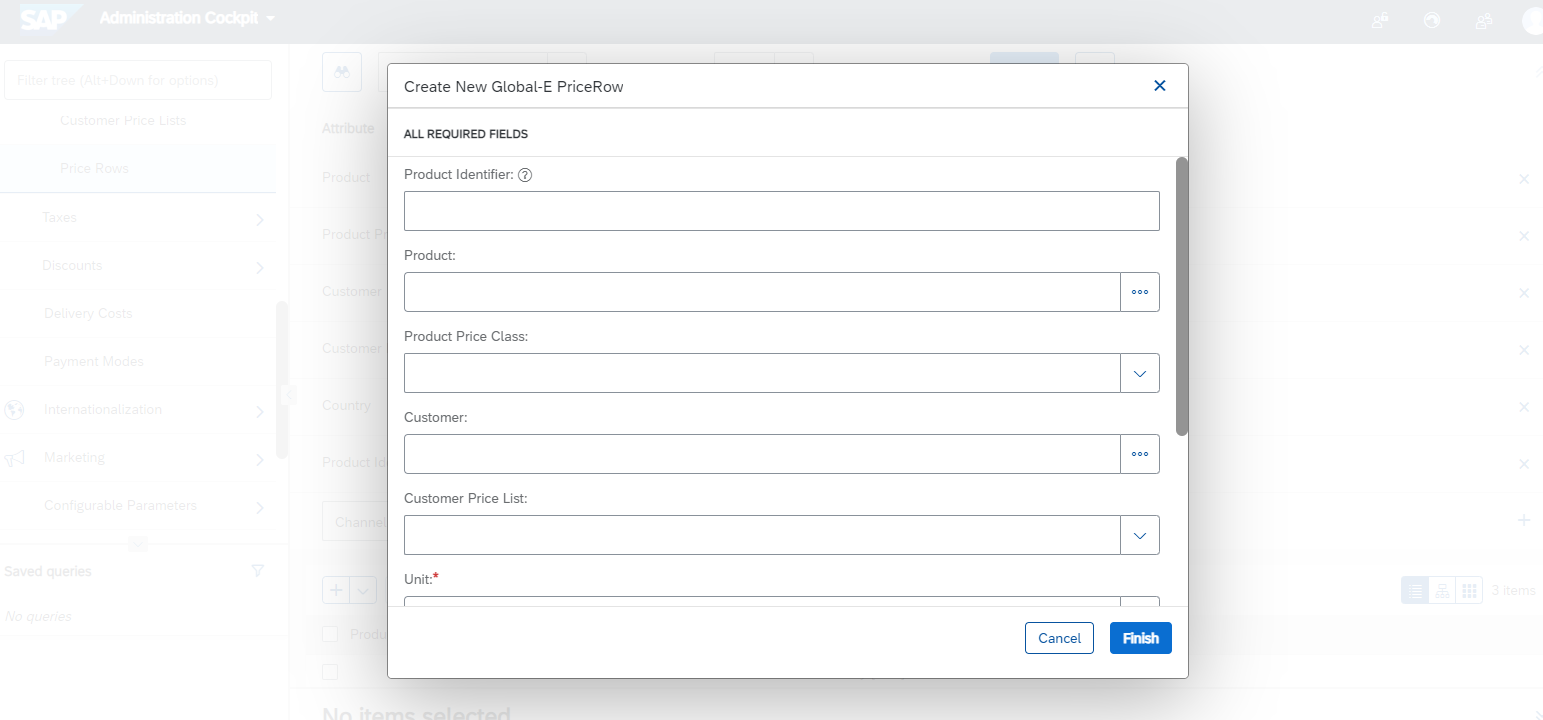
Fill in the following mandatory fields. then click Done.
Product Identifier (this is the
ProductId)Unit
Price
Currency
Click a price row to open the PriceRow properties.
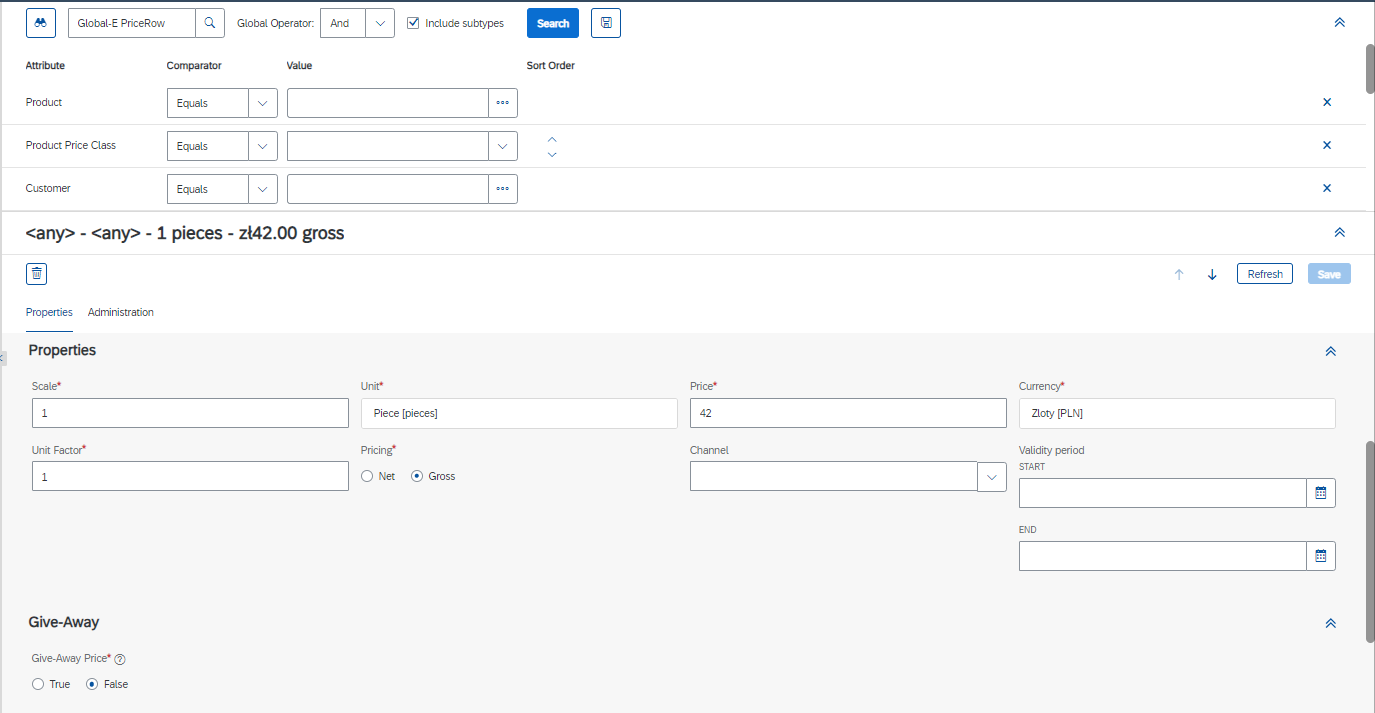
At the bottom of the
PriceRowproperty screen, set Fixed Price enabled to TRUE.The Fixed Price feature per Country and Currency is now enabled and displayed on your storefront.
Note
Make sure that your cache is cleared.
Fixed Price per Currency
To enable fixed prices per currency (only):
Log into Backoffice.
From the left menu, select Price Settings > Prices > Price Rows
In the main area, in the Price Row menu, type Global‑e PriceRow.
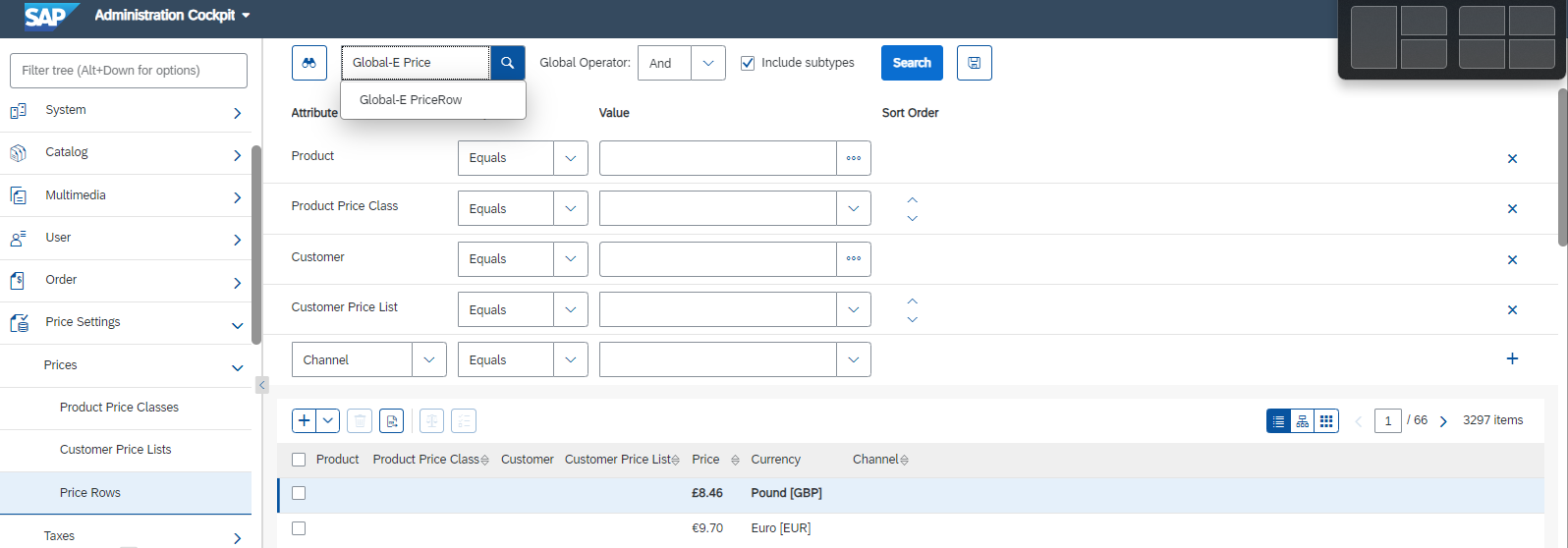
Click on the + button to create a new +Global-E PriceRow.
The Create New Global-E PriceRow dialogue opens.
Fill in the following mandatory fields, then click Done.
Product Identifier (this is the
ProductId)Unit
Price
Currency
Click a price row to open the
PriceRowproperties.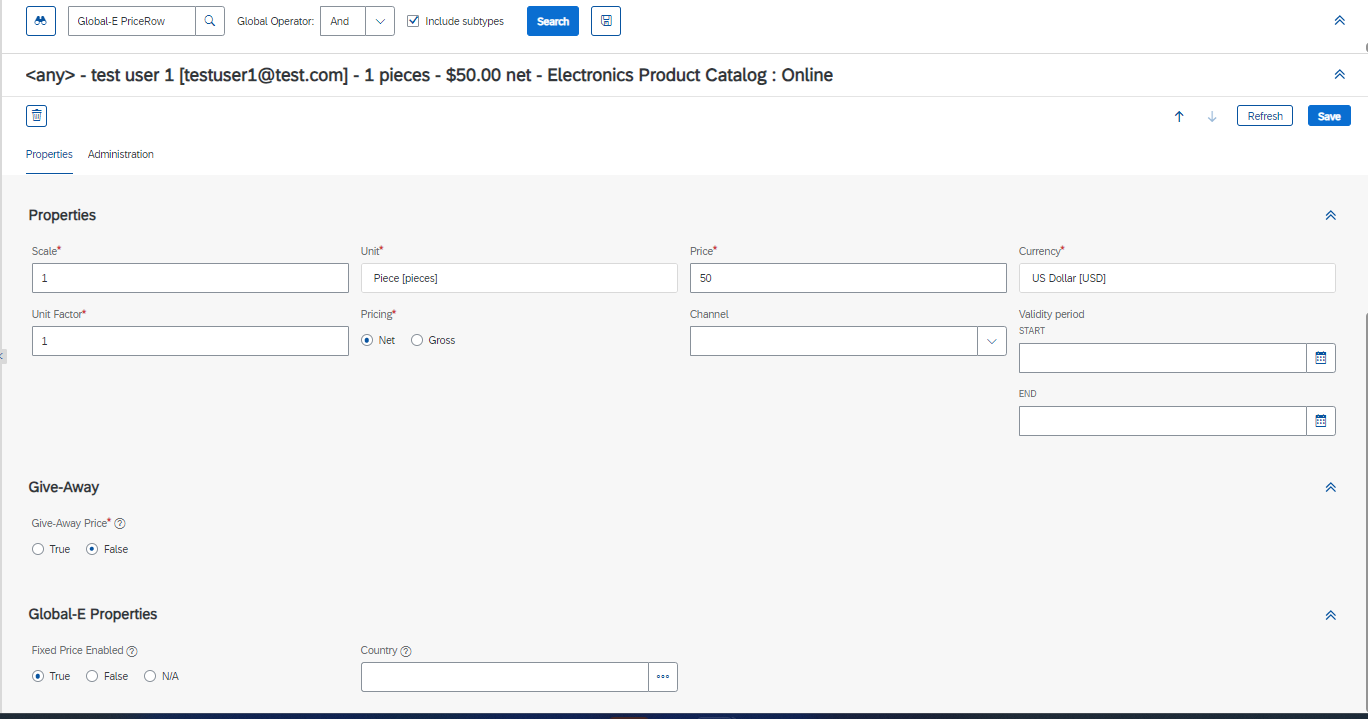
At the bottom of the
PriceRowproperties screen, set Fixed Price enabled to TRUE.The Fixed Price feature per Currency is now enabled and is displayed on your storefront.
Note
Make sure that your cache is cleared.