Pricing: Sorting and Faceting
Configuring Global‑e price facets for Global‑e countries operated by Global‑e is a feature of the Add-on.
You can follow the standard Hybris approach to configuring pricing facets. However, Price facets are currency-specific rather than country-based. Therefore, we recommend the following approach to ensure accurate functionality.
The sort function, Sort Prices High - Low or Sort Price Low - High, is automatically enabled by setting the price facet for a specific currency.
To index a currency and show the price facet:
Step 1. Enable Currency and faceting and select a site
Enable currency sorting and faceting: From the Backoffice’s left menu, select System > Search and Navigation > Solr Facet Search Configuration > Facet Search Config.

Select a site (in this example, we have chosen Electronics)
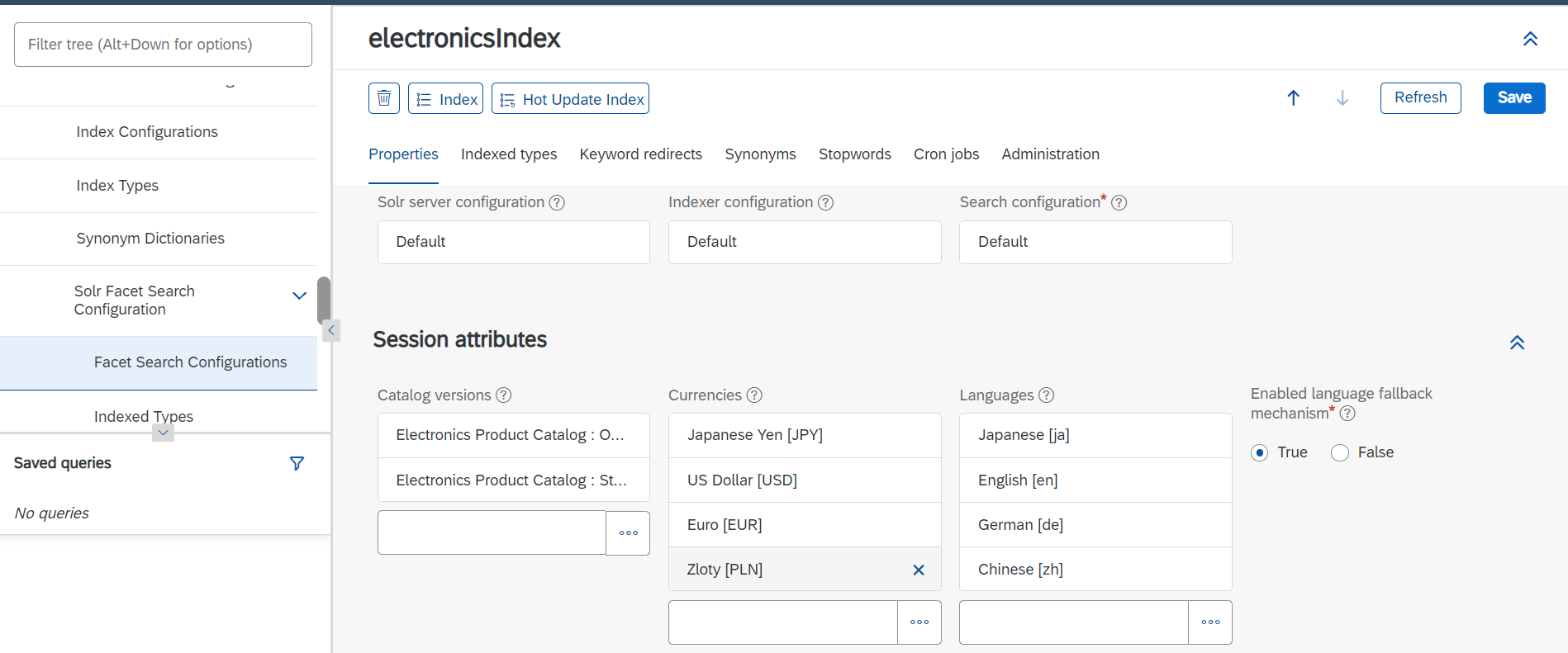
In the main area, under the Properties tab, add the currency for which to enable sorting and faceting (in this example, we have chosen Zloty).
Click Save
Step 2: Create a New Set of ranges.
From the Backoffice’s left menu, select Ranges.
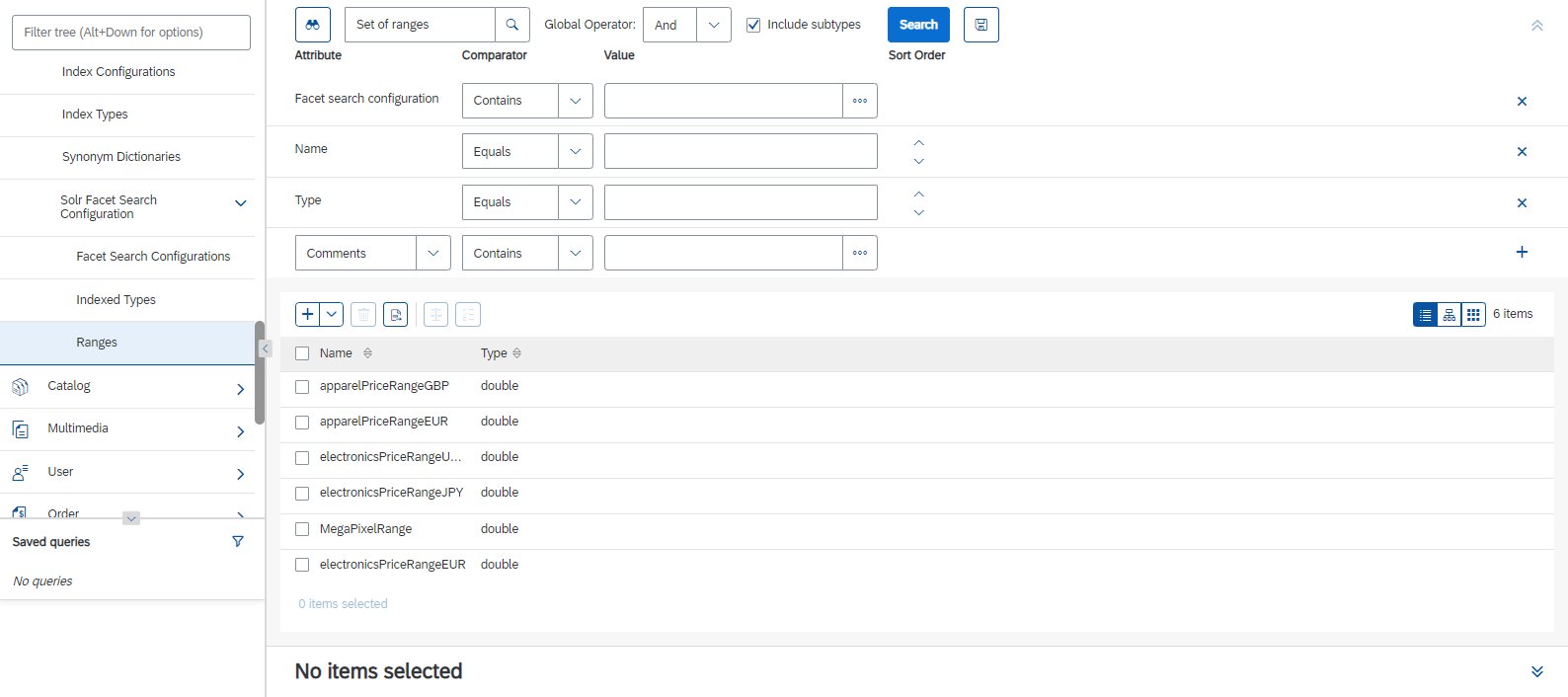
In the main area, click + Set of Ranges to add the new ranges.
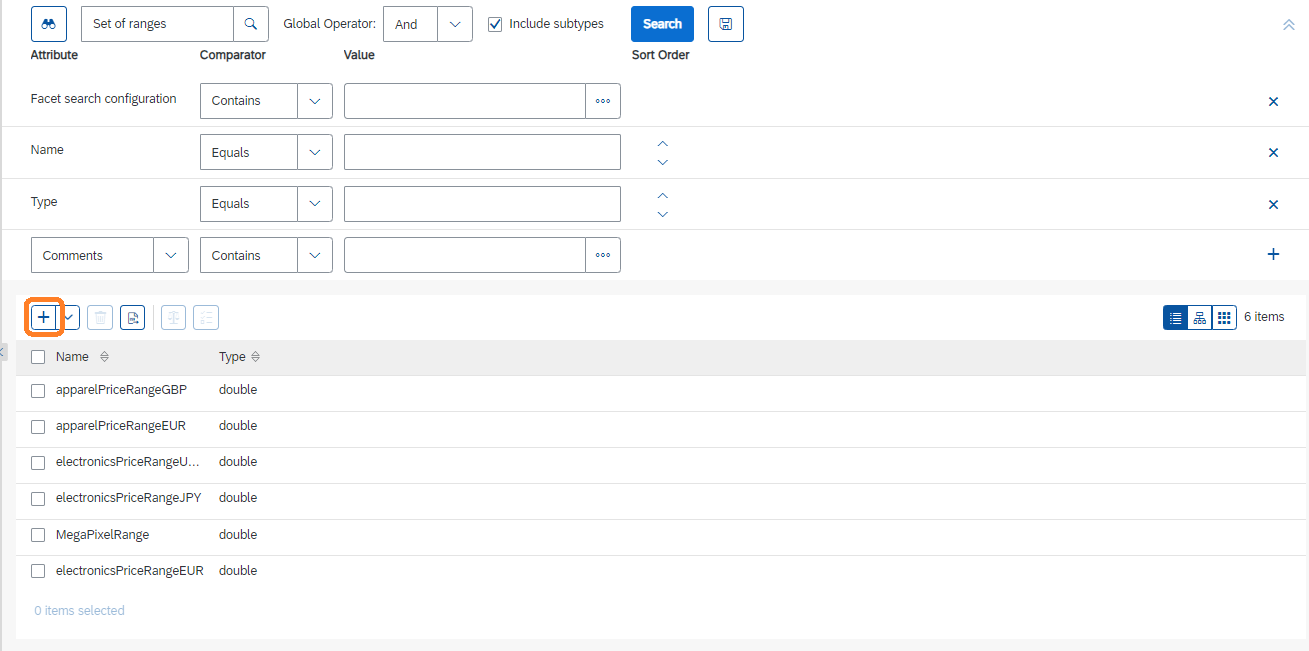
The Create New Set of Ranges dialogue opens.
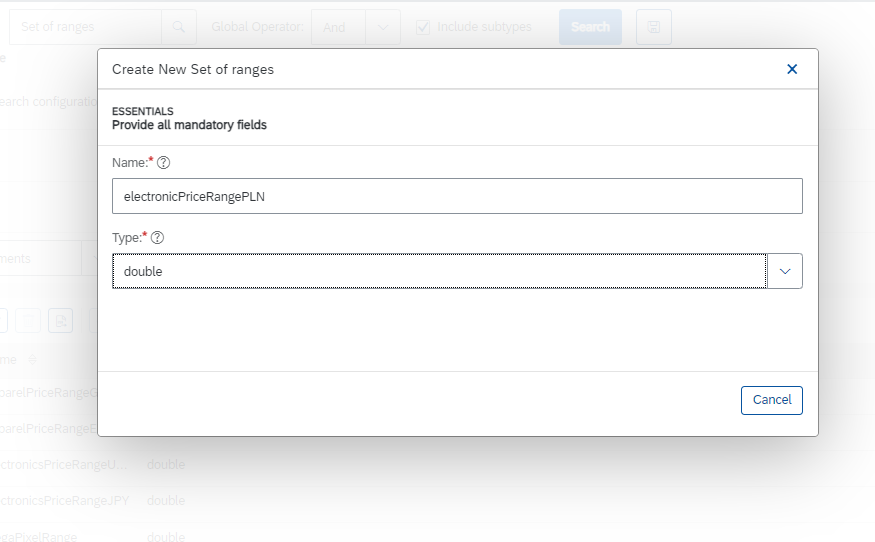
Under Name, give the new range a suitable name.
Under Type, select Double.
Click Done.
At the top of the Ranges screen, click inside the Search field.
The range that you have created appears as a row.
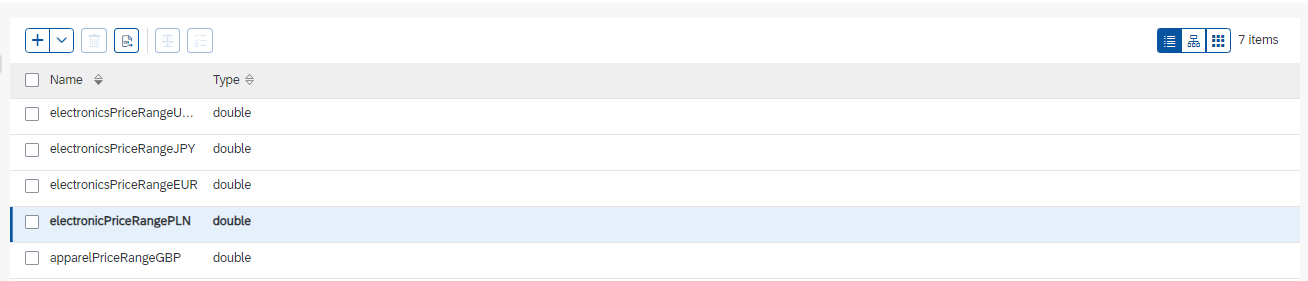
Click the new range row.
The Ranges tab opens.
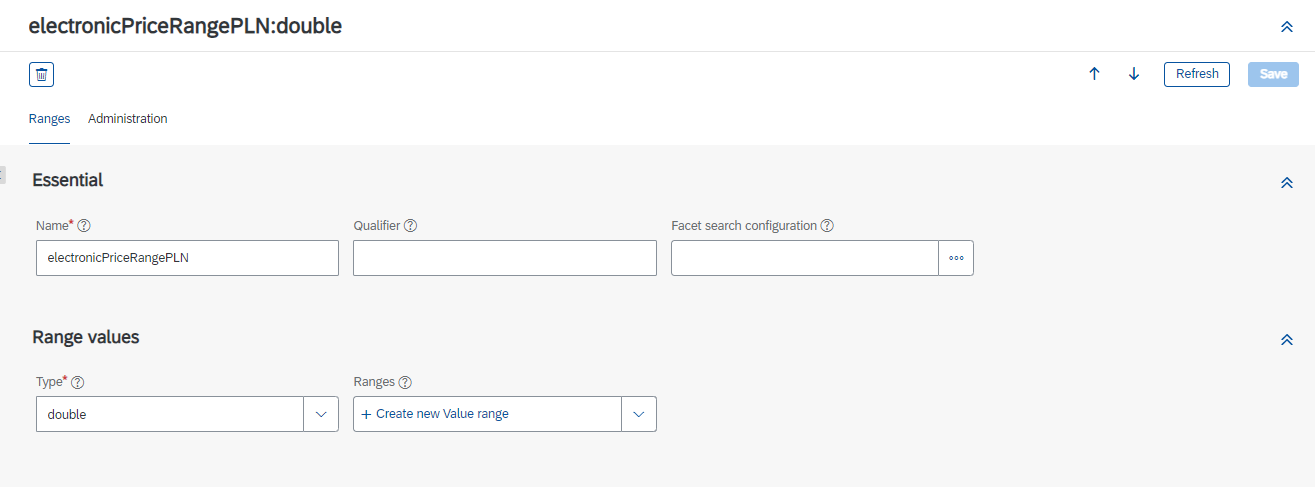
Under Ranges, add a new value range by clicking ‘+’.
The Create New Value range dialogue opens.
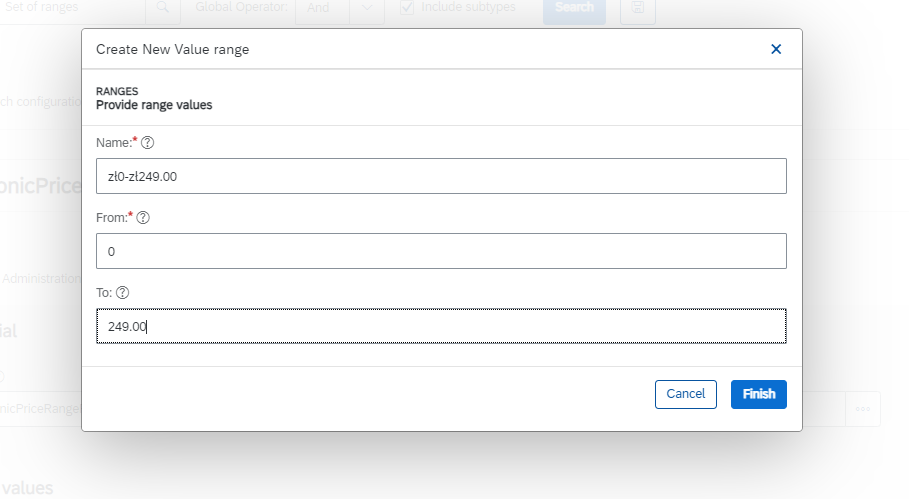
Fill in the required fields to create the new range.
Click Done.
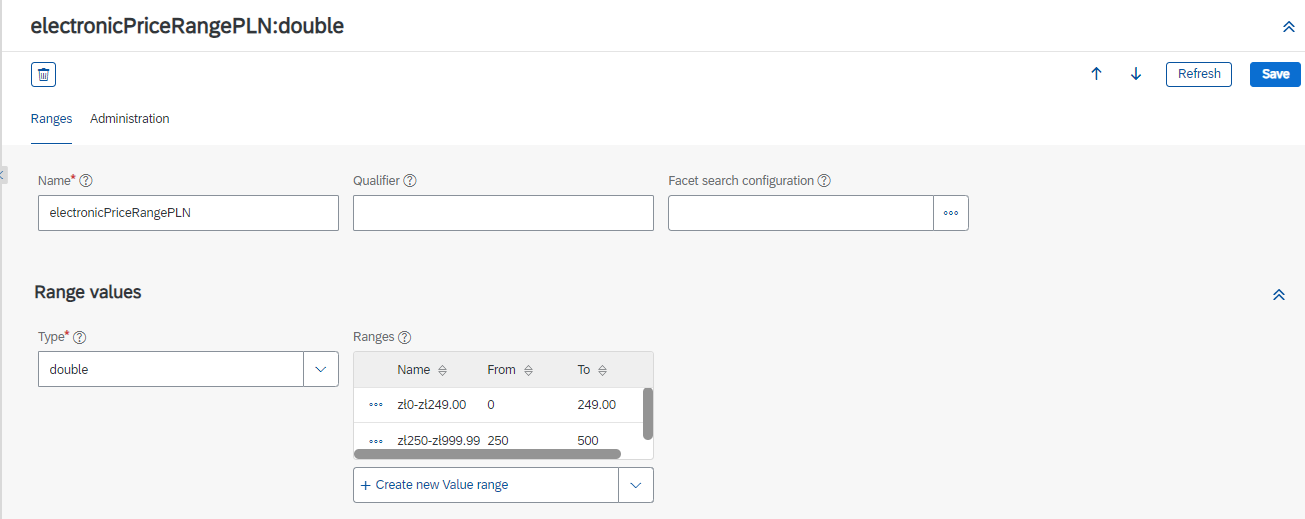
Repeat the above steps until you have created all the required ranges.
The following figure shows a list of ranges.
Note
Make sure to save after each range has been created to avoid errors.
Step 3: Add the currency code
Select the administration tab.
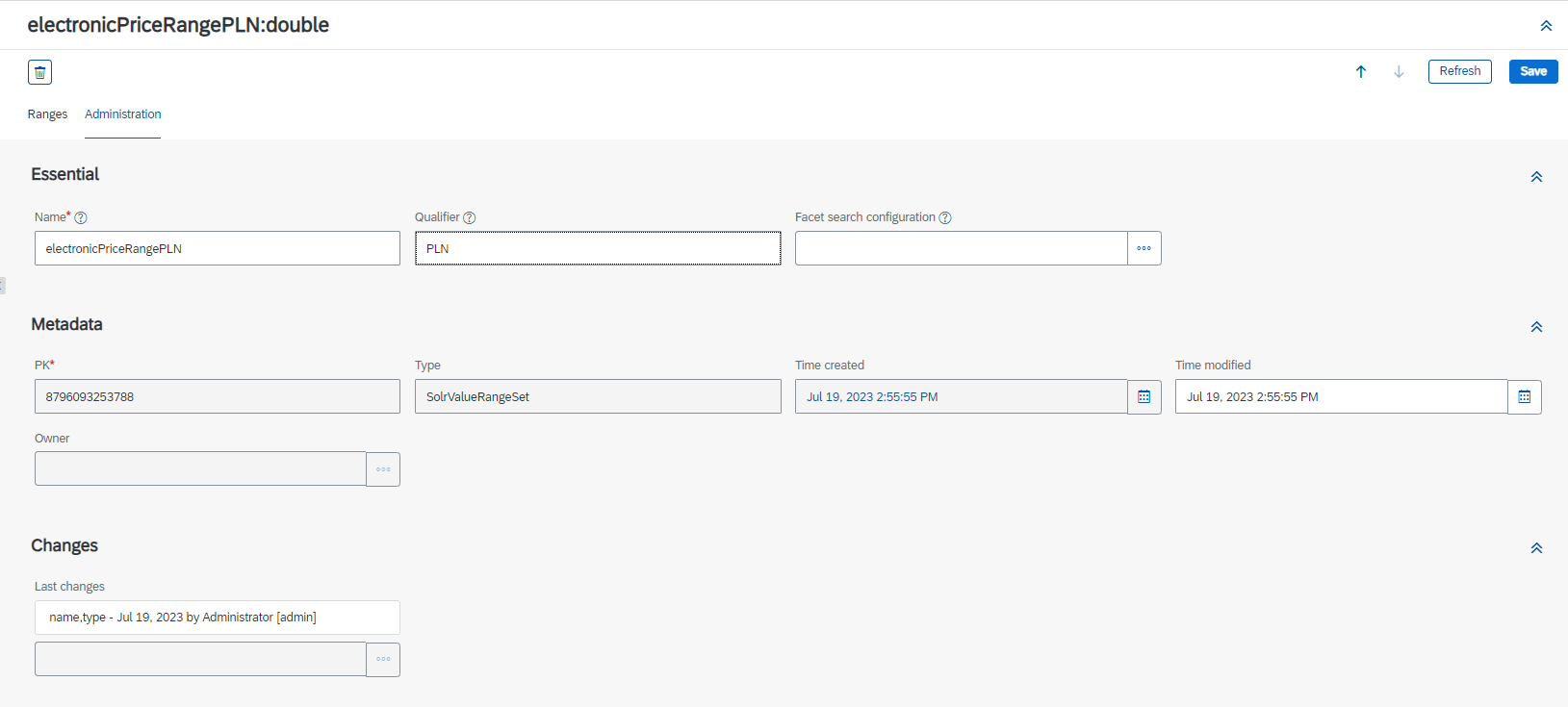
In the Qualifier field, add the currency code.
click Save.
Step 4: Add a Facet
Click on the site row (Electronics).
The site details screen opens.
Select the Indexed Types tab.
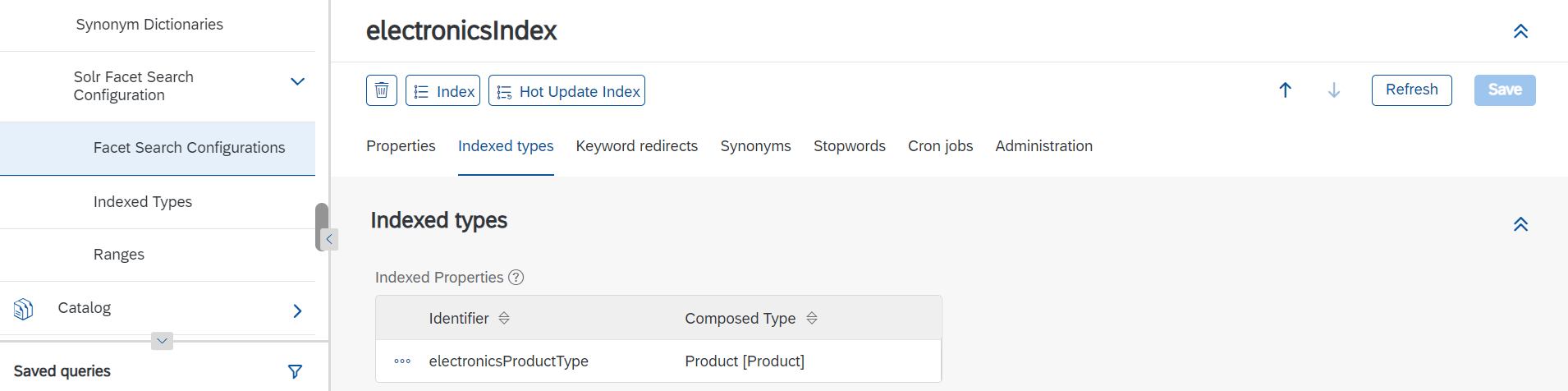
Click the 3 dots on the left and select Edit Details.
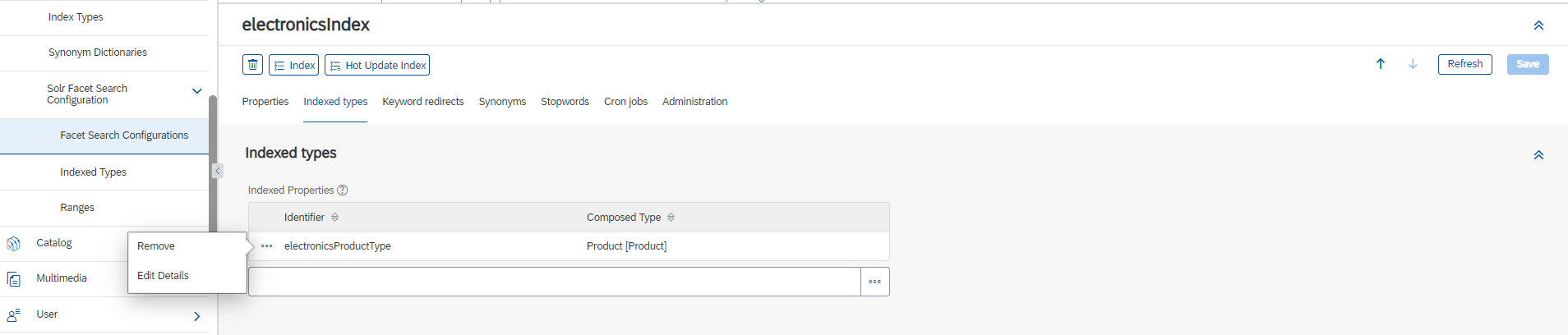
In the pop-up’s Properties table click on Indexed Properties. On the price row, click the 3 dots and select Edit Details.
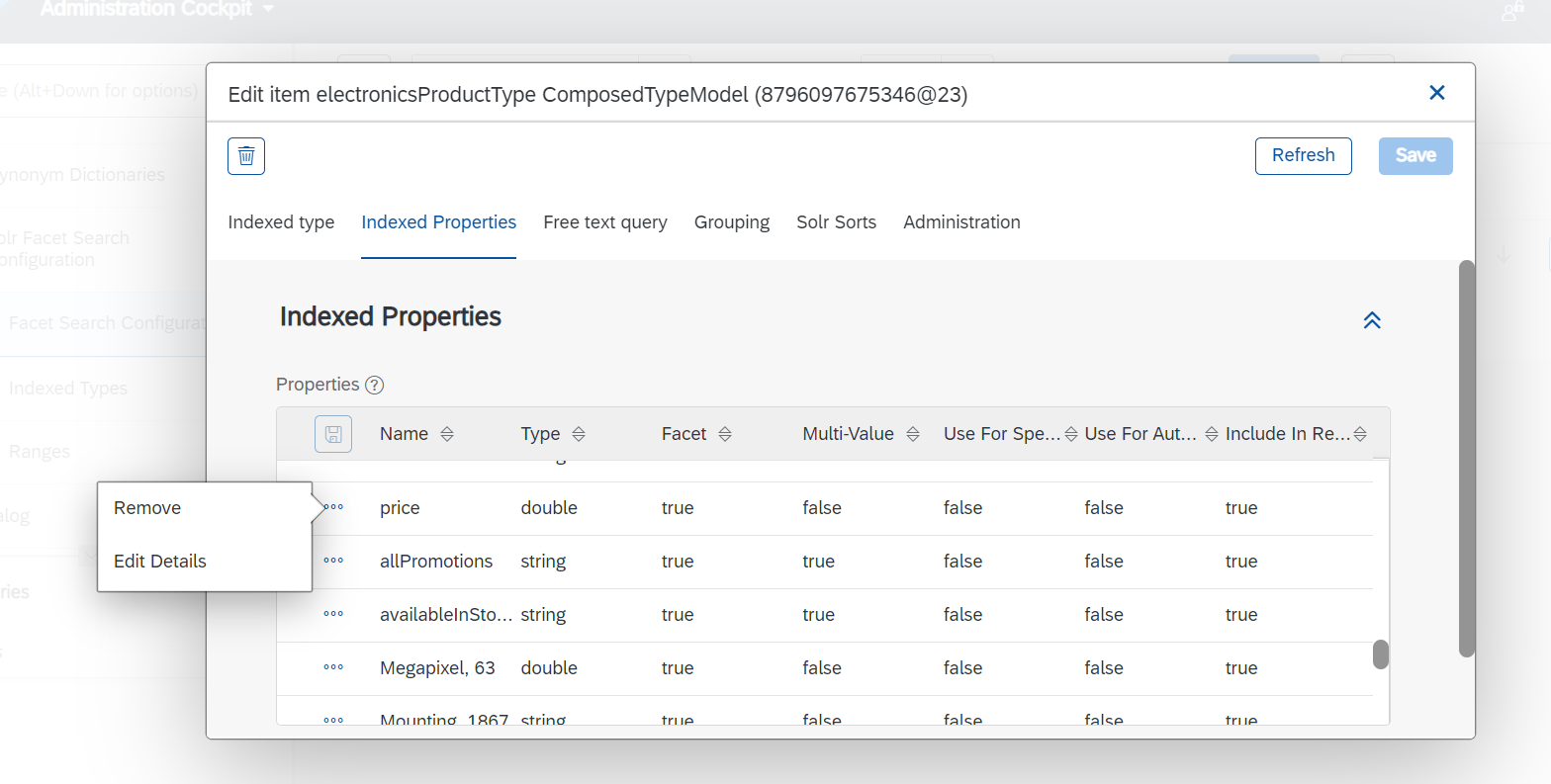
The Edit Item price screen opens.
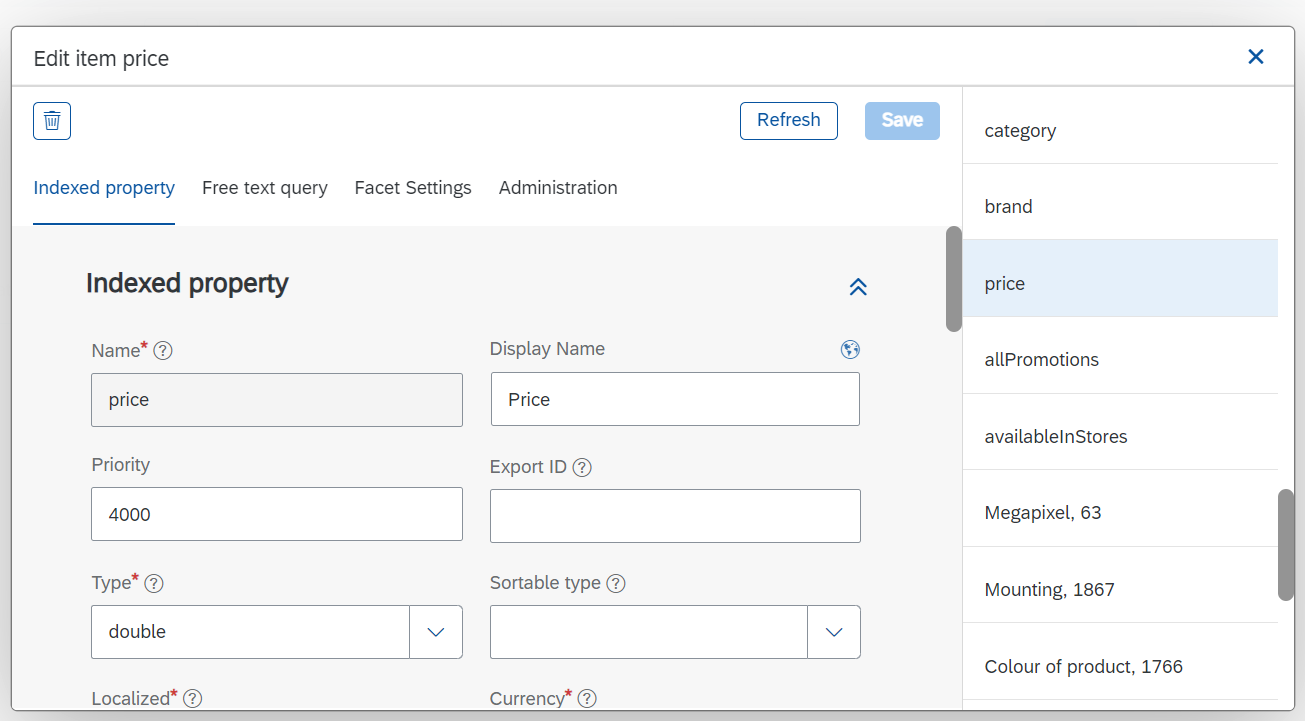
Select the new range set you have created for Range sets.
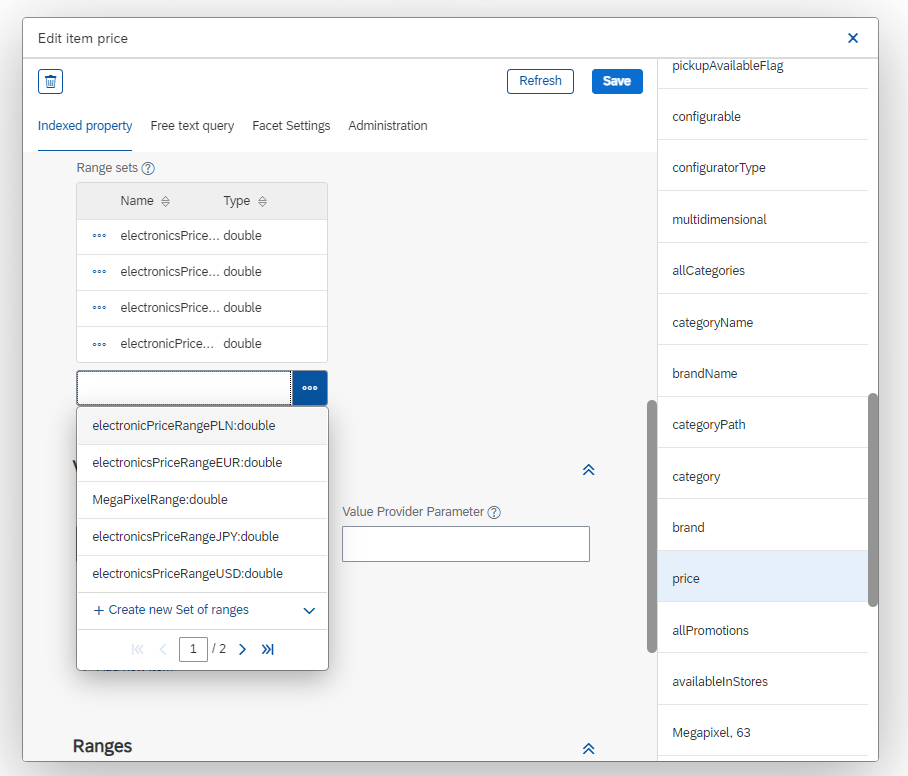
Click Save.
The 'Create new Solr indexing operation' was created successfully.
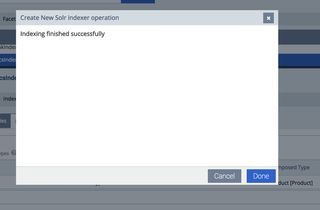
Click Done.
Step 5: Run an index
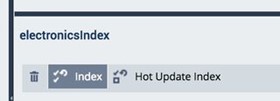
At the top of the screen, click Index.
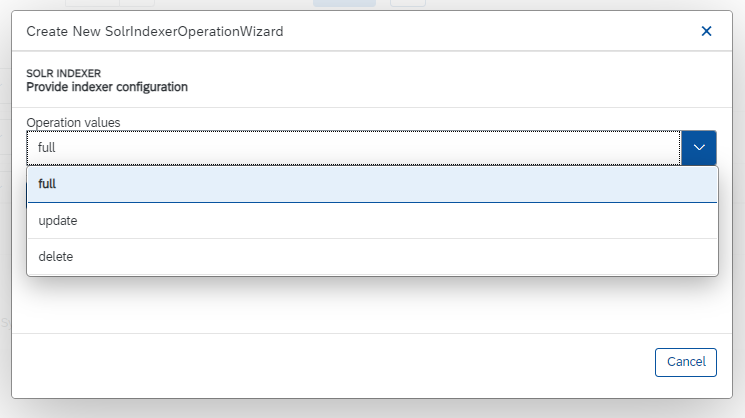
Under Operation Values, select 'full'.
Click 'Start.
Once the index is complete, the new facets appear on the front end, and the sorting by price works as expected.