

- Global‑e Merchant ID: The ID of your Global‑e account.
- Global‑e Merchant GUID: A unique identifier of your Global‑e account. Note that Global‑e sends you a different GUID for each applicable Global-e environment.
- Global-e provides you with the CSS and JavaScript ‘includes’ to add to your sandbox site.
- Make sure you have shared with Global‑e the system features you want to be supported, including the list of countries and special features such as Fixed Prices, and multiple sites.
Implement the four mandatory merchant endpoints listed in Step 5 above. This Implementation is mandatory. We recommend exposing API methods via HTTPS.
Optionally, you can implement additional merchant APIs and APIs on the Global‑e Side.
Special Features and Requirements
- If some of your products have reduced VAT rates (for example, you are a UK merchant with children’s clothing), set the relevant reduced VAT rates for these products in the HTML data attribute. See Reduced VAT Rate Support.
- If you require support for product country exceptions (for example, restrict browsing before reaching the Global‑e checkout), set the relevant
data-countriesfor these products in the HTML data attribute. See Product-Specific VAT Rates in the EU and Restrictions. - If you require the application of price coefficients to specific product classes (for example, on premium items in specific territories), set the relevant data-pc for these products in the HTML data attribute and the
ProductClassCodein the GetCheckoutCartInfo (Global-e to Merchant) API. - If you require support for existing logistics accounts, call a Global‑e API method to download the international commercial invoice for the specified order.
Integration Features


Integration Overview
The Bespoke Global-e Module integrates with your storefront, checkout, and order components.Storefront: A code snippet (include) is placed in your website’s header.Checkout: Triggers the Global‑e international order process by utilizing Global‑e’s dedicated checkout facility.Order placement: Places an order into your e-commerce platform and provides you with customer data.
Architecture Overview

High-Level Flow

End-to-end Flows

Customer Journey (Technical)

End-to-End Conversion Tracking Continuity

Checkout Overview
International users check out using Global‑e’s secure and customizable IFRAME-based checkout facility, embedded in a container page. To facilitate the cart content transfer from the merchant’s storefront to Global-e’s checkout:-
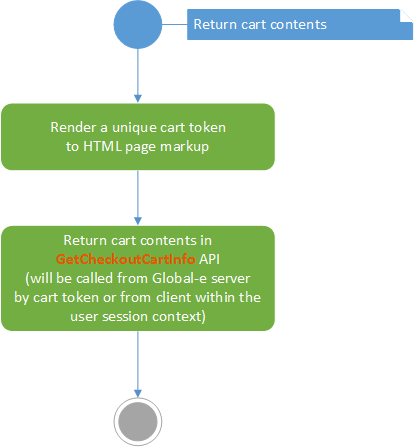
Implement the Return Cart Contents action on your Merchant’s storefront, as shown in the following workflow chart:
Once implemented, this action is handled by the Global‑e system when the user reaches the Global‑e checkout container page. It includes the creation of a serialised representation of the cart content, and implements the security mechanism used to transfer this data to Global‑e.
-
Make sure your Merchant’s web application can identify the user’s cart by its unique token outside the user session.
This cart token is then specified in the GetCheckoutCartInfo (Global-e to Merchant)API method (implemented on the merchant’s site). The Global‑e server calls this API to read the user’s cart contents.
To ensure the total price calculation accuracy throughout your Merchant’s storefront, Global-e Module can call the
GetCheckoutCartInfomethod from the client side during the user’s session. However, for security reasons, client calls are never used to transfer the user’s cart to the Global‑e checkout. Likewise, for security reasons, client calls should not include theMerchantGUIDattribute that is otherwise included in server-to-server API calls.
Integrate the Global‑e Checkout with your Storefront
The Global‑e checkout integration method is not dependent on the structure and characteristics of the web store’s cart page, thus combining security with integration robustness. The following workflow chart illustrates the required checkout integration activities: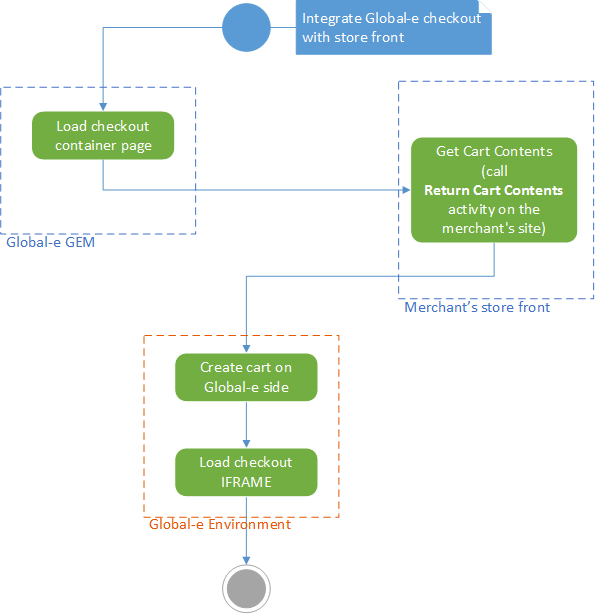
- Global‑e loads the checkout container page.
- On your storefront, get the cart contents by calling the Return Cart Contents.
-
Global-e manages the cart content:
- Creates the cart on the Global‑e side.
- Loads the checkout
iframe.