Replacements in Shopify
Overview
Global-e‑ supports product replacements directly through the Shopify Admin.
Prerequisites
Update the Global-e Crossborder application.
Navigate to the Global-e CrossBorder App
Go to Settings > Update Global-e Scopes.
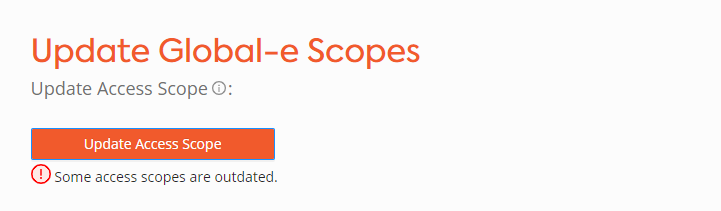
Click Update Access Scope.
The Update page opens.
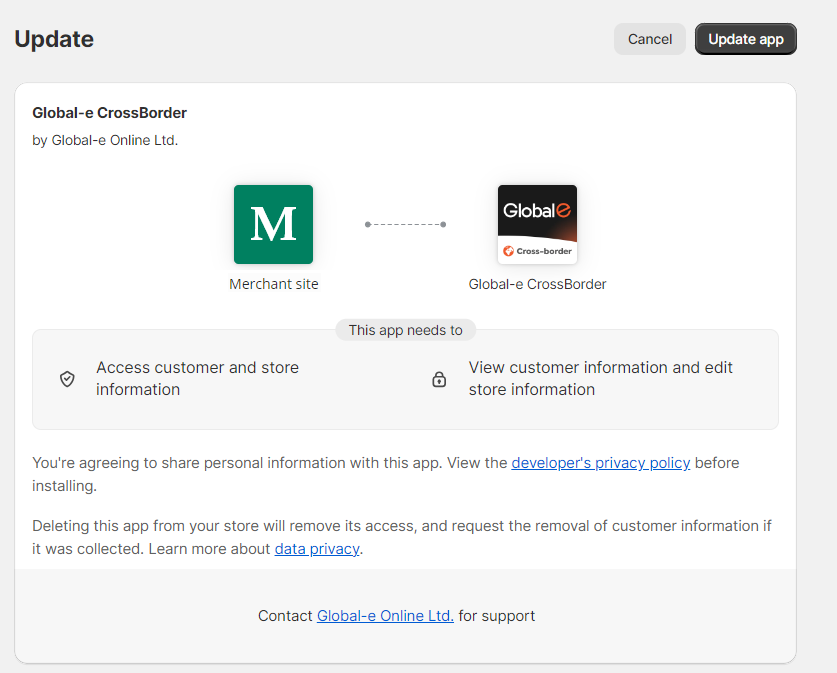
Click Update App.
Wait 10-15 minutes for the application to update before starting to create Shopify replacements.
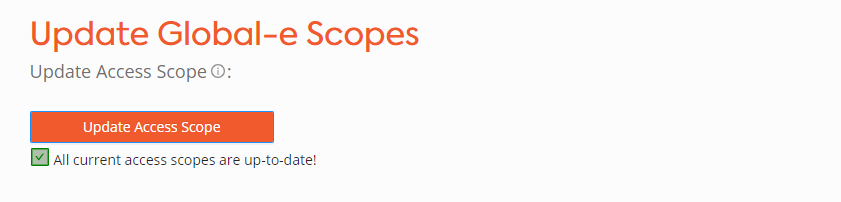
A message under the Update Access Scope button confirms that the app has been successfully updated.
Note
Global‑e’s responsibility does not involve validating orders when creating replacement orders.
Performing a Replacement in Shopify
To perform a replacement in Shopify:
Go to the Shopify Admin screen.
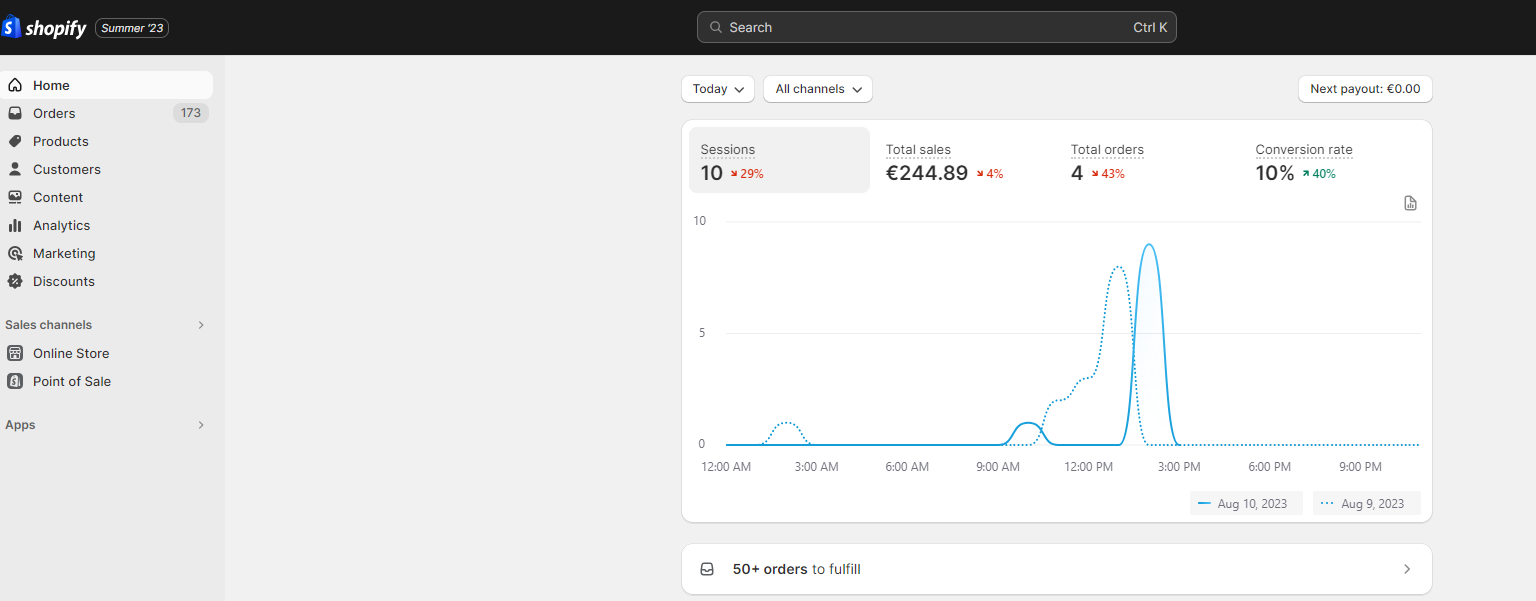
In the left navigation bar, click Orders.
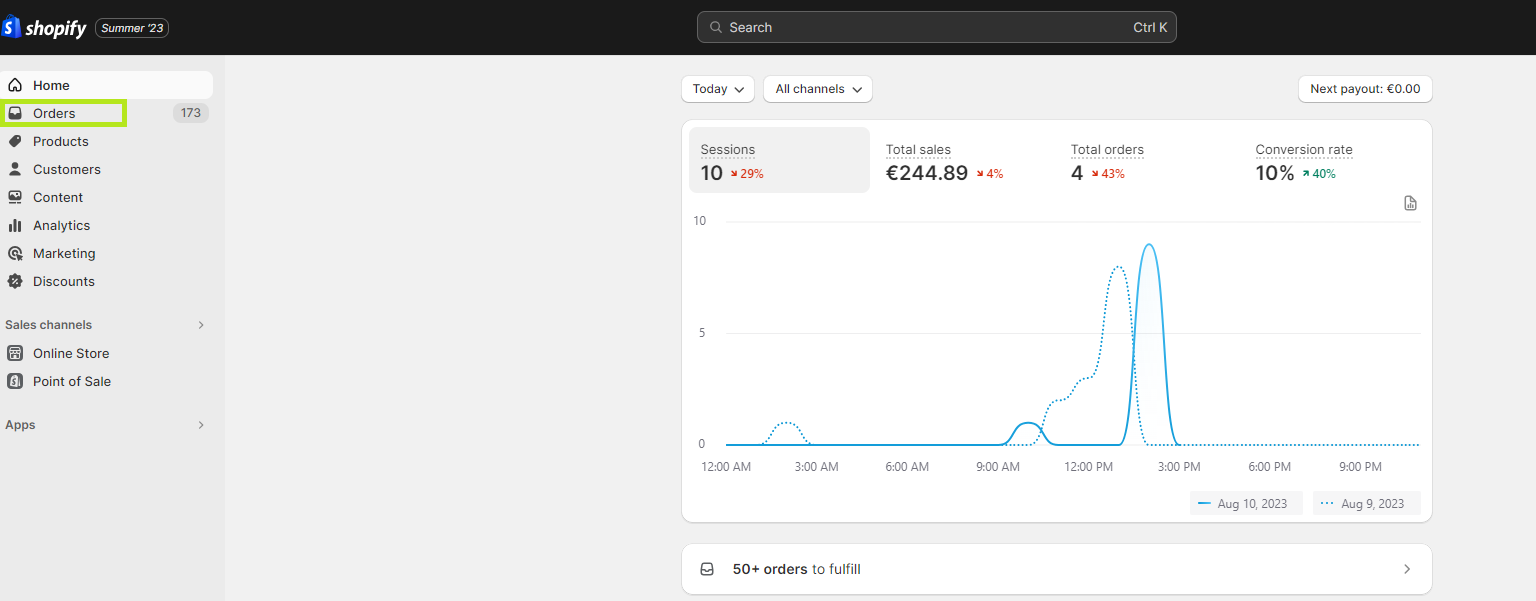
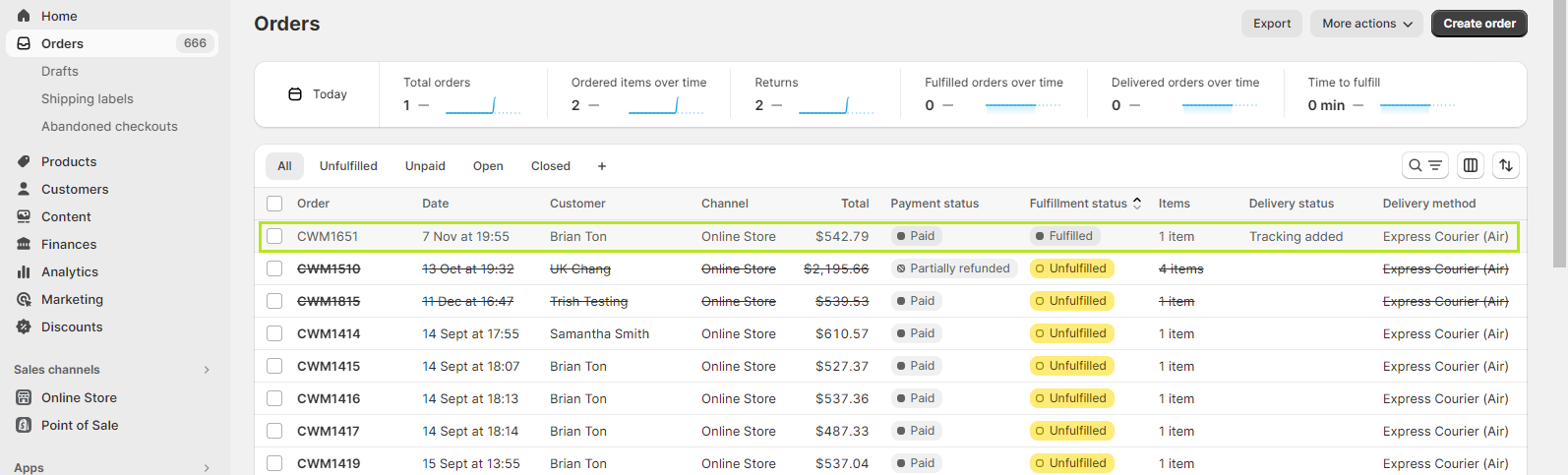
The list of orders is displayed. See Step 3, below.
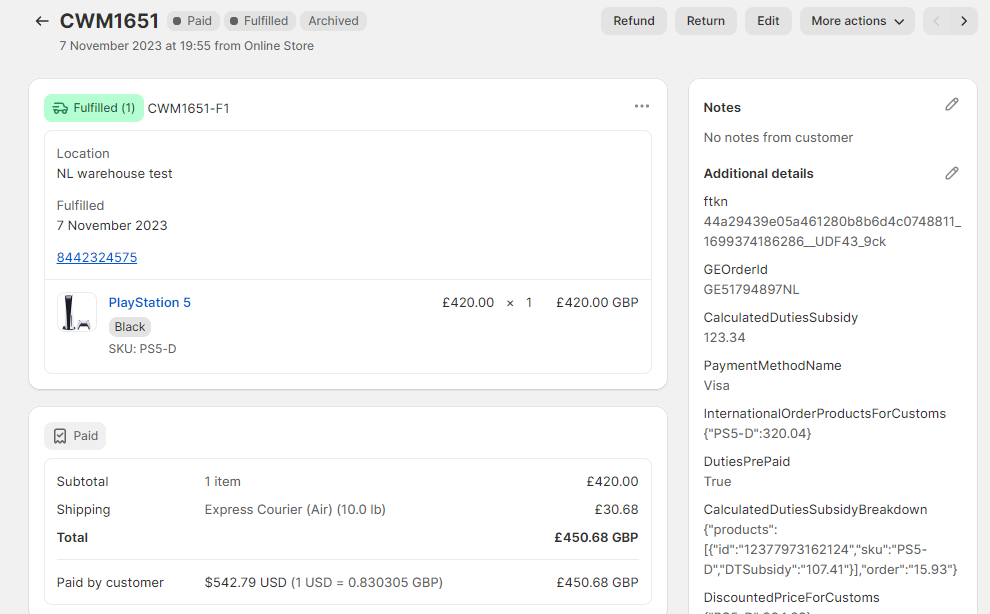
Select the order that you want to replace.
The original order opens.
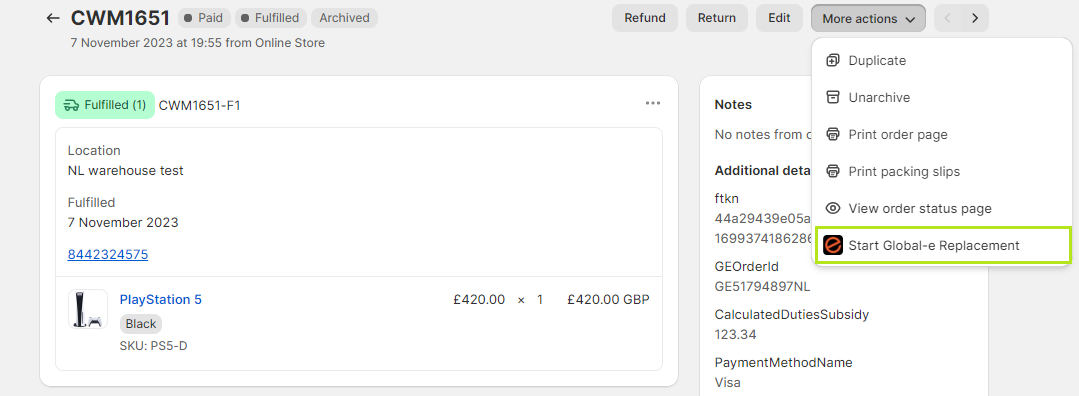
At the top-right, select More actions > Start Global‑e Replacement.
An instruction page opens, explaining the process for replacing an order.
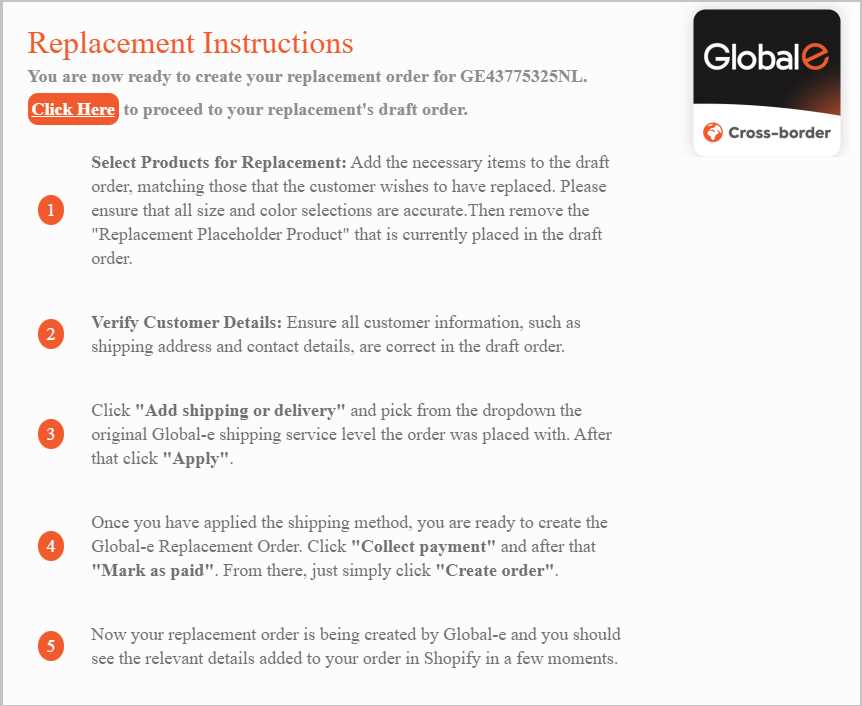
At the top of the Replacement Instructions page, select Click Here.
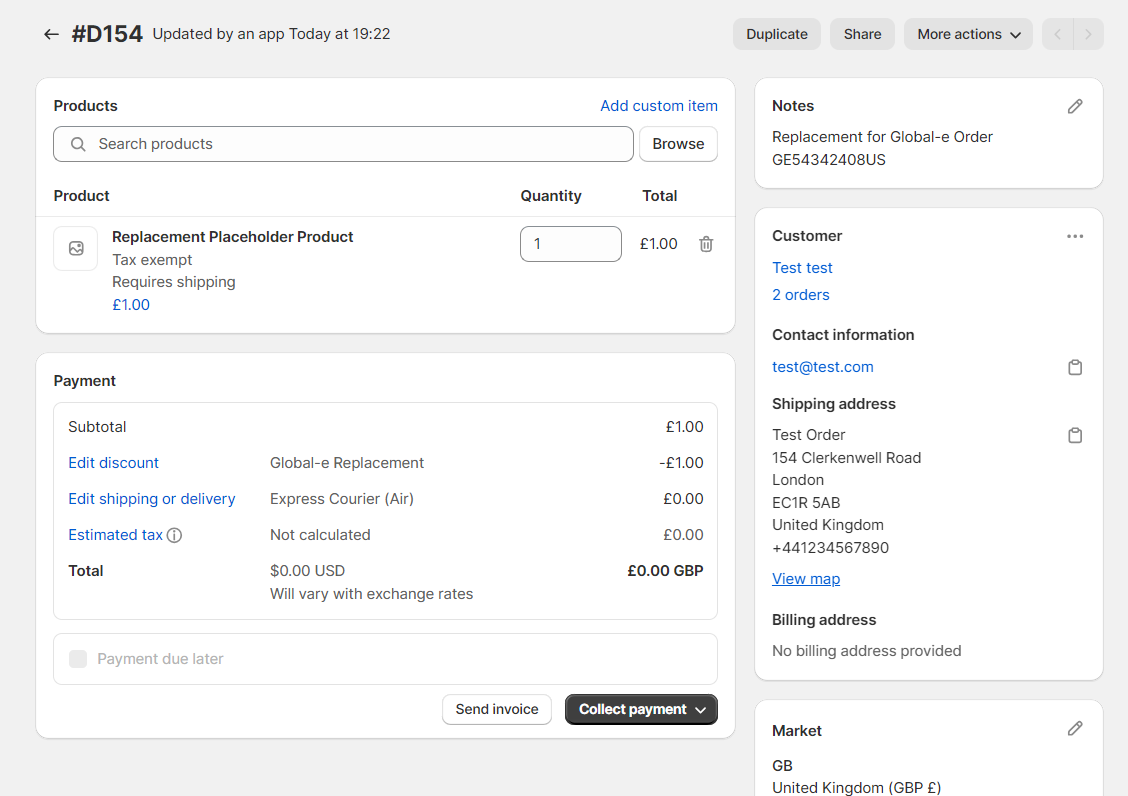
The draft order opens.
Note
Global‑e uses Shopify’s Draft Order feature to generate replacement orders. As part of the process, a placeholder product with a $0 value is automatically added to the draft order. This product is deleted before the finalization of the replacement order.
Under Products, in the Search bar, type the replacement item's name. - OR -
Click Browse to search through all the products.
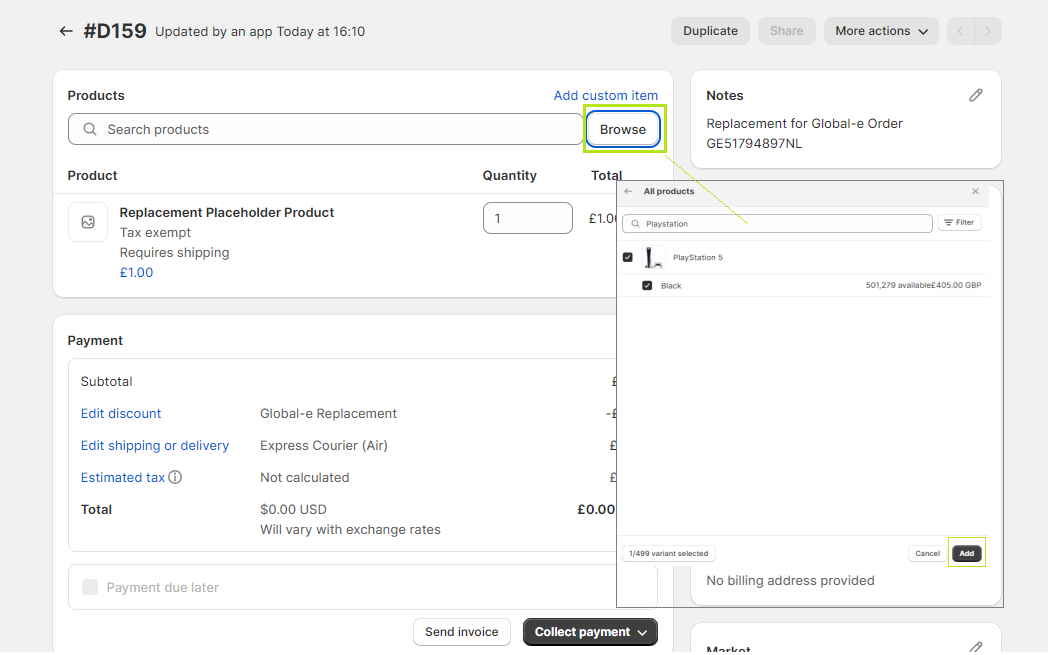
You can use the filter to search for a product by a barcode, SKU, ID, or title.
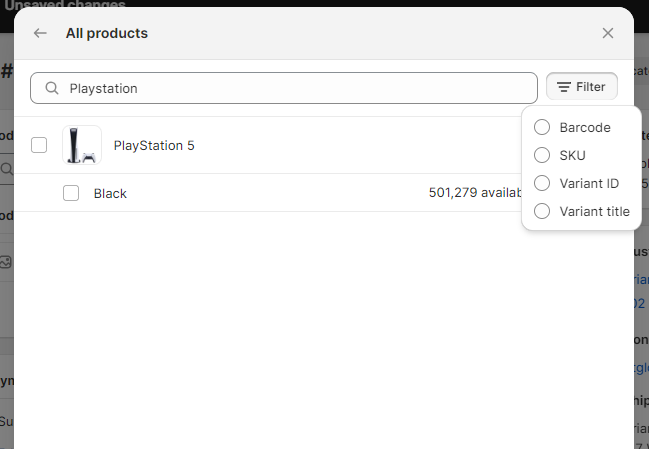
Select one or more replacement products and at the bottom-right click Add.
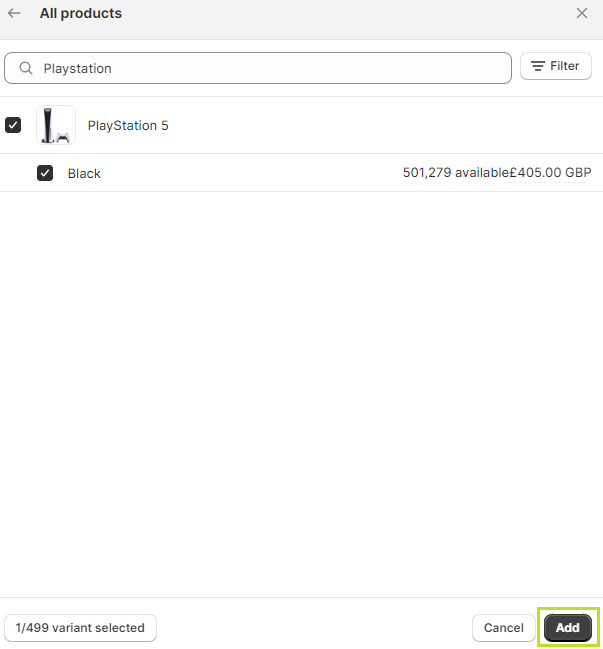
The product/s are added to the draft order.
The order screen displays:
The placeholder product
The replacement product
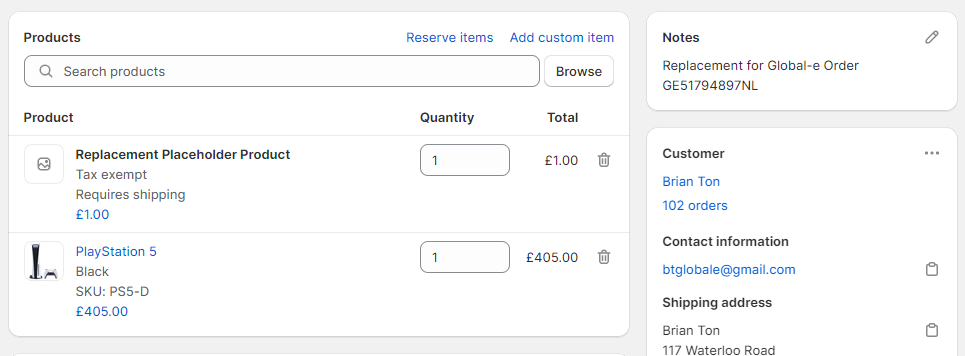
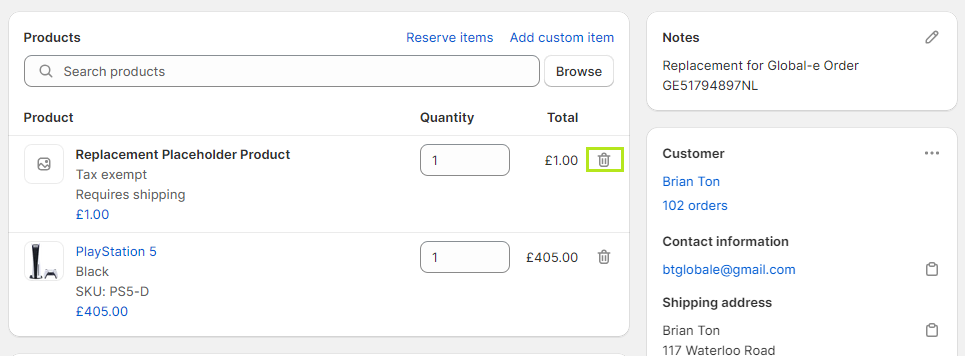
Click the Trash icon to delete the placeholder product.
Now, the draft order only includes the replacement product.
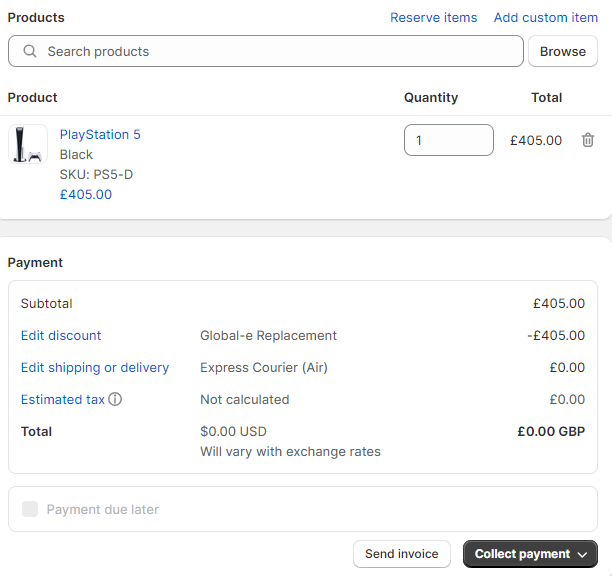
On the right side of the draft order, ensure the customer's shipping address and contact details are correct.
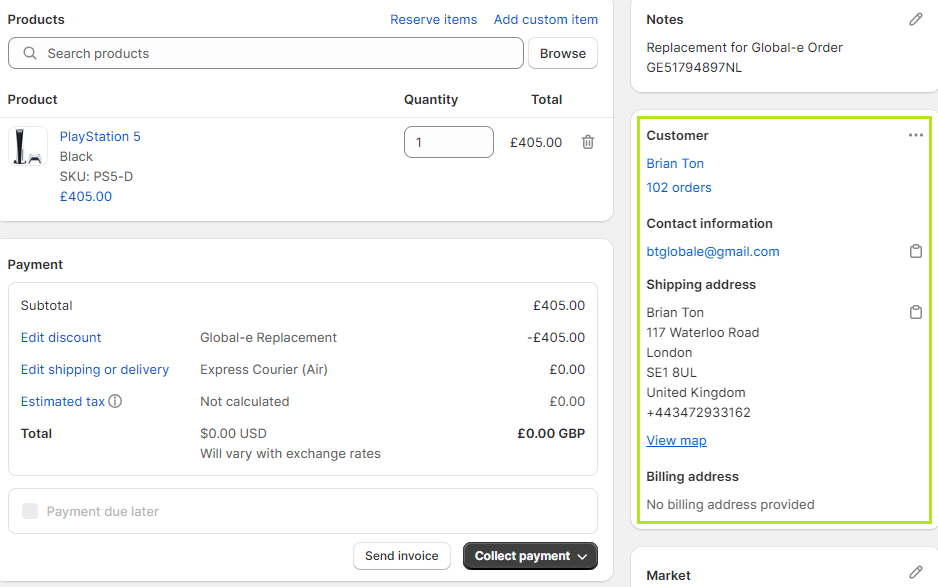
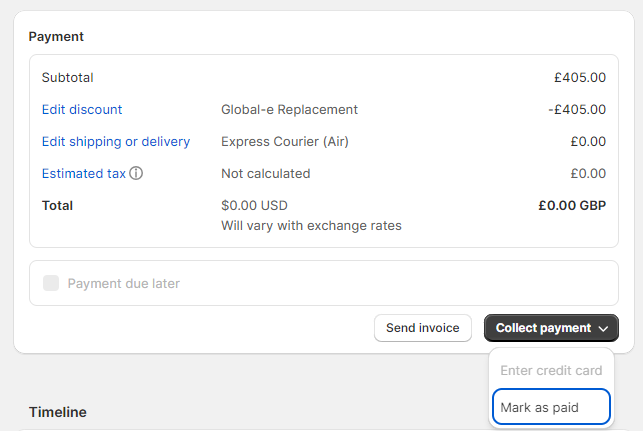
At the bottom of the Payment section, select Collect payment > Mark as paid
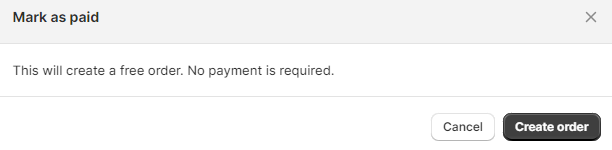
A pop-up appears confirming that an order is created and no payment is required.
Note
The draft order automatically inputs the same shipping method used for the original order and a zero-value shipping fee.
A 100% order discount is automatically applied to the order, bringing the order total to zero. We recommend not changing these settings because it will affect the order's total.
The only time you may need to edit the shipping option is if you use a shipping line Code or Source as an identifier instead of the Title. In this situation, manually edit the shipping information, as detailed below.
To edit the shipping rates:
Click Edit shipping or delivery.
The Shipping and delivery options opens and the ustom rates option is selected by default.
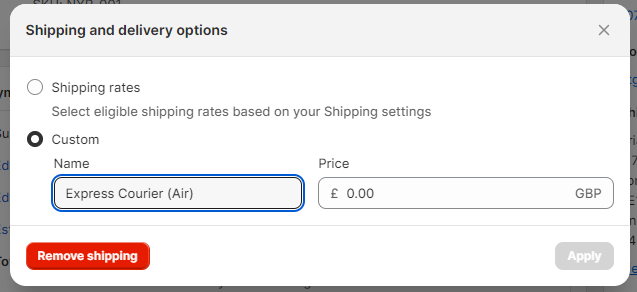
Select Shipping rates.
Choose a shipping method and click Apply.
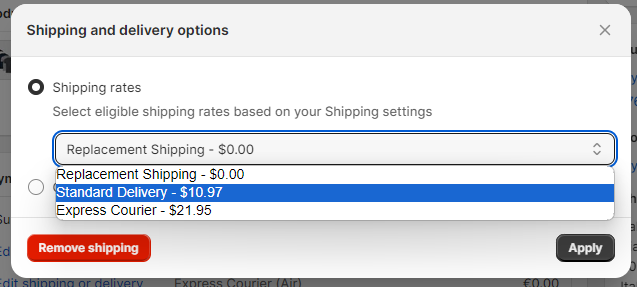
The new shipping rate is added to the order total.
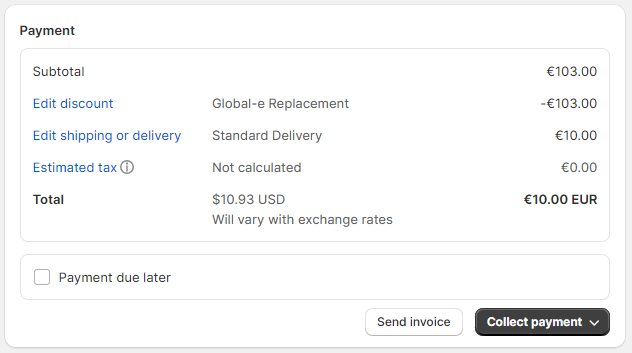
Click Collect payment > Mark as paid.
The Mark as paid window opens.
Input a shipping rate of $1.00 (or more) and click Create order.
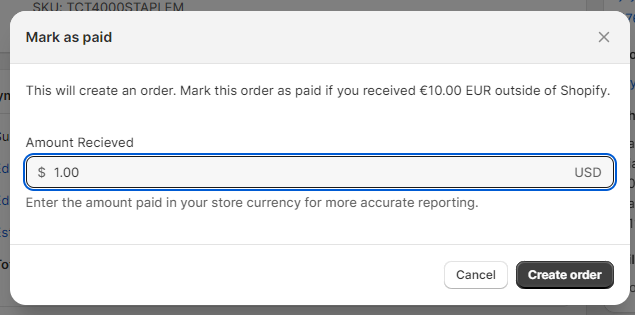
A new order for the replacement item (Replacement order) is created.
In the pop-up, click Create Order.
A new order for the replacement item (Replacement order) is created.
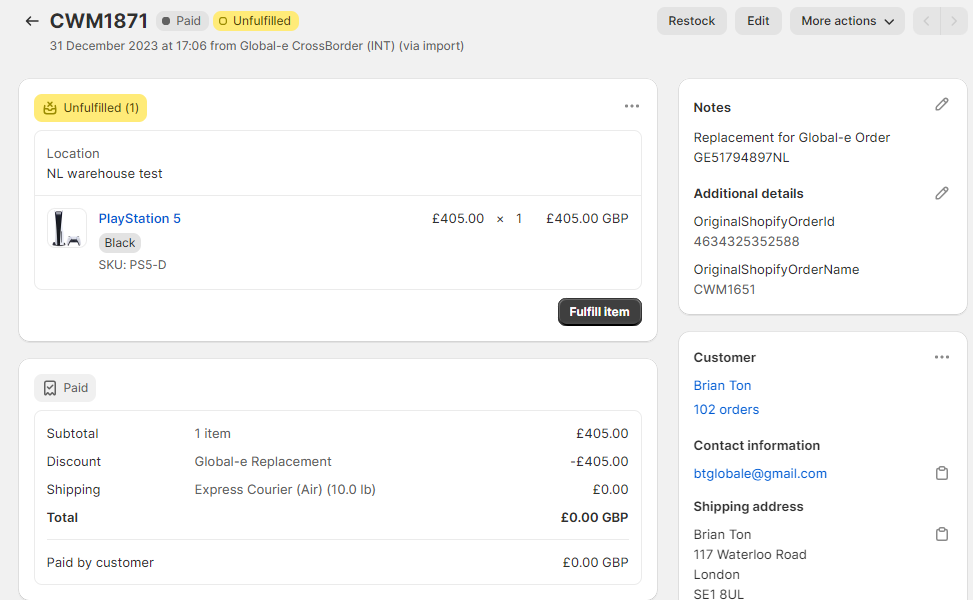
On the Global‑e Merchant Portal, view the Replacement order.
a. From the Global‑e Merchant Portal, go to Orders > View Orders.
b. Open the original order.
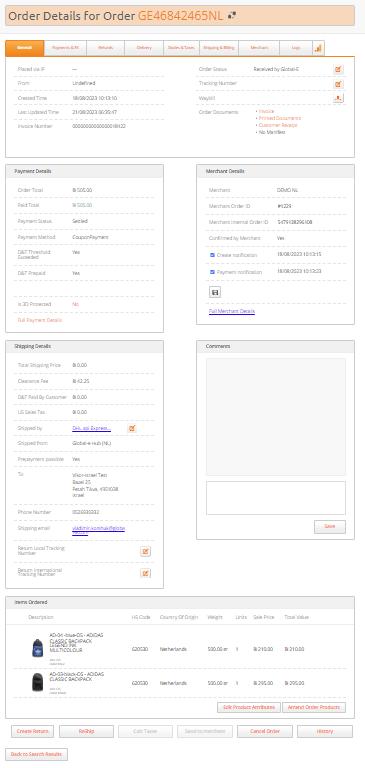
The newly replaced order is added to your ecommerce platform as a new order.
At the top of the order screen, the newly replaced order is flagged as a replacement order.

If you do not wish to include replacement orders in your sales reports, you may need to perform modifications on your ecommerce platform to make sure that they are not included in the sales reports.