Configuring and Managing Returns Reasons in the Portal
Overview
Use the Admin Dashboard home page and the Manage Returns page to monitor and process return and exchange requests (RMAs). The home page highlights what needs action, and Manage Returns is the main workspace for searching, filtering, reviewing, and completing RMA workflows.
Manage Your Returns shows your status counts and shortcuts, while Return Portal includes a link to your live Return portal.
Note
Your layout may differ depending on your settings.
Objectives
By the end of this guide, you will be able to:
Use the home page to jump to key return queues.
Search, sort, and filter RMAs by status in Manage Returns.
Review an RMA and complete common actions (approve, reject, cancel, reopen, receive, done).
Validate, restock, and refund/credit.
Export a returns data report and find RMAs that require attention.
Prerequisites
Access to the Admin Dashboard with permission to manage RMAs.
Understanding the Home Screen
The Home screen is divided into sections that classify returns at different status, each representing a stage in the return life cycle. These sections are located in the Manage Your Returns section. In addition, the Return Portal section on this page shows your Returns Portal URL, which you can add to your store or share with customers.
The following figure shows the Home screen:
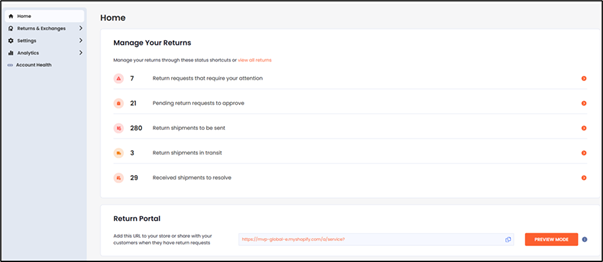
From here you can view:
Return requests that require your attention
Pending return requests to approve
Return shipments to be sent
Return shipments in transit
Received shipments to resolve
You can expand each group by clicking the one you want to expand. Each row corresponds to a group. Each group shows a number, indicating the amount of items on that page.
Clicking a group expands on a different page.
Managing Returns
In the Home screen description, we mentioned that you can view returns at different stages of the return life cycle. When you click one of the life cycle groups mentioned earlier, you can view the requests across the entire return life cycle.
From the Home screen, click one of the following:
Return requests that require your attention
Pending return requests to approve
Return shipments to be sent
Return shipments in transit
Received shipments to resolve
In the top row, click one of the following status filters:
All
Open RMAs
Pending requests
Approved requests
In transit
Shipment received
Done
Rejected requests
Canceled requests
Shipment rejected
Require attention
Important
RMAs that require attention pause processing until you resolve the issue. Hovering over an RMA number that requires attention shows a prompt providing the reason that it requires attention.
Searching for an RMA
Navigate to Returns & Exchanges > Manage Returns.
In the Search RMA or order number text field, type an RMA number, order number, or customer ID.
Optional:
Disable Exact match to search by partial number.
Enable Exact match to search by full number only.
Click the search
 button.
Sorting and Filtering RMAs
Navigate to Returns & Exchanges > Manage Returns.
Click SETTINGS.
From the Date Column menu, select one:
RMA created
Shipment delivered
Shipment in-transit
Click SAVE.
Filter RMAs using any of the following:
Date Created (Select a start and end date, and click Apply to apply your date range)
Resolutions (exchange, return resolutions, other)
Return reason
Resolutions (exchange, return resolutions, other)
Reserved Item Expiration (All / By Date Range / By Days Remaining / Expired Reservations), requires item reservation
Refund/Payment Status (All / Not Refunded / Not Paid / Paid / Expiring/Expired Payments)
Click APPLY.
Viewing RMA Details
Search for an RMA.
From the search results, click an RMA number.
From here you can view:
RMA summary and order summary
Customer information
Original items and new items (if applicable)
Shipments and draft orders
Timeline
Bottom action bar (actions change by status)
Approving a Return Request
Open the relevant RMA.
Review the request details.
Click APPROVE in the bottom action bar.
Rejecting a Return Request
Open the relevant RMA.
Click REJECT.
Enter a rejection reason.
Click SUBMIT.
Canceling an RMA
Open the relevant RMA.
Click CANCEL.
Confirm the cancellation.
Reopening a Canceled RMA
Open the canceled RMA.
Click REOPEN.
Issuing a Refund or Credit
Open the relevant RMA.
Click REFUND/CREDIT.
Review the refund calculator.
Click APPLY.
Select the refund method.
Click SUBMIT.
Exporting a Returns Data Report
Navigate to Returns & Exchanges > Manage Returns.
Click EXPORT.
Select the desired export format and filters.
Click DOWNLOAD.