Configuring Automation Rules for Returns
Overview
Automation rules in the Admin Dashboard gives you automated control over the return life cycle. Configuring automation per policy rule lets you automatically approve RMAs, issue refunds, and mark RMAs as done, while keeping exceptions available for manual review.
Objectives
By the end of this guide, you will be able to:
Update a policy rule to use automated approval, refunds, and completion.
Configure automation triggers and delays (when available).
Enable item validation workflows for warehouse teams where required.
Verify that automations executed successfully (and troubleshoot common blockers).
Prerequisites
You have access to the Admin Dashboard with permission to edit Settings (policy rules and store settings).
Your store is connected to Shopify.
Accessing Your Policy Rules
Because Global-e configures automation per policy rule, you can combine manual and automatic processing across different scenarios.
Navigate to to Settings > Return Policy.
The Settings – Return Policy page is displayed.
On the right side of the screen, click Expand all.
Click the pencil icon located to the right of the policy rule you want to update.
The selected policy rule’s details are displayed.
Expand the RMA Handling Process section.
Do one or more of the following:
Configuring Auto-Approvals
Auto-approvals automatically approve RMAs that meet policy rule criteria.
Complete accessing your policy rules.
In the dropdown menu located to the right of Approval Process, select Automatic.
Click the save icon in the top right corner.
Note
The save icon is only displayed when you change your Approval Process selection.
Navigate to Returns & Exchanges.
The Manage Returns window is displayed.
Click an RMA that matches the conditions in the policy rule.
Confirm the RMA is showing as Approved, and does not remain in Pending Requests.
Configuring Auto-Refund
Auto-refund issues refunds based on events (immediate or delayed) you select, and is configured per policy rule.
Complete accessing your policy rules.
In the dropdown menu located to the right of Refund Process, select Automatic.
The Trigger and Execute dropdown menus are displayed.
Set the Trigger event:
RMA is approved
Shipment is in transit
Shipment has been received
Items have been validated
Note
The available trigger options vary according to trigger selection and account. For example, selecting Items have been validated displays the Validation dropdown menu
In the Execute field, select one of the following:
Immediately
After…
Do one of the following:
If you selected Immediately, skip to Step 6.
If you selected After…, set the following, as shown in the figure below:
Number value
Time unit
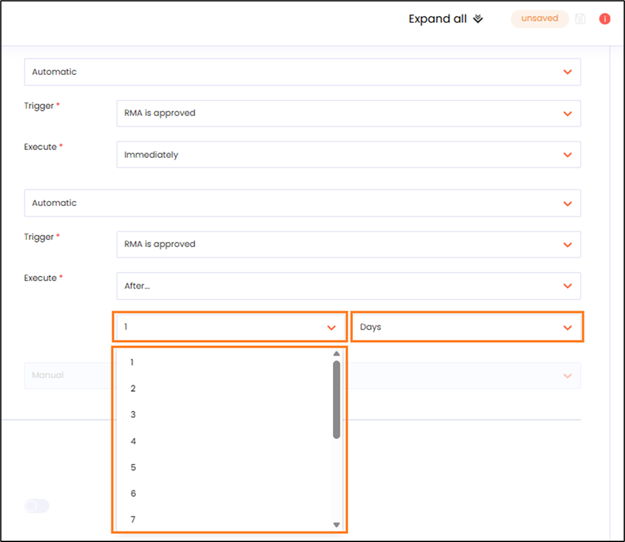
Click the save icon located in the top right corner of the page.
Note
The save icon is only displayed when you change your Approval Process selection.
Setting Auto-Mark as Done
Auto-mark as done marks an RMA as Done when all customer requests in the RMA are fulfilled.
Complete accessing your policy rules.
Set Mark as Done to Automatic.
Click the save icon located in the top right corner of the page.
Note
The save icon is only displayed when you change your Approval Process selection.
Verify that the auto-approval update worked:
Navigate to Returns and Exchanges.
Search or filter for an RMA processed under the policy rule in Step 6 of Configuring Auto-Approvals.
Verify that the RMA status has changed to Done automatically when conditions are met.
Setting Mark as Done After Partial Validation
Setting Mark as Done After Partial Validation is an optional configuration that marks RMAs as Done after actions are completed, even if some items are negatively validated. This feature is activated only when all items have a validation status.
Note
This feature is limited to merchants with certain subscription plans.
Complete accessing your policy rules.
Set Mark as Done to Automatic.
Select Mark as Done After Partial Validation.
Click the save icon located in the top right corner of the page.
Note
The save icon is only displayed when you change your Approval Process selection.
Enabling Item Validation for Warehouse Workflows
Item validation is an optional configuration. It supports automations that trigger on validation and is used for certain workflows, such as restocking.
Navigate to Settings > General.
Scroll down to near the bottom of the page and expand Items Validation.
Select the Document Shipment Content Inspection.
Click the save icon in the top right corner.
Note
The save icon is only displayed when you change your Approval Process selection.
Validating Items
Validating items is only relevant for operations or the warehouse.
Navigate to Returns and Exchanges.
Search or filter for an RMA processed under the policy rule in Step 6 of Configuring Auto-Approvals.
In the Item Validation region, set a status per item:
Returned
Returned + Restockable
Not Returned
Click save in the top right corner of the page.
Verifying and Monitoring Automation Results
Once you’ve set your configurations as needed, you can use the checks described in this section to verify and monitor your automation results.
Navigate to Returns and Exchanges.
Filter RMAs by status to confirm workflow status, such as:
Pending Requests
Requires Attention
Shipment Received
Done
Canceled Requests
Open an RMA.
Review the Timeline section for automation events, such as approval, refund, or completion.
Tip
If an RMA is stuck in the Requires Attention stage, verify that the automation trigger conditions were met, especially for validation-based automations.