Updating Exchange Options
Updating exchange options includes the following setting types:
Manual Exchange
Variant Exchange
Overview
You can update your exchange experience by editing exchange resolutions in the Admin Dashboard and then applying them in your return policy rules. This lets you offer customers one or both of the following:
Manual Exchange (reviewed and handled by your customer service team)
Variant Exchange (in-portal size/color exchange for the same product)
You can also control variant exchange pricing rules, stock behavior, and how exchange-order shipping rates are applied.
Objectives
By the end of this guide, you will be able to:
Add Manual Exchange resolution
Update Variant Exchange resolution.
Configure variant exchange pricing, stock, and shipping behaviors.
Update exchange-related settings in General (price source, returning exchanged items, and location-based inventory rules).
Apply exchange resolutions in Return Policy rules and verify they appear in your return portal.
Prerequisites
Verify that you have access to the Admin Dashboard with permission to edit Settings.
Adding a Manual Exchange Resolution
Manual exchange enables customers to submit an exchange request that your team handles manually (including creating the new exchange order manually).
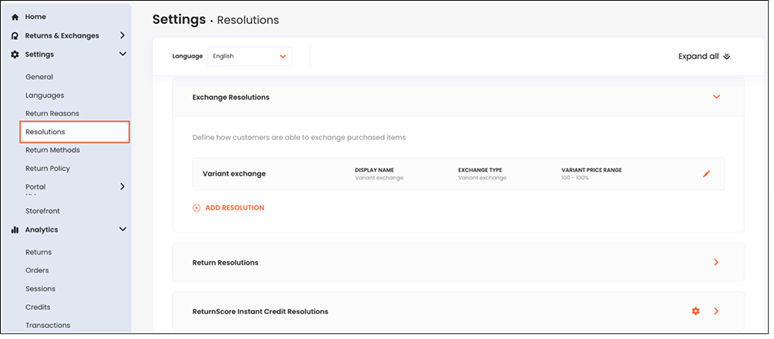
Navigate to Settings > Resolutions.
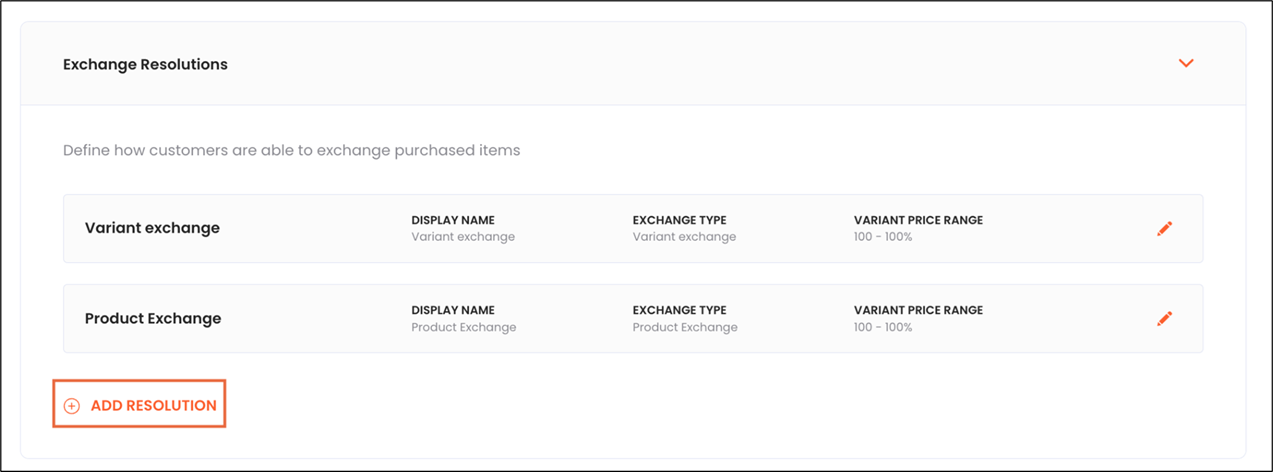
In Exchange Resolutions, click ADD RESOLUTION.
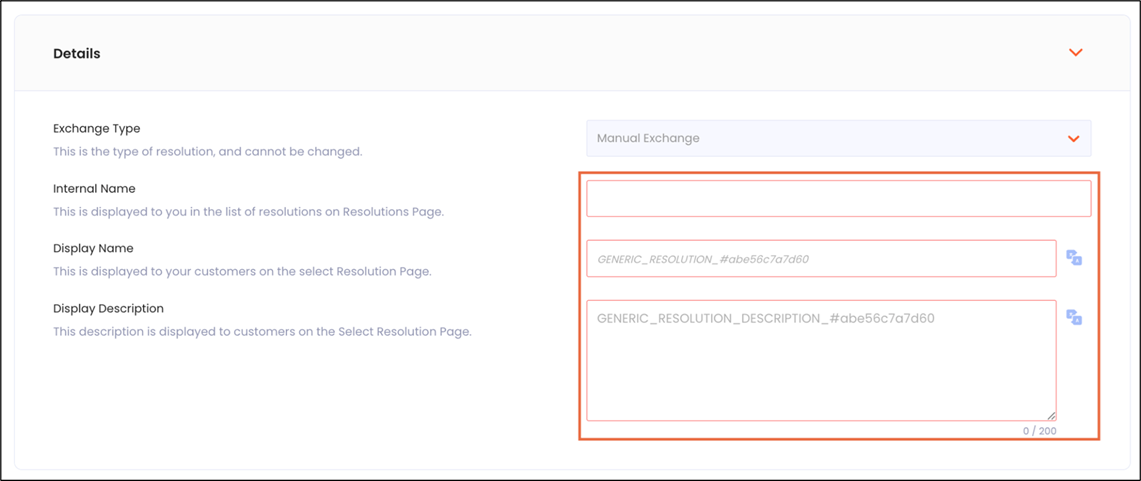
In Details, update the following fields:
Internal Name (not shown to customers)
Display Name (shown in the return portal)
Display Description (shown in the returns portal)
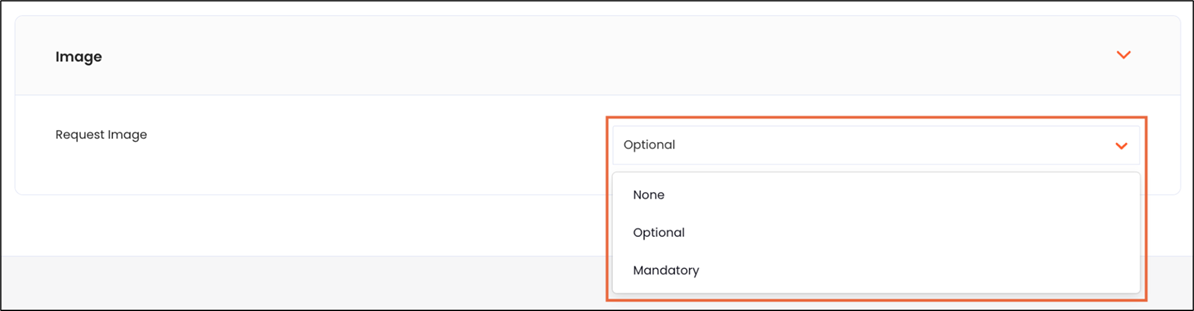
In Image, select whether the customer can attach an image:
None (customers cannot add images)
Optional (customers can add images)
Mandatory (an RMA cannot be created without an image)
Click the save icon in the top right corner.
In the Returns portal, confirm that the manual exchange option is displayed (when eligible) via policy rules.
Updating Your Variant Exchange Resolution
Variant exchange enables customers to exchange an item for a different variant of the same product (for example, size or color).
Opening the Variant Exchange Resolution for Editing
Navigate to Settings > Resolutions.
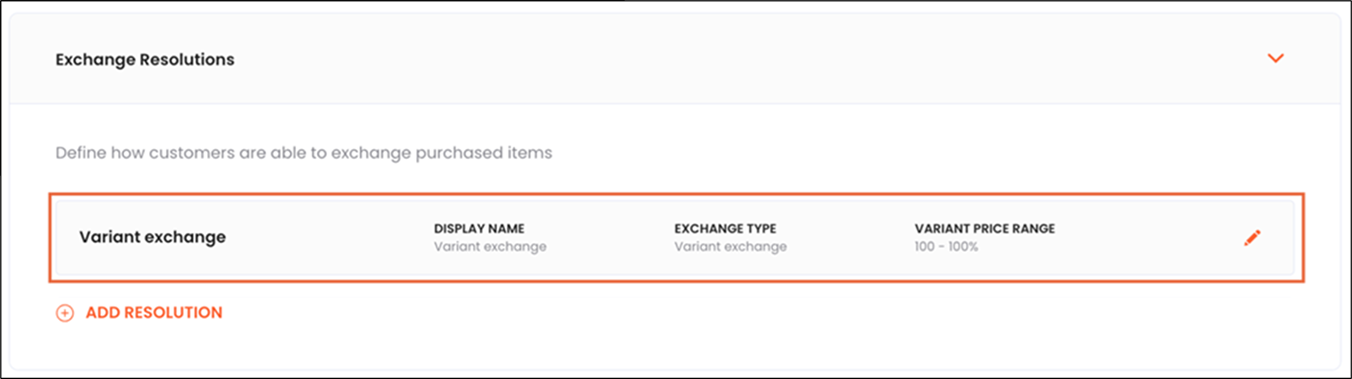
In Exchange Resolutions, open an existing variant exchange resolution (or create a new one if available in your dashboard).
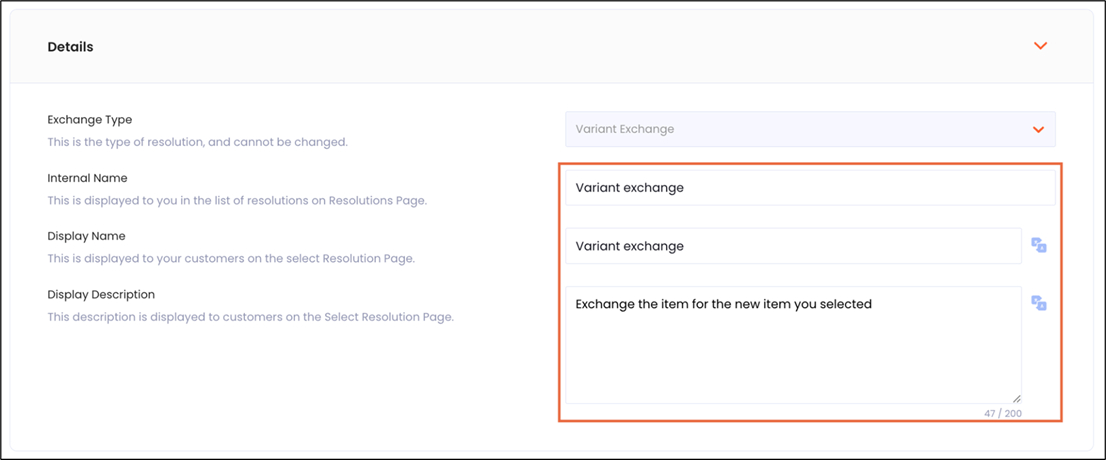
In Details, update:
Internal Name (internal only)
Display Name (shown in the return portal)
Display Description (shown in the returns portal)
Configuring Pricing
Configuring pricing is calculated as the sum of the free range and price difference behavior.
In Pricing, set the Free exchange variant price range.
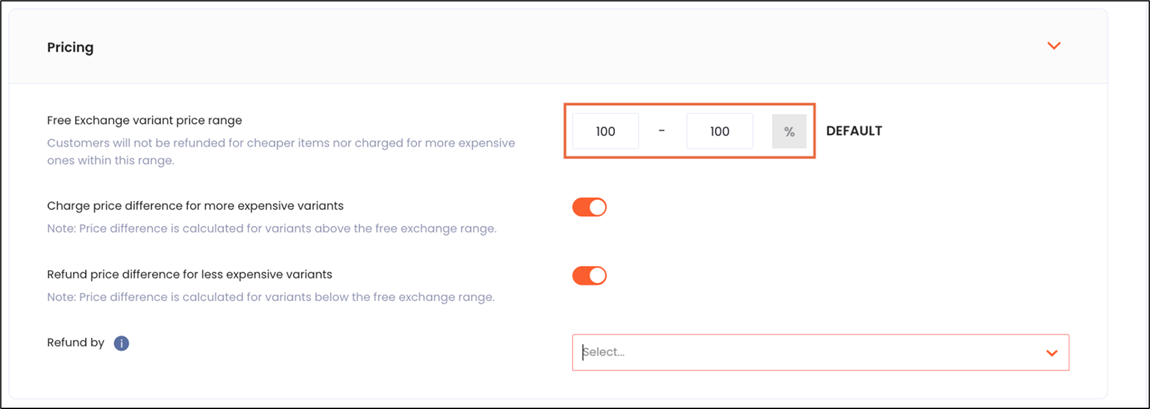
Do one or all of the following:
Enable Charge price difference for more expensive variants.
Enable Refund price difference for less expensive variants.
Select the Refund method (for price differences).
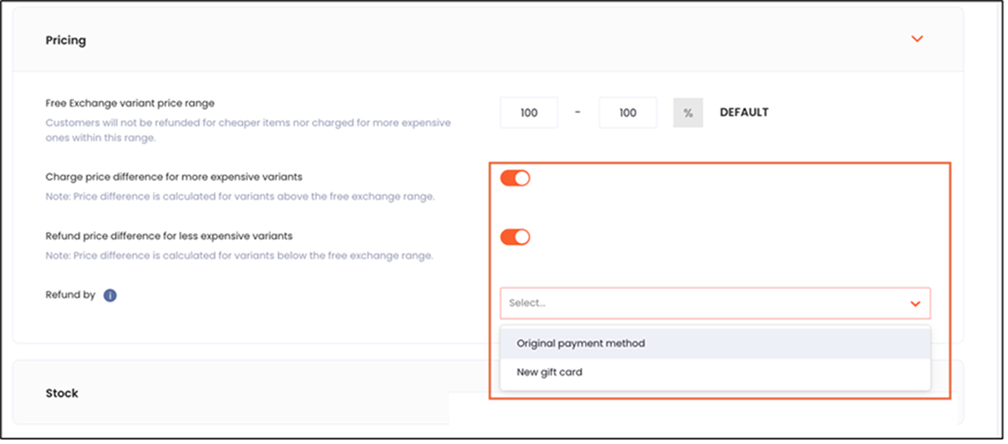
Click the save icon in the top right corner of the page.
Configuring Stock Behavior
Configuring stock behavior is calculated as the sum of out-of-stock, threshold, and size chart.
Navigate to Settings > Resolutions:
In Stock:
In the Allow out-of-stock exchange menu, select Allow all out-of-stock exchanges.
Set Minimum available stock threshold.
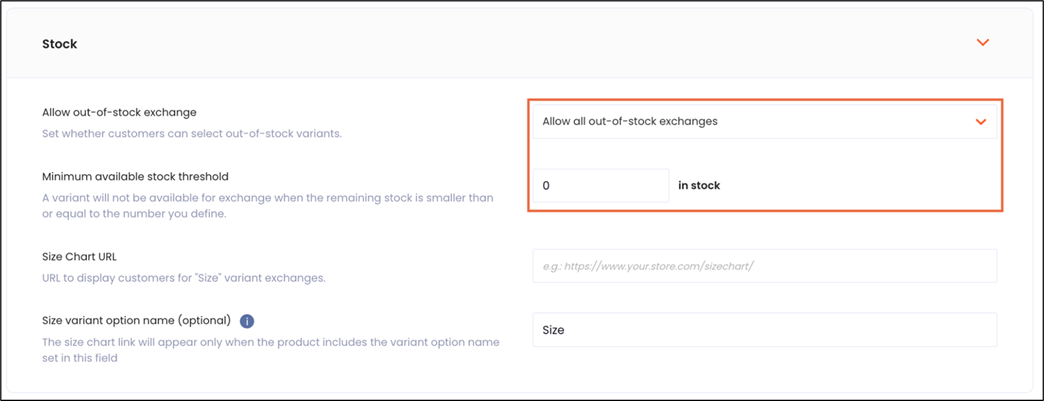
(Optional) Add size chart support:
Add the size chart URL.
Add the size variant option name (so the size chart shows only for that option type).
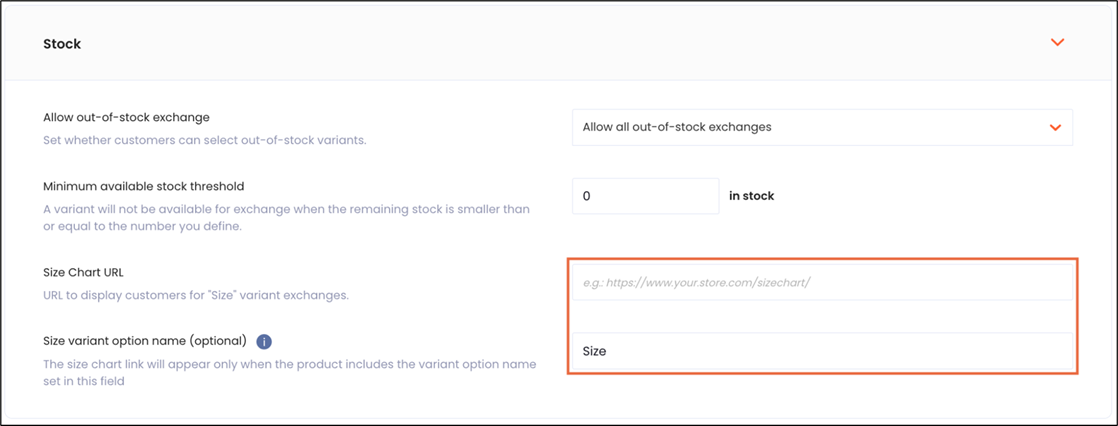
Click the save icon in the top right corner of the page.
Configuring Exchange-Order Shipping
This section describes how to configure exchange-order shipping.
Navigate to Settings > Resolutions.
Expand the Shipping section, and choose how shipping rates are applied to exchange orders:
Use any existing free shipping rate
Select shipping rate manually
Create custom free shipping rate
Always use one selected shipping rate
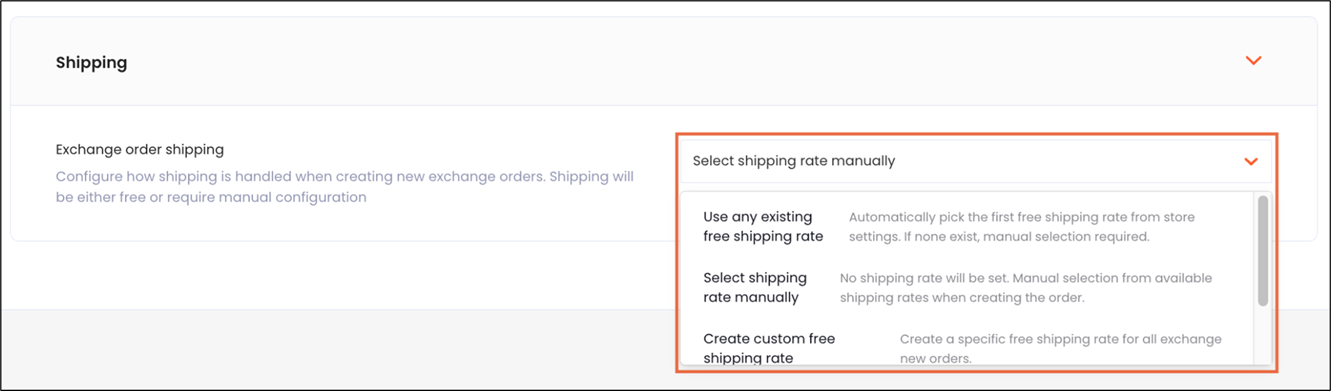
In the top right corner, click the save icon.
Note
The Exchange order shipping setting does not currently apply to manual exchanges.
Setting the Reference Price for Exchange Price Differences
Navigate to Settings > General.
Open the Exchanges section.
Under Product Exchange, set Original Item’s Price Source:
Paid Price
Catalog Price at Time of RMA
Catalog Price at Time of Purchase
Click the save icon in the top right corner of the page.
Note
The Exchange order shipping setting does not currently apply to manual exchanges.
Allowing Previously Exchanged Items to be Returned
Navigate to Settings > General.
Open Exchanges.
Enable Allow Exchanged Items to be Returned.
In the top right corner, click the save icon.
Fulfilling Exchanges Based on Order Country
Navigate to Settings > General.
Open Exchanges.
Enable Fulfill Exchanges Based on Order Country.
In the top right corner, click the save icon.
Updating General Exchange Settings
Updating exchange settings in General refers to the price source + exchanged-item returns + location logic.
Allowing Previously Exchanged Items to be Returned
Go to Settings > General.
Open Exchanges.
Enable Allow Exchanged Items to be Returned.
In the top right corner, click the save icon in the top right corner of the page.
Fulfilling Exchanges Based on Order Country
Go to Settings > General.
Open Exchanges.
Enable Fulfill Exchanges Based on Order Country.
Click the save icon in the top right corner of the page.
Applying Exchange Resolutions in Your Return Policy Rules
Resolutions appear to customers only when they’re eligible via your return policy rules.
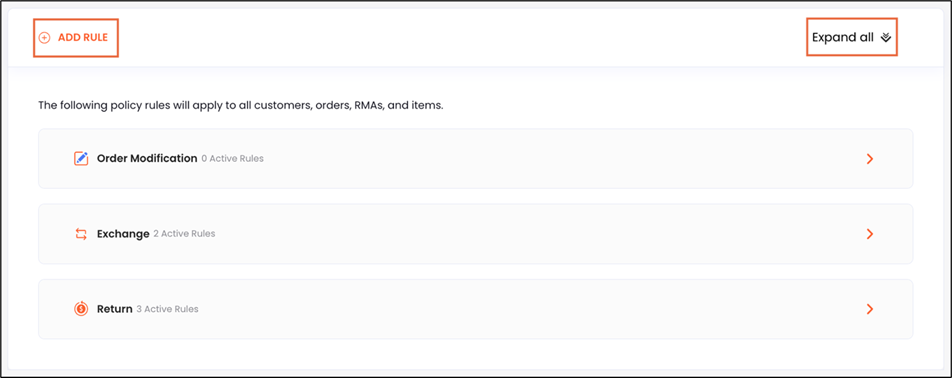
Navigate to Settings > Return Policy.
Update a rule:
Click ADD RULE to create a new rule, or
Click EXPAND ALL to edit existing rules.
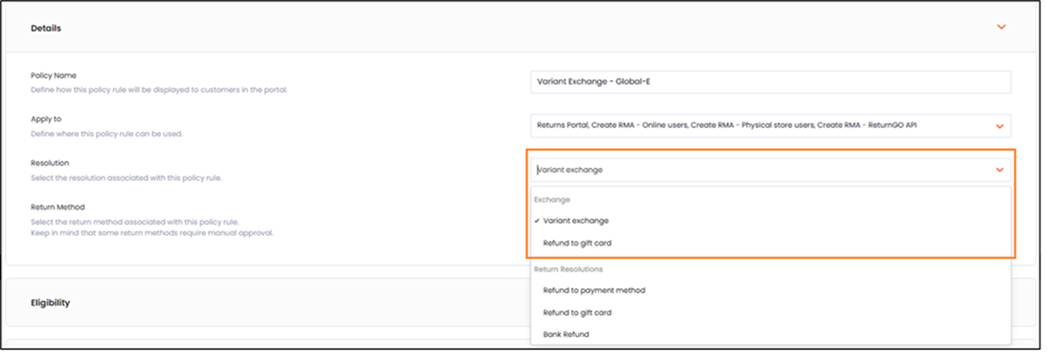
In the rule’s Details section, select the relevant Resolution (for example, Manual Exchange or Variant Exchange).
At the top of the page, enable Activate Policy Rule.
Click the save icon at the top right corner of the page.
Verifying Exchange Processing on the RMA
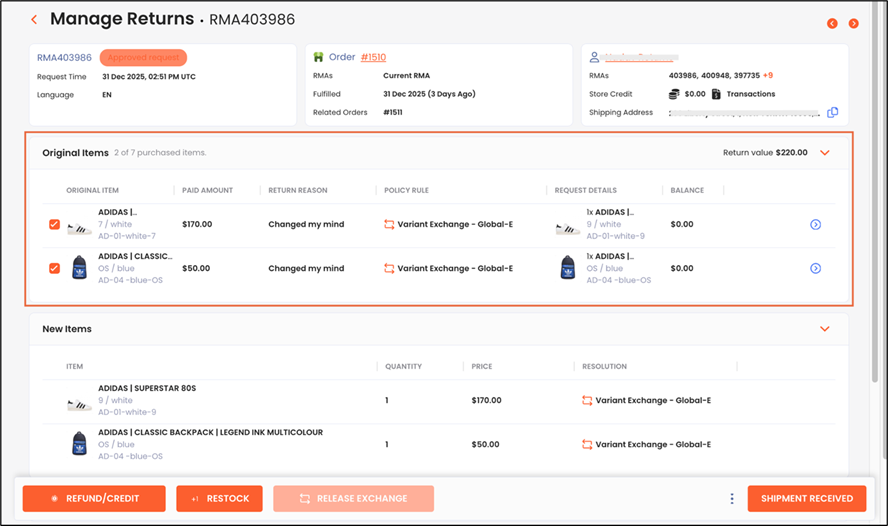
Navigate to Manage Returns.
Open a relevant RMA.
Confirm you can review the exchange request details and proceed with your internal fulfillment workflow.