Configuring Eligibility Conditions
Overview
Eligibility conditions are return policy rule properties that determine which customers, orders, and items are eligible to be returned or exchanged in the New Return Portal. The platform evaluates eligibility using order, customer, item, and RMA-level conditions, and shows customers which items they can, or cannot, select.
The following video describes the eligibility condition configuration:
What You’ll Accomplish
Understand how eligibility appears to customers in the New Return Portal.
Configure eligibility conditions in the admin dashboard using return policy rules.
Set up Tracking Fallback settings to prevent missing delivery dates from affecting eligibility logic.
Test your setup safely using Preview Mode (no RMAs created).
Requirements
Access to the Admin Dashboard
Permissions to edit Settings (including Return Policy and Store Settings)
Note
If you can’t see these menus, confirm your role/permissions with your team.
Before You Start
The following actions are recommended before you start:
List all scenarios you want to allow or deny, such as “Final sale items not eligible” or “Eligible for 30 days from delivery”.
Decide which eligibility level each scenario belongs to:
Order-level (such as order creation/delivery date, order tags, payment type)
Customer-level (such as location, customer type, customer tags)
Item-level (such as item tags, price paid, discount code, vendor)
RMA-level (such as total value or weight of items selected in the return)
Tip
To avoid logic conflicts, prefer positive logic (such as “Eligible if delivered within 30 days”) over negative logic (such as, “Not eligible if not within 30 days”).
Viewing Eligibility in the New Return Portal
This section describes how eligibility looks on the customer portal.
Access the New Return Portal.
Enter the customer’s order ID and the required identifier (email, ZIP, or phone number).
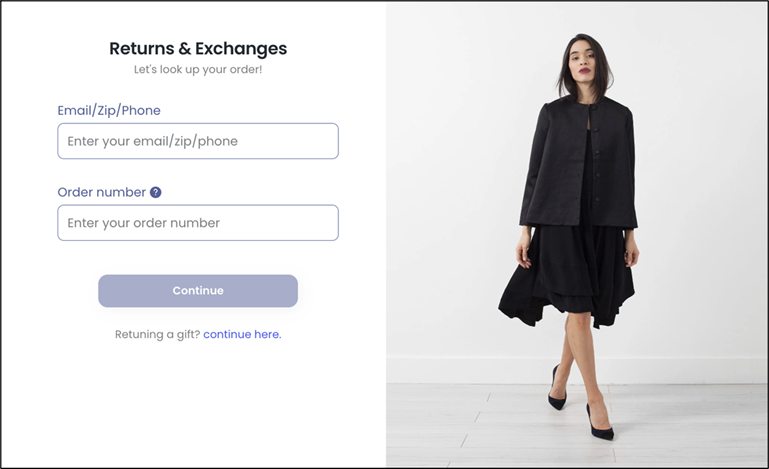
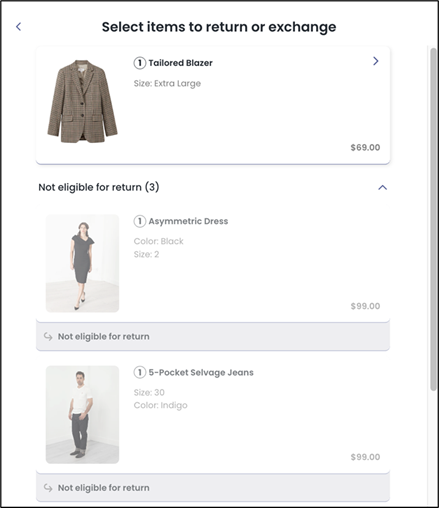
Load the order and review the item list:
Eligible items are selectable.
Ineligible items are shown as not eligible and cannot be selected.
The following figure shows the item list:
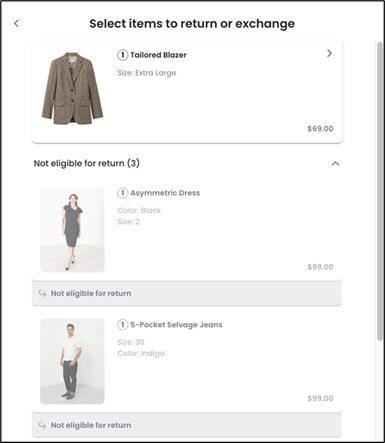
Accessing Return Policy Rules on the Admin Dashboard
Navigate to Settings > Return Policy.
Locate a policy rule.
Creating a New Policy Rule
Navigate to Settings > Return Policy.
Click ADD RULE.
On the Details page, configure the rule basics.
For example, you can configure rule name, resolution, return method. Note that fields may vary by account.
At the bottom of the page, click Eligibility.
Navigate to Settings > Return Policy.
(Optional) Click EXPAND ALL to find the rule quickly.
Click the pencil icon to the far right correspond to the policy rule you want to edit.
Click Eligibility.
Configuring Eligibility Conditions
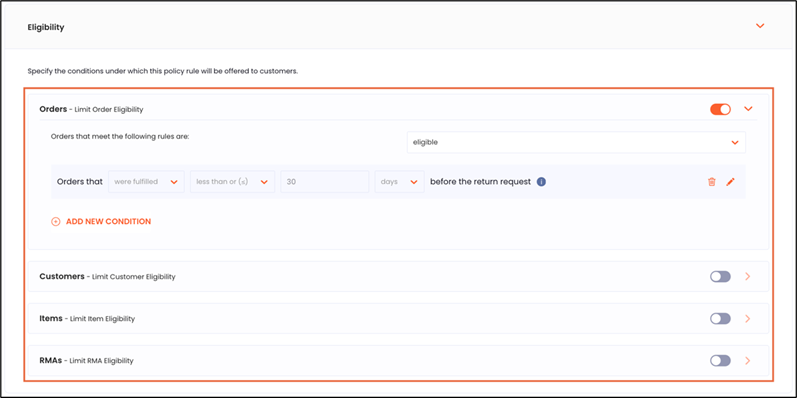
In the Eligibility section, you can build your rule using the supported eligibility levels:
Order-level conditions (examples supported):
Eligibility based on order creation time frame
Eligibility based on order creation date
Eligibility based on original order creation date (days or months)
Eligibility based on order fulfillment date (if fulfillment date is missing, the fallback is order creation date)
Eligibility based on order delivery date (if delivery date is missing, the fallback depends on Tracking Fallback settings)
Eligibility based on order tags (all/some/none; comma-separated; not case sensitive)
Eligibility based on the number of RMAs created (for the order)
Eligibility based on order value
Eligibility based on payment type (including whether paid with gift cards: only/partially/without)
Eligibility based on included items
Eligibility based on custom attribute
Eligibility based on purchase source or sales channel
The figure below shows the eligibility conditions:
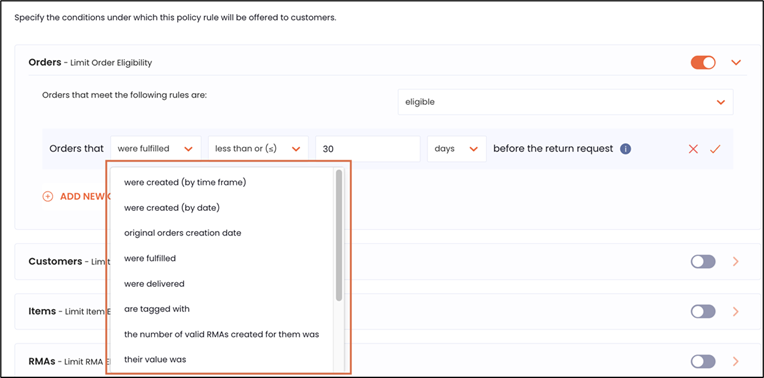
Customer-level conditions (examples supported):
Eligibility based on the customer’s location (uses OR logic across selected locations)
Eligibility based on customer tag (current and historical tags)
Eligibility based on customer type (Registered/Guest)
Eligibility based on the number of RMAs created by the customer
The following figure shows the customer-level conditions:
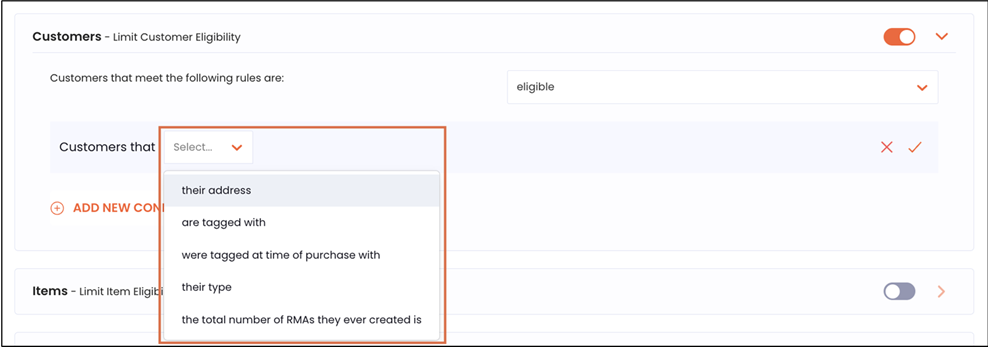
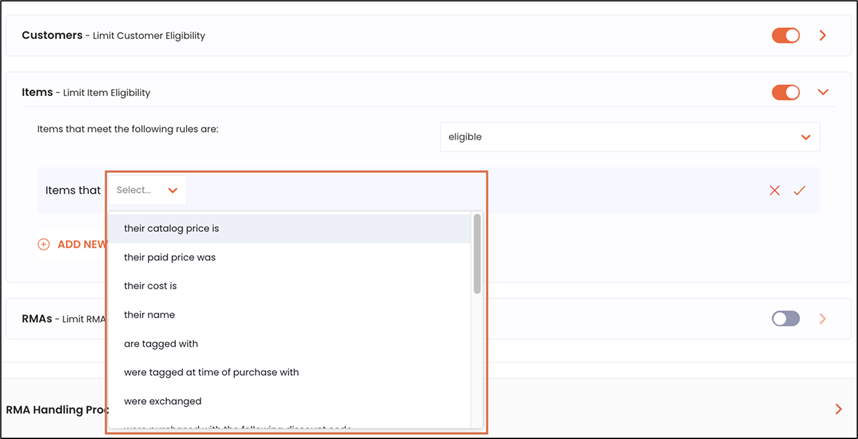
Item-level conditions (examples supported):
Catalog price, paid price, cost
Item name (contains/is and opposites; comma-separated; not case sensitive)
Item tags and item historical tags
Number of exchanges
Discount codes (contains/is and opposites)
Discount value (amount/percentage/comparative price percentage)
Total compare-at price and discount % (discount codes not included)
Return reason (limit offered resolutions based on the selected reason)
Item weight, vendor, collection ID, custom attribute (key/value)
Item fulfillment
Percentage of the order value
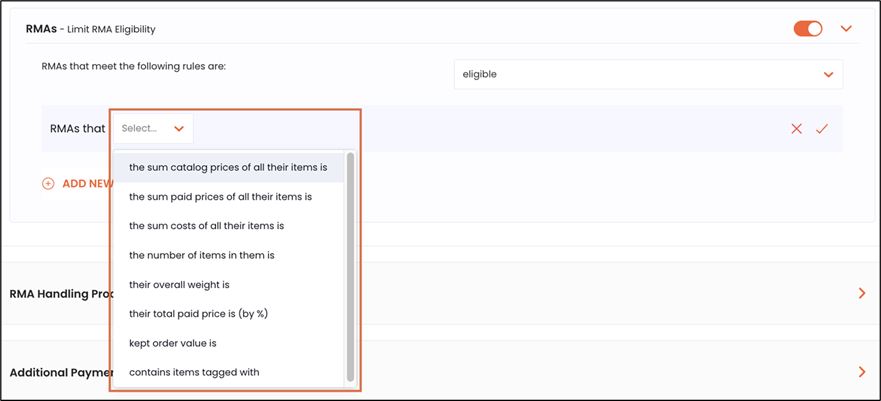
RMA-level conditions (examples supported):
Total listed price, total paid price, total cost
Number of items being returned (raw item count)
Overall weight
Percentage of the order value
Kept order value
Contains items tags
Important
Eligibility is evaluated across all four levels. If any level results in not eligible, the policy rule will not be applied to that item.
Important
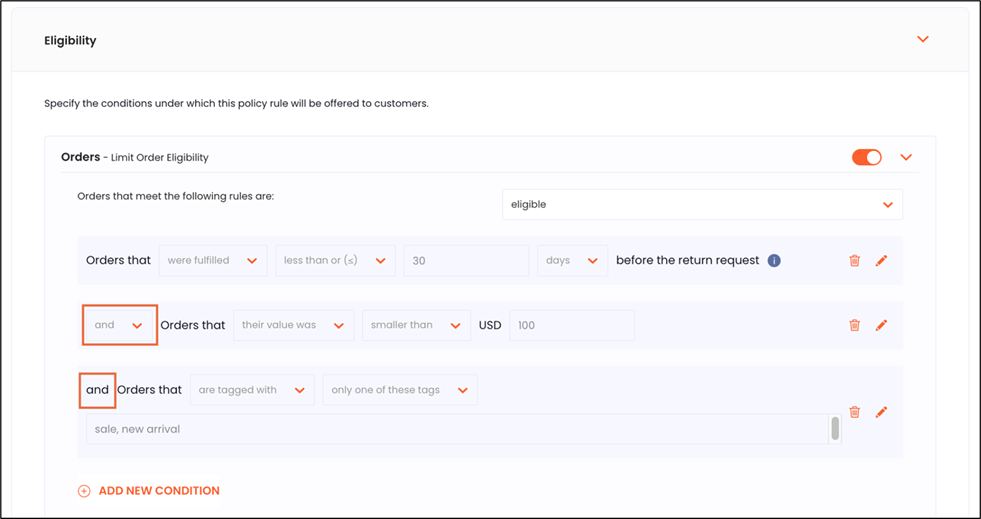
AND/OR limitation: You can’t combine AND and OR within the same eligibility level. Each level must use either all ANDs or all ORs. For complex logic, split conditions across multiple eligibility rules or different eligibility levels.
Activating and Saving Policy Rules
This section describes how to activate and save policy rules.
Enable Activate Policy Rule.
Click the save icon located in the top right corner of the page.
Note
Saved changes will not affect the New Return Portal unless the rule is activated.
Configuring Tracking Fallback
This is an optional, but highly recommended, configuration. Configuring tracking fallback is used for delivery-based eligibility.
If you use eligibility based on order delivery date and delivery dates may be missing, configure Tracking Fallback to ensure that eligibility checks run as expected.
Navigate to Settings > General.
Expand the Tracking Fallback section.
Set When to refer to orders to Delivered.
Note
Used when checking eligibility conditions, such as Orders that were delivered…, with a missing delivery date.
Set When to refer to in-transit return shipments as Delivered.
Note
This is used for automations triggered by a return shipment’s status.
Click the save icon in the top right corner of the page.
Running Step-by-Step Verification
This section describes how to run step-by-step verification.
Test safely using Preview Mode:
Navigate to the Admin Dashboard Home page.
Click PREVIEW MODE.
A new tab opens with the New Return Portal and a Preview Mode label (top right-hand corner of the page).

Enter a real order ID and test different scenarios (eligible vs not eligible items).
Note
Preview Mode lets you test without creating RMAs or sending notifications.
Confirm the customer-facing behavior in the New Return Portal:
Verify that eligible items are selectable, and ineligible items are marked not eligible.
Confirm the specific scenario you configured (such as date window, tags, reason, etc.) behaves as expected.
Do one of the following:
If you created a real RMA - in the Admin Dashboard, verify your eligibility settings.
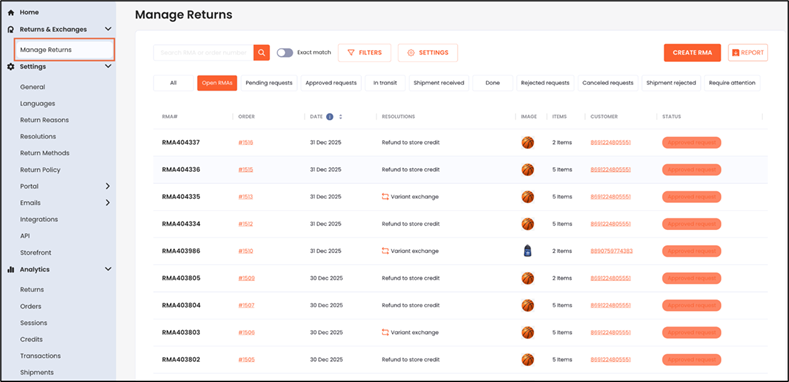
If you tested outside of Preview Mode and submitted a real return - navigate to Manage Returns and open the RMA to review what was returned and the results.
Reports and Analyses
Eligibility controls what customers can select in the New Return Portal and which policy rules apply. If you need analytics or export specifics for returns created under certain rules, confirm which reporting views are enabled in your Admin Dashboard (Analytics, exports, etc.).
Troubleshooting Common Issues
This section describes how to troubleshoot common issues:
Issue | Solution |
|---|---|
Nothing changes in the New Return Portal | Confirm the rule is toggled Activate Policy Rule = ON and saved (save icon). |
Delivery-based rules behave inconsistently | Configure Tracking Fallback so missing delivery dates don’t block eligibility checks. |
Complex logic not working | You can’t mix AND and OR within the same eligibility level. Split logic across multiple rules or levels. |
Expected item data is missing | Deleted/null items aren’t supported for eligibility checks (no item data to process a return). |
Tag rules not matching | Tags are not case sensitive; comma-separated values represent “A or B or C.” Also confirm whether the condition checks all/some/none. |
Frequently Asked Questions
This section includes some frequently asked questions and their answers.
How are multiple eligibility levels combined?
If any eligibility level (order/customer/item/RMA) evaluates to not eligible, the policy rule won’t apply to that item.
Can I use AND and OR together in the same eligibility level?
No. AND/OR cannot be combined within the same eligibility level.
What happens if delivery date is missing?
Delivery-based eligibility uses your Tracking Fallback settings.