Configuring Auto-Refunds
Auto-refund issues refunds based on events (immediate or delayed) you select, and is configured per policy rule.
Complete accessing your policy rules.
In the dropdown menu located to the right of Refund Process, select Automatic.
The Trigger and Execute dropdown menus are displayed.
Set the Trigger event:
RMA is approved
Shipment is in transit
Shipment has been received
Items have been validated
Note
The available trigger options vary according to trigger selection and account. For example, selecting Items have been disabled displays the Validation dropdown menu.
In the Execute field, select one of the following:
Immediately
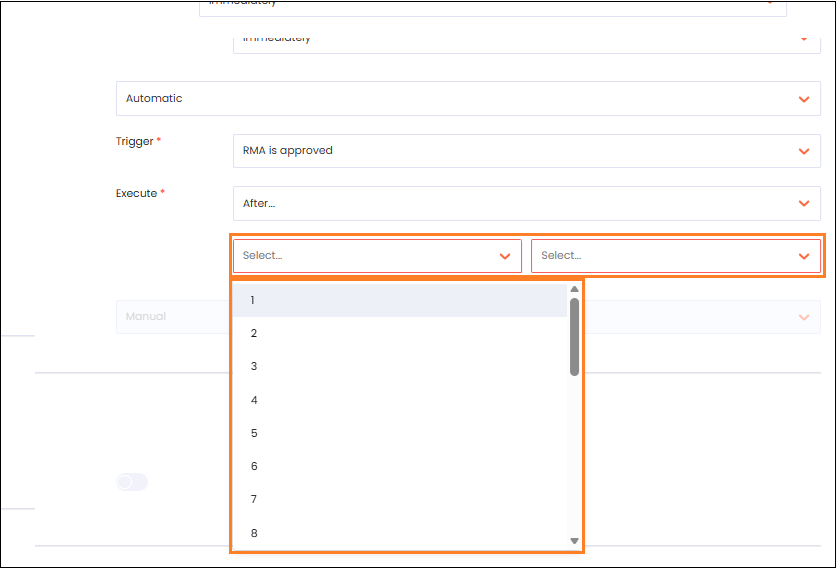
After...
Do one of the following:
If you selected Immediately, skip to Step 6.
If you selected After..., set the following:
Number value
Time unit
Click the save icon.
Note
The save icon is only displayed when you change your Approval Process selection.