Centra
This page describes how to configure your Centra platform when integrating with Global-e, and describes the following:
Extracting the Initial Catalog
Centra has unique product identifiers that Global-e uses to manage operations. Because some of these identifiers do not exist in Centra's native catalog export, merchants must extract the catalog on their own using the Python method. The Python method is used to retrieve the required catalog information. Note that the initial catalog upload cannot be completed correctly without providing this information.
The following shows the Python extraction method:
from time import sleep
import requests
import csv
# Define the URL for the Centra Checkout API
api_url = "https://temp.centraqa.com/graphql"
api_token = "123456789abc"  # Replace with your actual API token
# Define the headers for the API request
headers = {
    "Authorization": f"Bearer {api_token}",
    "Content-Type": "application/json"
}
count_index = 1
# Define the CSV file name
csv_file = "centra_catalog5.csv"
# Define the CSV headers
csv_headers = ["Product Unique Identifier", "SKU", "Display Name", "Product Description", "Country of Origin"]
# Write data to the CSV file
with open(csv_file, mode='w', newline='', encoding='utf-8') as file:
    writer = csv.writer(file)
    writer.writerow(csv_headers)
    while True:
        # Define the query with variables
        query = """
          query productList(
          $status: [ProductStatus!]!
          $page: Int!
        ) {
          products(
            where: { status: $status }
            sort: [updatedAt_DESC]
            limit: 30
            page: $page
          ) {
            id
            countryOfOrigin {
              code
            }
            displays(where: { storeId: 1 }) {
              name
              description
              displayItems {
                id
                productVariant {
                  productSizes {
                    id
                    SKU
                  }
                }
              }
            }
          }
        }
        """
        variables = {"status": "ACTIVE", "page": count_index}
        response = requests.post(api_url, json={"query": query, "variables": variables}, headers=headers)
        response_data = response.json()
        print(response_data)
        for product in response_data['data']['products']:
            for display in product['displays']:
                for display_item in display['displayItems']:
                    for product_sizes in display_item['productVariant']['productSizes']:
                        if product['displays']:
                            product_id = product_sizes['id']
                            sku = product_sizes['SKU']
                            display_name = display['name']
                            description = display['description']
                            country_of_origin = 'N/A'
                            if product['countryOfOrigin']:
                                country_of_origin = product['countryOfOrigin']['code']
                            writer.writerow([product_id, sku, display_name, description, country_of_origin])
        sleep(1)
        print("page: " + str(count_index))
        count_index = count_index + 1
1. Plug-In Configuration
This page describes the following elements:
1.1 Configuring Global-e Plugins
Centra's three main APIs and webhooks must be added from Centra and configured in Global-e. Each of these has a plug-in that must be created on each environment separately.
Navigate to Stores management > Stores.
Select a store and click View.
Each store should have one entry.
From the Store panel, scroll down to the Plugins section and click Add plugin method.
Click GE Order API to view its configuration settings.
Configure the Order API settings (for managing your store):
Note
This document only describes the required settings, and all settings that are not described can be ignored.
Status: Active
Plugin name: GE Order API
Plugin: Order API
Configure the following Settings:
URI: ge-order-api
Secret API key: to get the secret token, generate a random token in the Encrypt section of the it-tools.tech website:
Your text: GLOBAL-E INTEGRATION
Your secret key: <MERCHANT NAME>_ORDERAPI
Encryption algorithm: AES
Your text encrypted: <generated token>
Markets: Select all
Debug logging: Yes
Primary warehouse: Relevant warehouse specified by the merchant
Update stock updates: Physical
Limit shipments by warehouse: No
Get Orders with Status: Select ALL
Return "waiting for payment": Yes
Return "on hold" orders: Yes
Get orders starting with: Oldest
Get orders and shipments returns internal comment: Yes
Get orders and shipments returns Other: Yes
Get products returns cost price: Yes
Return unconfirmed allocations: No
Get products returns tax for the country: None
Bundles in shipments: Only containing items
Bundles in orders: Only containing items
Updating shipment with missing items: Keep items in order
Allow access to the following endpoints: Select ALL
Click GE Integration Webhooks to view its configuration settings.
Configure the following Centra Webhook settings (for integrating webhooks):
Status: Active
Plugin name: GE Integration Webhooks
Plugin: Centra Webhook
Required Settings:
Webhook URL: Setting this field with the correct value requires building a dedicated URL in the following format:
https://{Global-e Environment}/webhooks/v1/Webhooks/WebhookIntegrationApi?merchantId={Merchant ID}&domain={Centra’s Merchant Domain}See the table below for the possible options to include in the webhook URL format shown above:
Element
Example Value
Global-e Environment
QA-INT - centra-int.bglobale.com
PROD - centra.global-e.com
MerchantID
1808
Centra's merchant domain
sandbox.centraqa.com
The following is an example of the URL result based on the values above:
https://centra-int.bglobale.com/webhooks/v1/Webhooks/WebhookIntegrationApi?merchantId=1808&domain=sandbox.centraqa.com
Version: Integration API
Event triggers:
Order - Yes
Shipment - No
Customer - No
Account - No
Check first - No
Allocation request - No
Return - Yes
Navigate to System > API Tokens.
Click Create integration API token.
Configure the following fields:
General
Restrictions
Permissions
Description
Organization name
Email
Phone number
Integration name
Store types: ALL
Stores: GlobalE Store
Read permissions: Select ALL except CENTRAIP and CentraIP Details
Update permissions: Select ALL except Anonymize:write
Copy and store the token:
Click Show.
Copy the token and save it locally.
Once created, Centra makes the token available for a limited time before hiding it.
1.2 Extra Order Attributes in Order Details
Once you've configured the required plugins and webhooks, you can configure orders to display the relevant details when an order is created. You can do this by using the mandatory extra attributes feature to enable configuring your relevant fields (Global-e order ID, tax values, discount values, etc).
Centra supports several discount types that may include multiple rules and dependencies. You can specify these conditions while creating both vouchers and campaigns.
Navigate to System > Configurations.
Click Create attribute type.
Type the new attribute type ge_order_details in the Name field.
Select Text from the dropdown menu.
Paste the following in the text field and click Save:
 {
  "desc": "Global-E Information",
  "readonly": false,
  "group": "order",
  "elements": {
    "ge_order_id": {
      "type": "input",
      "desc": "Global-E Order Id"
    },
    "ge_order_total": {
      "type": "input",
      "desc": "Global-E Order Total"
    },
    "ge_order_shipping": {
      "type": "input",
      "desc": "Global-E Order Shipping"
    },
    "ge_order_duties": {
      "type": "input",
      "desc": "Global-E Order Duties"
    },
    "ge_order_delivery_days": {
      "type": "input",
      "desc": "Global-E delivery in days"
    },
    "canceled_by_ge": {
      "type": "boolean",
      "desc": "Canceled by Global-E"
    },
    "code_vouchers": {
      "type": "input",
      "desc": "Code Vouchers"
    },
    "automatic_vouchers": {
      "type": "input",
      "desc": "Automatic Vouchers"
    },
    "free_shipping": {
      "type": "input",
      "desc": "Free Shipping"
    },
    "ge_cart_item_ids_mapping": {
      "type": "textarea",
      "desc": "Global-E CartItemIds mapping"
    },
    "ge_cart_item_id_to_price_mapping": {
      "type": "textarea",
      "desc": "Global-E CartItemId to Price mapping"
    },
    "centra_to_ge_cart_mapping": {
      "type": "textarea",
      "desc": "Centra to Global-E order items mapping"
    }
  }
}
1.3 Configuring Local Tax Groups
Centra tax groups may consist of one or more tax rules, which set how much tax to apply to orders on the market level. While each store can have only one default tax group, merchants can configure as many as they want.
During integration, a local tax group must be made on the merchant's platform to ensure that all markets operated by Global-e include relevant VAT in orders.
Navigate to System > Tax Groups.
Click Create tax group.
The New tax group screen is displayed.
Configure the following settings:
Status: Active
Name: GE Local VAT
Default in stores: <relevant default store>
Click Save.
The new tax group configuration page is displayed.
Click Add tax rule and set the following configurations:
Name: GE Local VAT
Tax display name: GE Local VAT
Tax code: VAT
Apply tax per: Select Ship-to country
Geolocation: Select ALL and unselect markets operate by the merchant
Include tax: Select In prices displayed before and in the checkout
Apply tax to shipping fees: Yes
Apply tax to handling fees: Yes
Tax rate: Merchant Local VAT (for example, UK = 20%)
Include shipping cost to order total: Yes
Click Save.
The tax is displayed in Global-e orders.
1.4 Creating Orders
When Global-e uses the SendOrderToMerchant API, Centra's Order API is used to create the order in Centra. During this stage we include the relevant order data natively (when available in the API) or as an extra attribute.
1.4.1 Native Order Data
Natively added order data takes precedence and is classified along with the merchant's domestic orders. This data is only transmitted if the Order API supports the relevant fields.
The following order details are supported according to the method above:
|
|
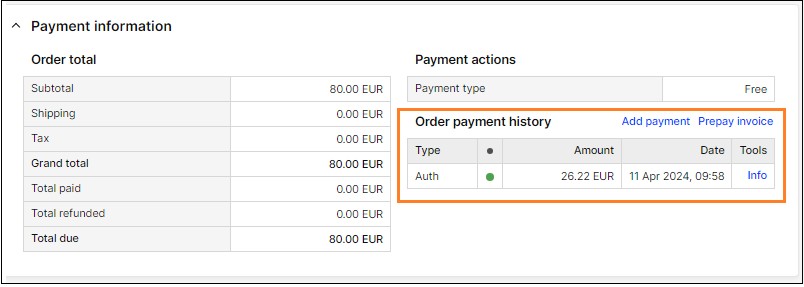
The following figure shows the Order payment history:
1.4.2 Extra Attributes
The data included in the Extra Attributes section must be preconfigured as described in the Integration Guide. The same Custom attribute (same name and structure) is implemented during each the QA/Staging phase of each merchant's integration, and deployed to Production by Centra developers. For any additional attributes that we add we must add a change in the configuration. This information is visible in the Other Information section of the order.
Global-e supports the following fields:
|
|
1.4.3 Static Information
Static information is information that includes the same values for all orders belonging to a specific merchant:
Tax (Global-e local VAT) - a tax group set up in Centra according to the base country
Pricelist - always the default pricelist
1.5 Shipping Methods
During integration, our Solutions Engineer identifies the required shipping methods. Global-e uses the shipping code to display these shipping methods on your order form:
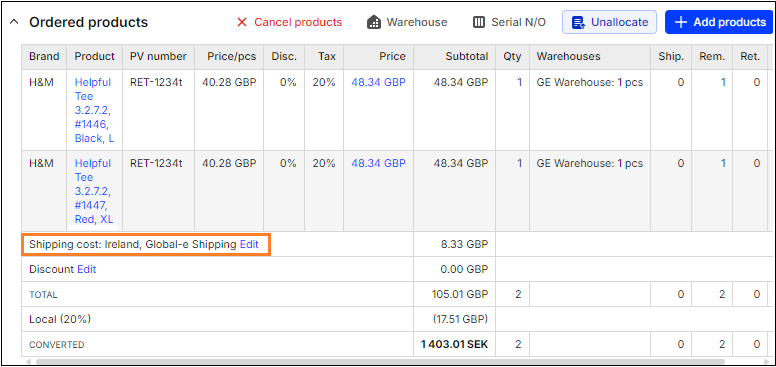
To correctly map your shipping methods to Global-e's, create your shipping methods using the values in 1.3 Configuring Local Tax Groups.
1.6 Validating Payments
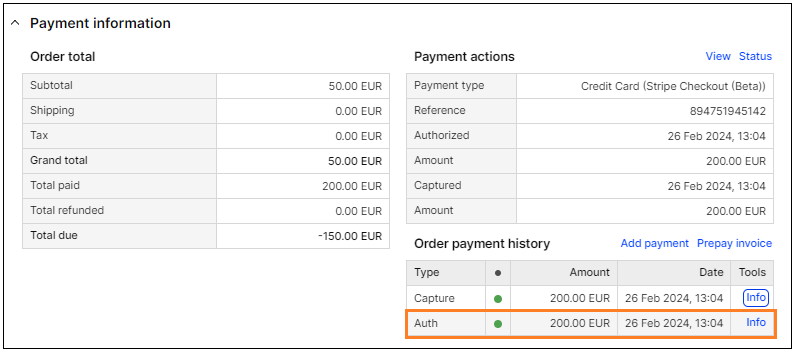
When an order is created in Centra, Global-e does the following:
Validates that payment has been received for the order.
Notifies the platform when the fraud check passes. Failed fraud checks cancel the order.
Adds a new row in the Order payment history region:
1.7 Creating Voucher Extra Attributes
You can store vouchers in Centra's back-office. Storing these vouchers requires adding two extra attributes.
Configure the customer voucher usage:
Navigate to System > Configurations.
Click Create Attribute Type.
Define the Name as ge_customer_coupon.
In the Copy values form dropdown menu, select text.
Copy and paste the following in the text field:
	{
  "desc": "Coupons used by GE orders",
  "readonly": false,
  "group": "customer",
  "elements": {
    "ge_coupon_usage": {
      "type": "textarea",
      "desc": "Coupons used by GE orders"
    }
  }
}
Configure the number of usages:
Navigate to System > Configurations.
Click Create Attribute Type.
Define the Name as ge_voucher_details.
In the Copy values form dropdown menu, select text.
Copy and paste the following in the text field:
{
  "desc": "Global-e Voucher details",
  "readonly": false,
  "group": "voucher",
  "elements": {
    "ge_successful_usages": {
      "type": "input",
      "desc": "Global-e Successful Usages"
    }
  }
}
1.8 Configuring the Global-e Module
After completing a merchant's integration, we must list the following relevant configurations that require specific values (in contrast to using the default template values):
Cart data on the front-end
Checkout tokens
Storefront attributes
Dedicated international Checkout page
Directing merchants to the Checkout page
Clearing the front-end cart
Mandatory Developments
The following table shows the mandatory developments:
Feature | Description |
|---|---|
Pricelist | You must be able to retrieve the country from the Global-e Module cookie to use the relevant pricelist on the front-end |
My account currency conversion | The following parameters are required to correctly convert currencies in the My Account or My Orders sections:
|
Client analytics | See the GEM client snippet. |
Google Shopping feed | |
Cookies | Global-e uses cookies in API requests between your client, our servers, and Centra. These cookies help identify the active cart and customer so that data stays consistent across the checkout flow:
Both cookies should match the cart and customer identifiers stored in Centra. You can store them as one combined cookie or as two separate cookies, depending on your implementation. |
Order Management
Cancelling Orders
Orders can be cancelled from Global-e to Centra, or from Centra to Global-e. When an order is cancelled Global-e restocks the inventory. Note that refunds are only created in Global-e and not in Centra.
When orders are cancelled from Centra to Global-e, you can restock items using native functionality without Global-e's assistance, and a refund is created in Global-e for the entire order amount.
Creating Refunds
In Centra you need to create a return to get a refund. Marking uncompleted reverts the return, but does not the refund. This creates discrepancies between the order status in Centra and Global-e. Global-e always sends the refund as Return in this scenario.
Regarding return objects, you can restock items directly on Centra.
Amending Items
You can cancel single products from orders by removing them from the order, or by reducing their quantity.
Storefront Configuration
This page describes the following elements:
Global-e Module Javascript
Below is a suggested way of loading the Bespoke JavaScript library asynchronously on your site:
Integration Environment
<script id="globaleScript">
(function () {
var s = document.createElement('script');
s.type = 'text/javascript';
s.async = true;
s.src = '//intgepi.bglobale.com/includes/js/{merchant id}';
document.getElementsByTagName('head')[0].appendChild(s);
})();
</script>
Production Environment
<script id="globaleScript">
(function () {
var s = document.createElement('script');
s.type = 'text/javascript';
s.async = true;
s.src = '//gepi.global-e.com/includes/js/{merchant id}';
document.getElementsByTagName('head')[0].appendChild(s);
})();
</script>
The above snippets will ensure that the Bespoke JavaScript module will load asynchronously and not block your current page rendering.
Note
Replace {merchant id} at the end of the URL with the merchant ID provided to you by Global-e.
The Global-e Module CSS
You must place the Bespoke CSS on your site’s header.
The following example is the Bespoke CSS you must use in your Integration environment:
<link id="GEPIStyles" rel="stylesheet" href="//intgepi.bglobale.com/includes/css/{merchant id}" />The following example is the Bespoke CSS you must use in your Production environment:
<link id="GEPIStyles" rel="stylesheet" href="//gepi.global-e.com/includes/css/{merchant id}" />Note
Replace {merchant id} at the end of the URL with the merchant ID that Global-e gave you.
Mandatory Developments
The following table shows the mandatory developments:
Feature | Description |
|---|---|
Pricelist | You must be able to retrieve the country from the Global-e Module cookie to use the relevant pricelist on the front-end |
My account currency conversion | The following parameters are required to correctly convert currencies in the My Account or My Orders sections:
|
Client analytics | See the GEM client snippet. |
Google Shopping feed | |
Cookies | Global-e uses cookies in API requests between your client, our servers, and Centra. These cookies help identify the active cart and customer so that data stays consistent across the checkout flow:
Both cookies should match the cart and customer identifiers stored in Centra. You can store them as one combined cookie or as two separate cookies, depending on your implementation. |
Browsing
This section describes Centra's browsing elements.
Global-e Browsing Elements
Global-e supports the following browsing elements:
Welcome pop-up
Country switcher
Free shipping banner
For more information, see Site Customization.
Global-e Storefront Attributes
The Global-e storefront attributes are described on the Storefront Attributes page.
Calculating Prices
Global-e supports calculating both dynamic prices and fixed prices.
Dynamic price calculations are based on pricelists created by merchants using Centra's back-office.
You must use this set of configurations to properly support price conversions:
All Global-e markets must be assigned to a pricelist. Global-e automatically assigns Centra's default pricelist for unassigned markets.
All pricelists used for Global-e markets must be set in your base currency.
Fixed price calculations are supported per country and is based on Centra's native pricelist creation.
You must follow these rules when setting their fixed prices:
Each country's fixed prices must be set with its respective currency as configured by Global-e.
The geolocation must be set according to the country's fixed prices.
All fixed prices must be set on the country's catalog.
Products
Product Restrictions
As with other Global-e Module (GEM) integrations, we support merchants restricting purchases of checkout items to specific countries based on regulations or commercial restrictions. We support restrictions at the Checkout level.
For more information on product restrictions, see. Restricted Products
Pre-Ordering Items
You can sell pre-order items if needed, and can enable them by selecting the stock section checkbox for the required item.
Merchants must pass the pre-order attribute indication for the relevant products.
Note the following:
We do not validate stock in the order stock validation phase for items identified as pre-order.
Items identified as pre-order must be marked in Centra as PreOrder. Items not marked as PreOrder will be a Failed Transfer to Merchant (FTM). Merchants must mark pre-order items in both Global-e and Centra.
Product Attributes
Global-e supports the following product attributes:
Product name
HS code
Country of origin
Weight
Brand
Description
Note
We do not support custom fields.
Cart
Sending Language to Checkout
Global-e supports sending language to Checkout with GEM capabilities. For more information, see Global-e Checkout Language.
Clearing Your Cart
Global-e supports clearing your cart with GEM capabilities. For more information, see Clearing your Cart.
Applying Discounts
Centra supports several discount types that may include multiple rules and dependencies. You can specify these conditions while creating both vouchers and campaigns.
Checkout
Stock Validation
When you place an order in Checkout, the Global-e plug-in runs a stock validation based on Centra's stock to see if the item is available. This process does not occur for pre-order items.
Discounts
The supported discount types described in Applying Discounts apply to the Checkout capabilities as well. Only voucher code discounts are available, and consumers use these codes during Checkout, and discounts are applied when the checkout is complete.