Sales & Funnel
In the Sales & Funnel platform each of these dashboards is designated its own separate sheet. The Sales & Funnel documentation is divided as follows:
Sales - functionality unique to Sales
Funnel Analytics - functionality unique to Funnel Analytics
Importantly, you can easily switch between sheets using the sheet toggle arrows:

Any settings or selections you used are automatically saved in each sheet, so you can toggle back and forth between sheets. The platform restores sheets to their default settings when you exit or refresh the screen, so make sure to create bookmarks to save your page settings.
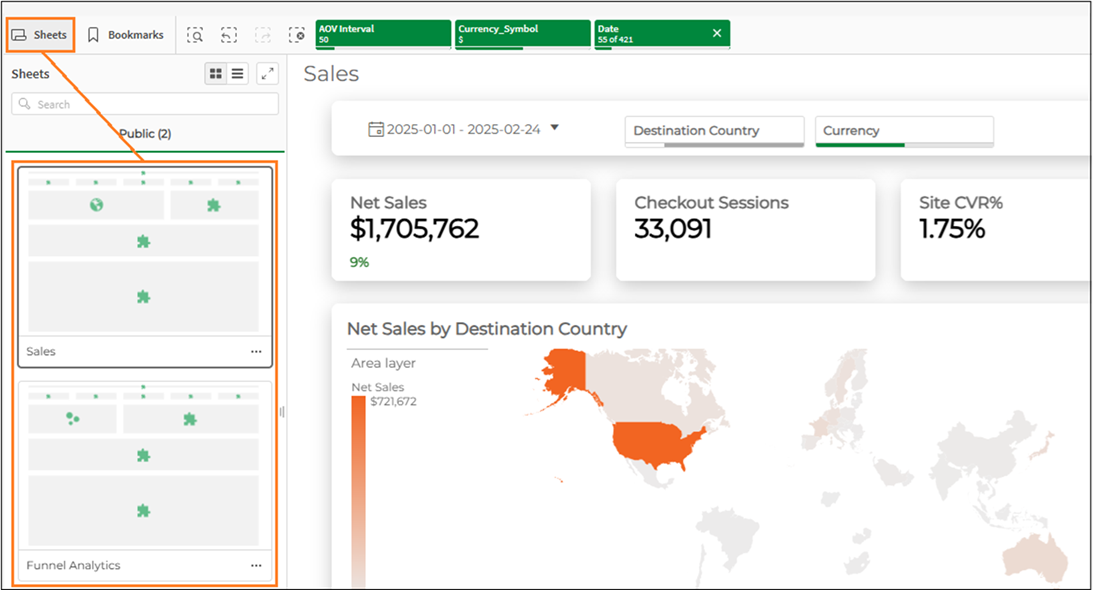
You can also toggle between sheets by clicking Sheets and selecting a sheet, as follows:
Sales
The Sales sheet displays sales-related metrics.
The Sales sheet includes the following main areas, each discussed in greater detail in its own section:
Business Metrics Panel
The following figure shows the Business Metrics Panel for Sales:
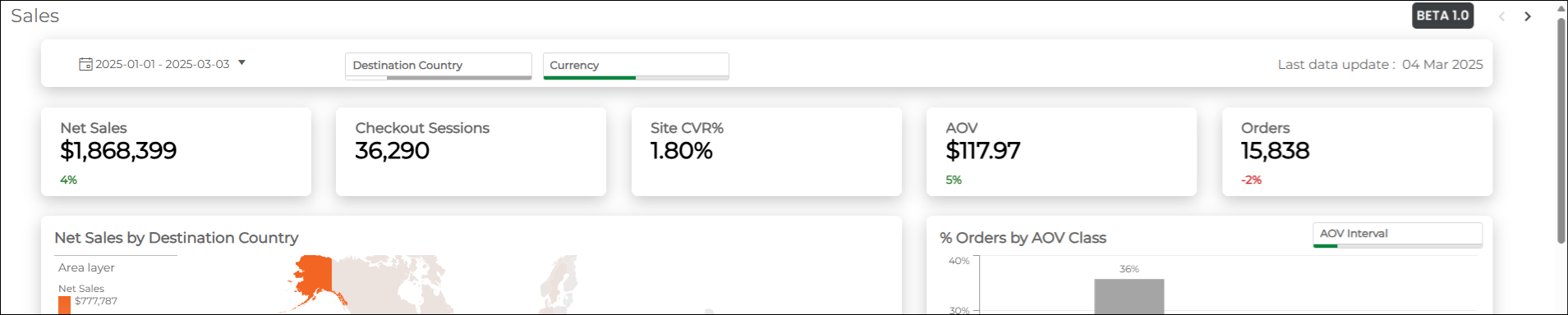
All of the business metrics correspond to the selected country and date range. The default date range selection is year-to-date. The Business Metrics panel shows the following metrics (hovering over each business metrics shows its description):
|
Net Sales by Destination Country
The Net Sales by Destination Country is a scrollable, zoomable map.
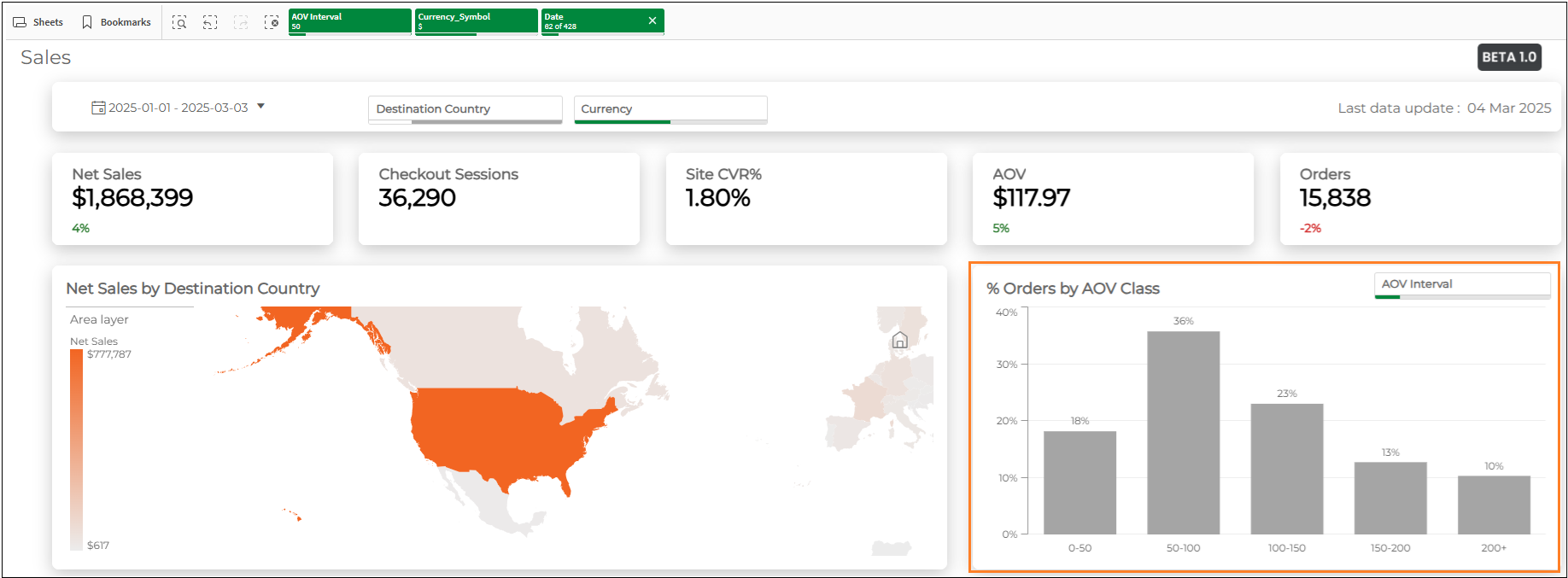
The following figure shows the Net Sales by Destination Country:
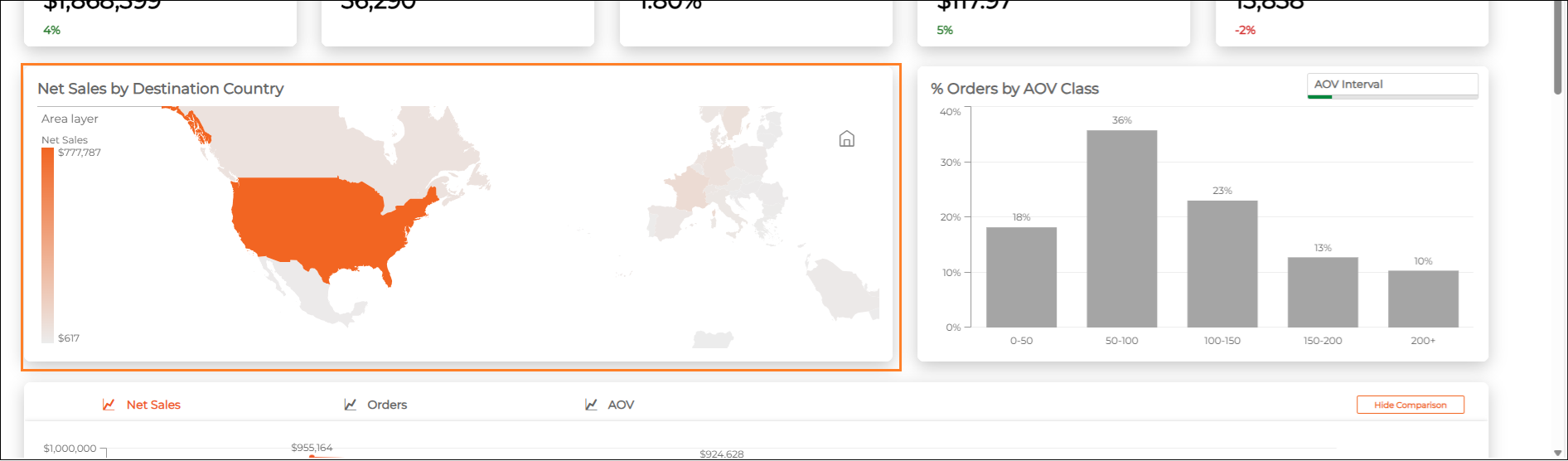
From here you can select a country or countries from the map. Hovering over countries displays a pop-up tooltip with additional country information according to your selection.
Percentage of Orders by AOV Class
The Orders by AOV Class is a histogram that shows the percentage of orders according to Average Order Value (AOV) class. You can change the AOV interval by selecting the AOV interval filter within the chart area.
The following figure shows the Orders by AOV Class graph:
Historical Trend Graph
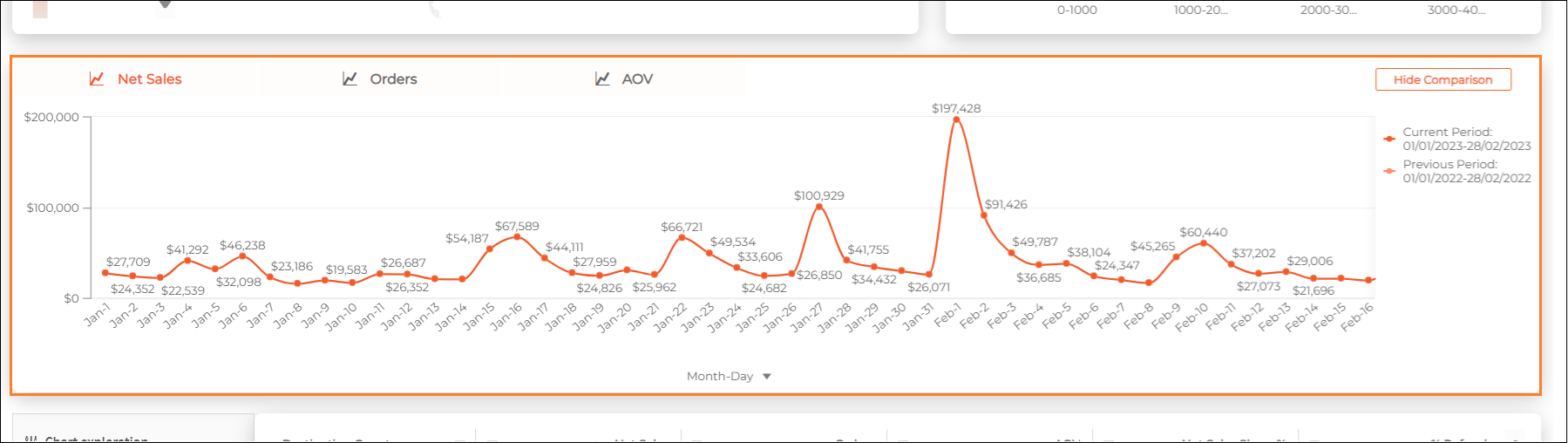
The Historical Trend Graph shows the trend of net sales, orders, or AOV for the current period. You can change the resolution, set to Monthly by default, from the menu located at the bottom of the graph. You can also switch the measure between these three by clicking one of the toggles located at the top of the graph. In addition, you can show or hide the previous year comparison by clicking Hide/Show Comparison in the top right corner of the graph. Regardless, hovering over a data point shows the period and the amount.
The following figure shows the Historical Trend Graph:
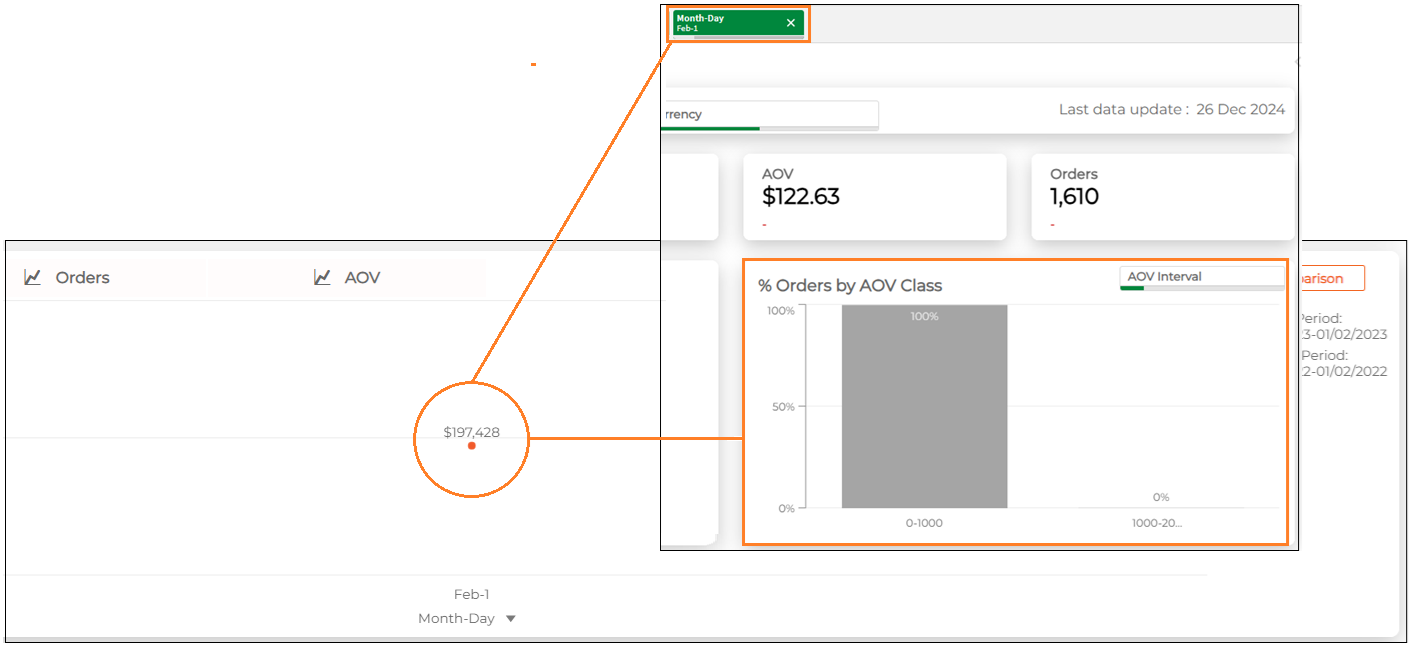
Clicking a specific data point, such as February 1 for example, filters the entire dashboard for that point, adding it to the Selection Panel.
You can also select a number of data points at a time using the Lasso option to draw a line around them. To show the lasso option, click any data point on the graph, which shows four additional functions in the top right corner of the graph:
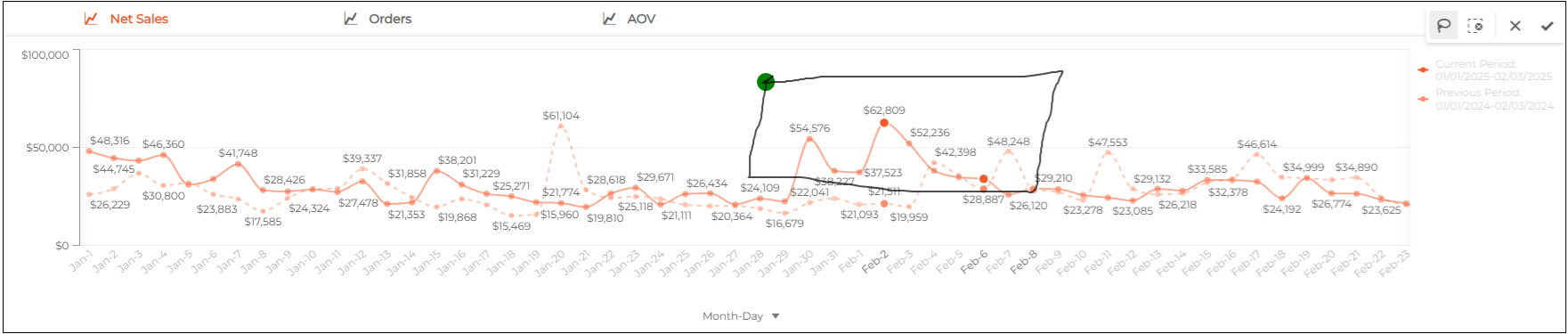
Using the lasso option calculates the sum of these points and displays their corresponding data in the Chart Exploration table, described in ???.
Note
Once you've selected a number of points with the lasso option, separately adding more points adds their sum to the current selection, and does not replace it with the newly selected points. To cancel your current selection and start over, click the Cancel Selection button in the top right corner with the other features.
You can clear the data you selected and draw a line around different points using Clear selection located directly to its right. You can cancel the lasso option and return to the default cumulative view by clicking Cancel selection to the right of that. Finally, you can isolate the selected points by clicking Confirm selection. When you've isolated points and want to restore the entire graph, close the Month tile in the Selection Panel:
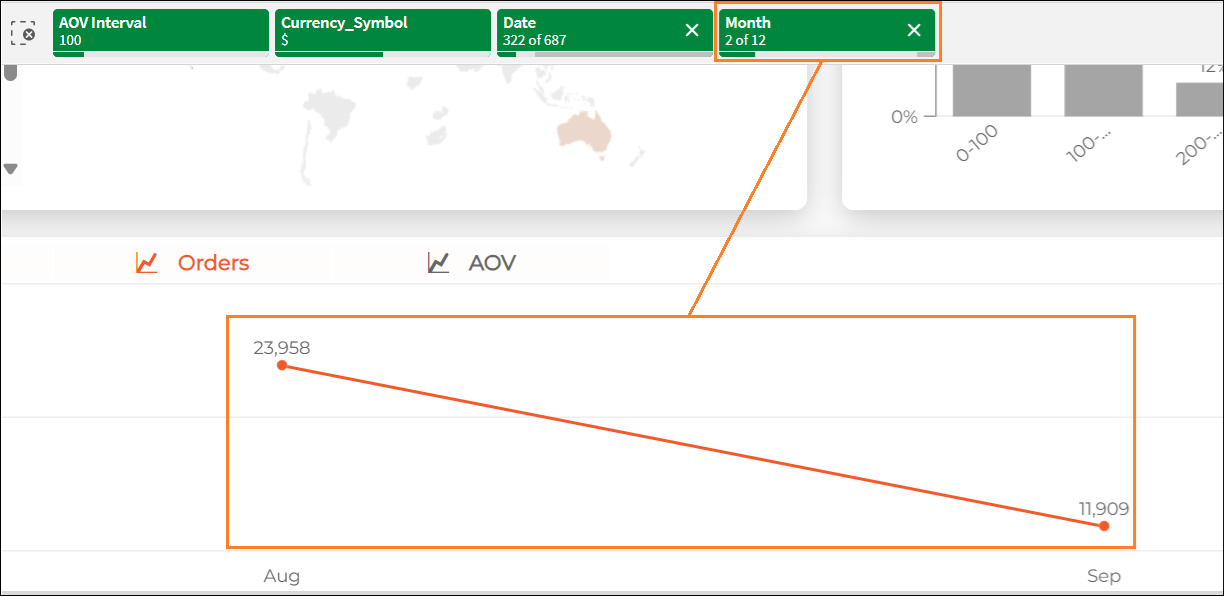
Chart Exploration Table - Net Sales
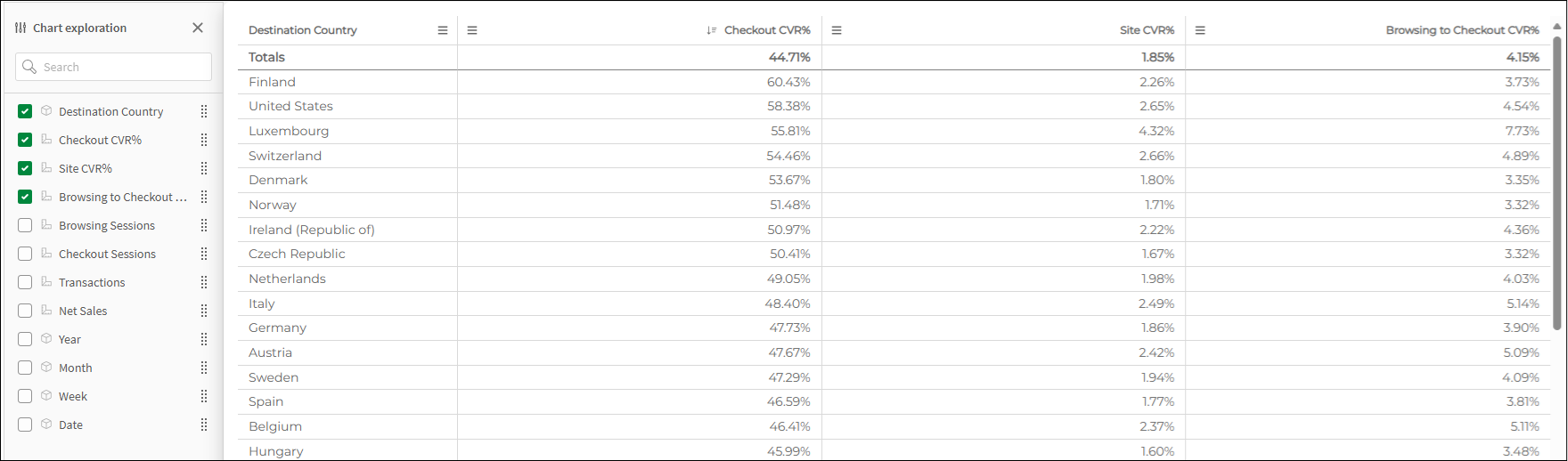
The Chart Exploration Table for Sales displays all sales business metrics broken down according to country:
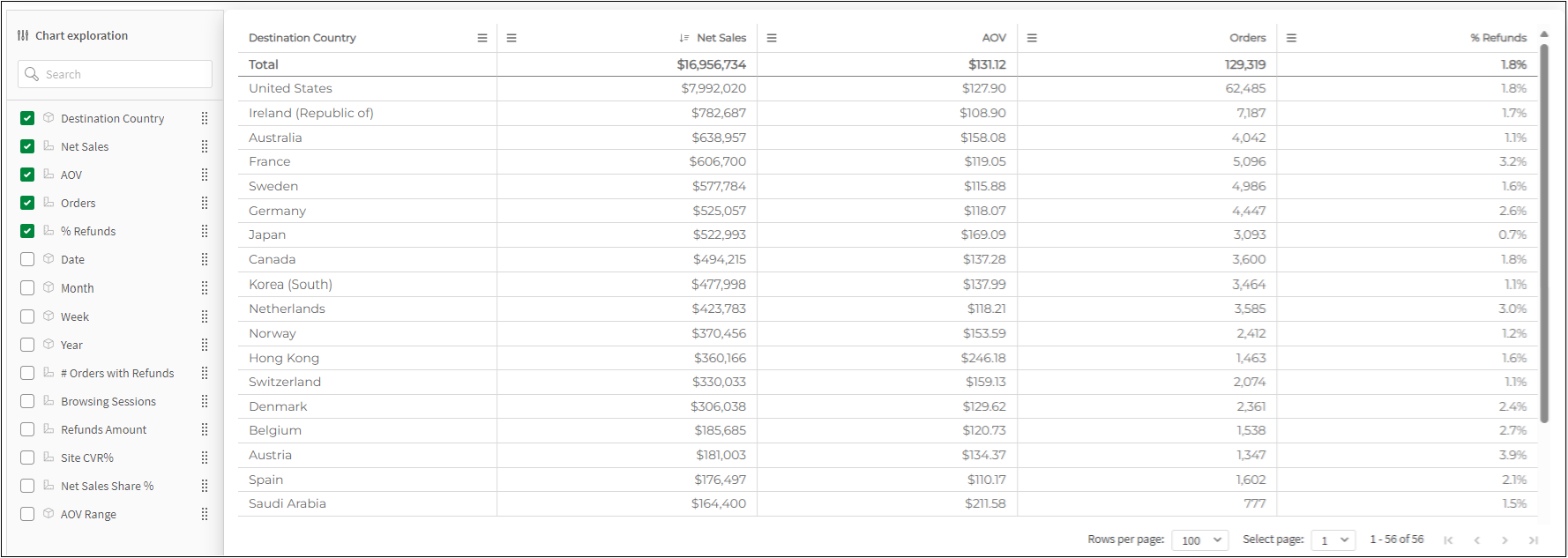
You can customize your table by selecting metrics or dimensions from the Chart exploration region located directly to the left of the chart region.
Funnel Analytics
The Funnel Analytics sheet includes the following main areas, each discussed in greater detail in its own section:
Business Metrics Panel
The following figure shows the Business Metrics Panel for Funnel Analytics:

The Business Metrics panel shows the following metrics (hovering over each business metrics shows its definition or description):
Site CVR - Total transactions divided by browsing sessions
Browsing to Checkout CVR - Total checkout sessions divided by browsing sessions
Checkout CVR% - Total checkout transactions divided by checkout sessions
Browsing Sessions - Total number of Browsing Sessions
Checkout Sessions - Total number of Checkout Start events
Note
The full data set is available only to merchants that provide site event collection. For more information, contact your CSM.
Top Ten Destination Countries by Net Sales
The Top 10 Destination Countries by Net Sales bubble chart is a graph that shows the relationship between the browsing to checkout CVR percentage and the checkout CVR percentage for the top ten destination countries according to their net sales.
The following figure shows the Top Ten Destination Countries by Net Sales:
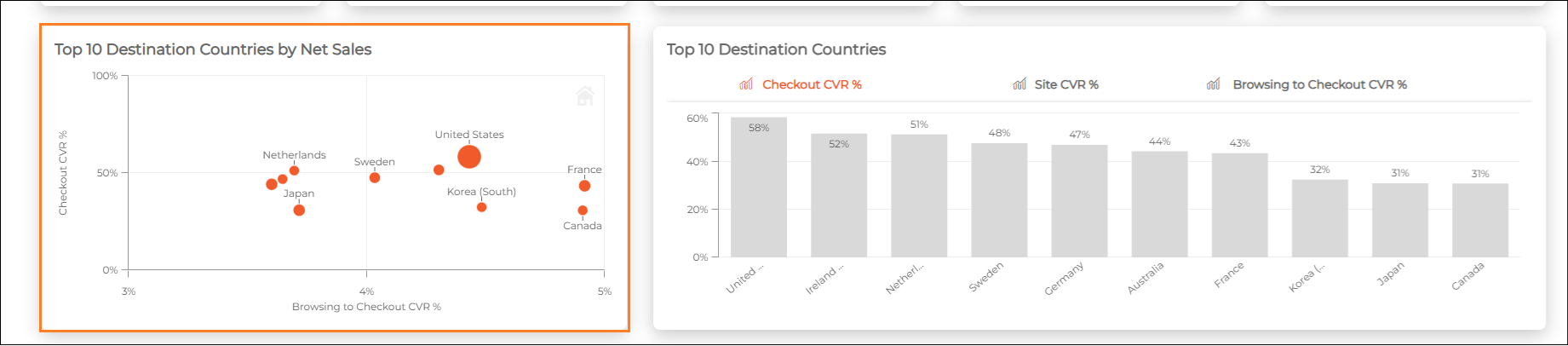
Hovering over a data point shows the following details: the total browsing to checkout CVR percentage, the checkout CVR, and the net sales.
Top Ten Destination Countries Graph
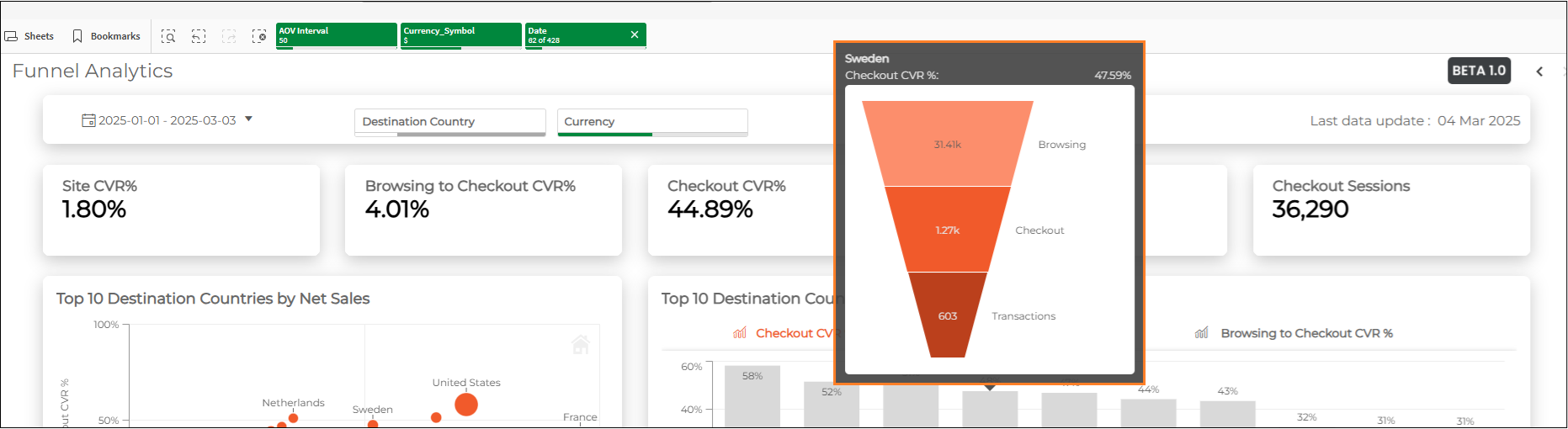
The Top Ten Destination Countries is a graph that shows all three CVR metrics for the top ten destination countries sorted by the selected metric. These graphs let you compare the top ten markets according to Checkout CVR percentage, Site CVR percentage, and Browsing to Checkout CVR percentage. You can toggle between these metrics by selecting one from the top row of the graph:
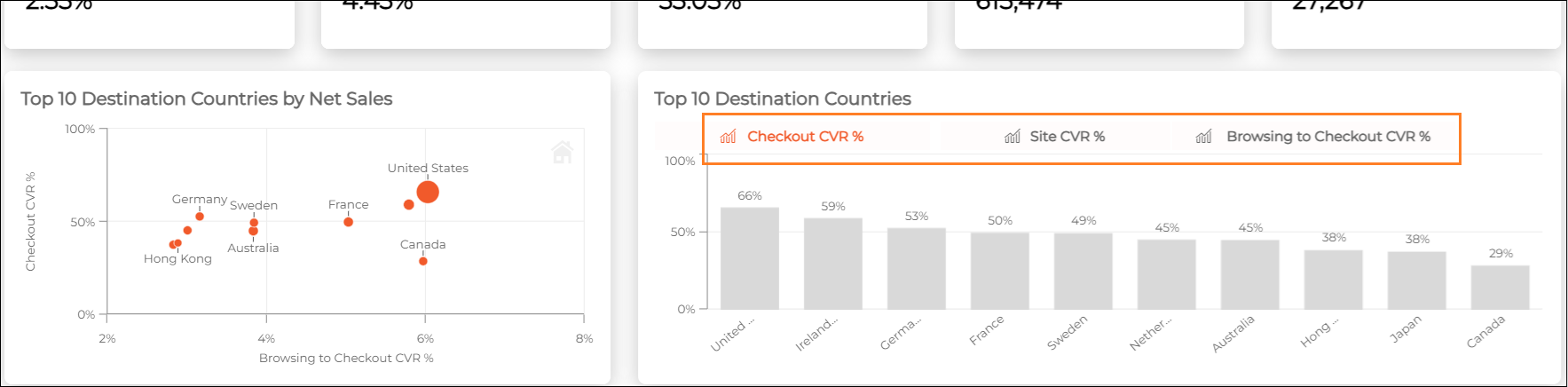
Hovering over a bar shows the funnel tooltip, which indicates the percentage breakdown according to browsing, checkout, and transactions for the specific country in the graph:
Conversion Trend Graph
The Conversion Trend Graph shows the trend of checkout CVR percentage, site CVR percentage, or browsing to checkout CVR percentage for the selected period. You can change the resolution, set to Monthly by default, from the menu located at the bottom of the graph. You can also switch the measure between these three by clicking one of the toggles located at the top of the graph.
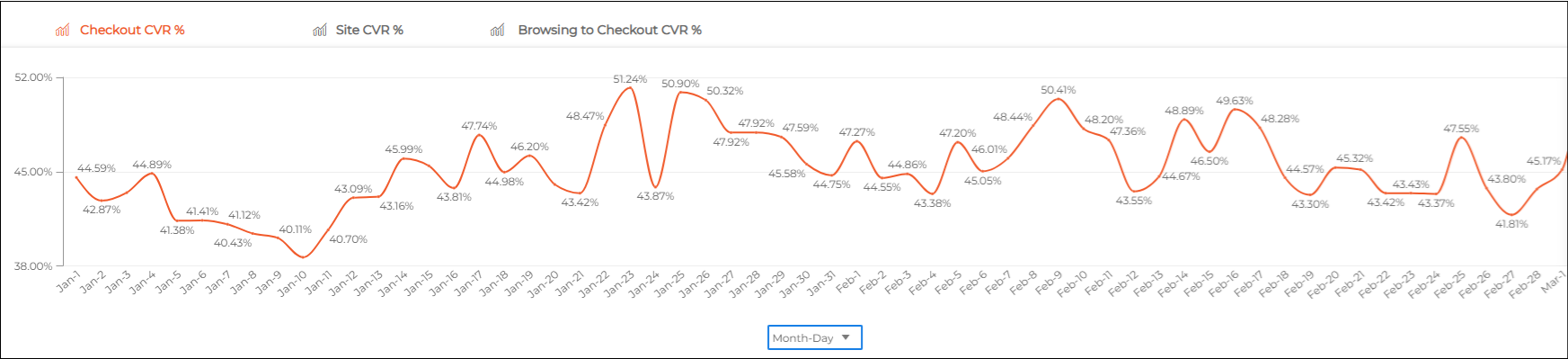
Chart Exploration Table - Conversions
The Chart Exploration Table for Funnel Analytics displays all Funnel business metrics broken down by country: