Find the Relevant Order
To find the order related to the items that the Customer is returning:
Ask the customer for their order ID (provided in the Order Confirmation email).
From the Global‑e Merchant Portal, go to Store Orders > Store Returns > Process Return.
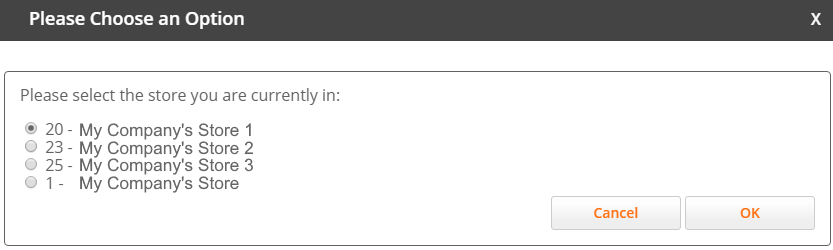
Optional: If you are associated with several stores, you are prompted to select your current location. Select your current store and click OK.
The Store Returns screen is displayed.
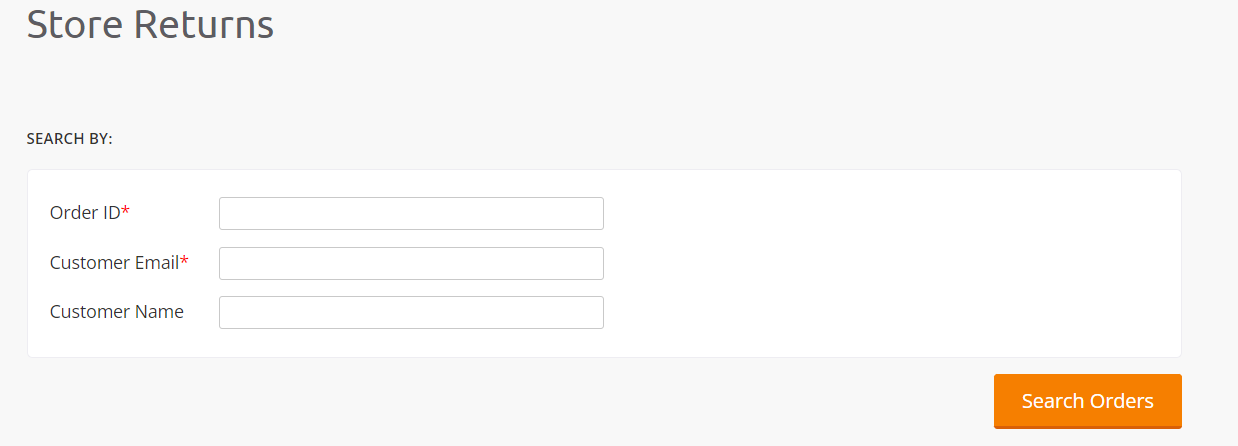
Find the relevant order by entering the Order Number provided in Step 1. If the customer does not have their order ID handy, search for the order by customer name or email. For more details, see Find an Order by Name and View the Details of an Order.
Click Search Orders.
The order is displayed in the search results.
If using the name or email address, the order or the list of orders related to the customer is displayed. Select the order containing the items that are returned. See Find an Order by Name and View the Details of an Order.
Process the Return, as detailed in section Process a Return to the Store.
Find an Order by Number (Order ID)
To find an order by using the Order Number:
Enter the Order Number (Order ID) and click Search.
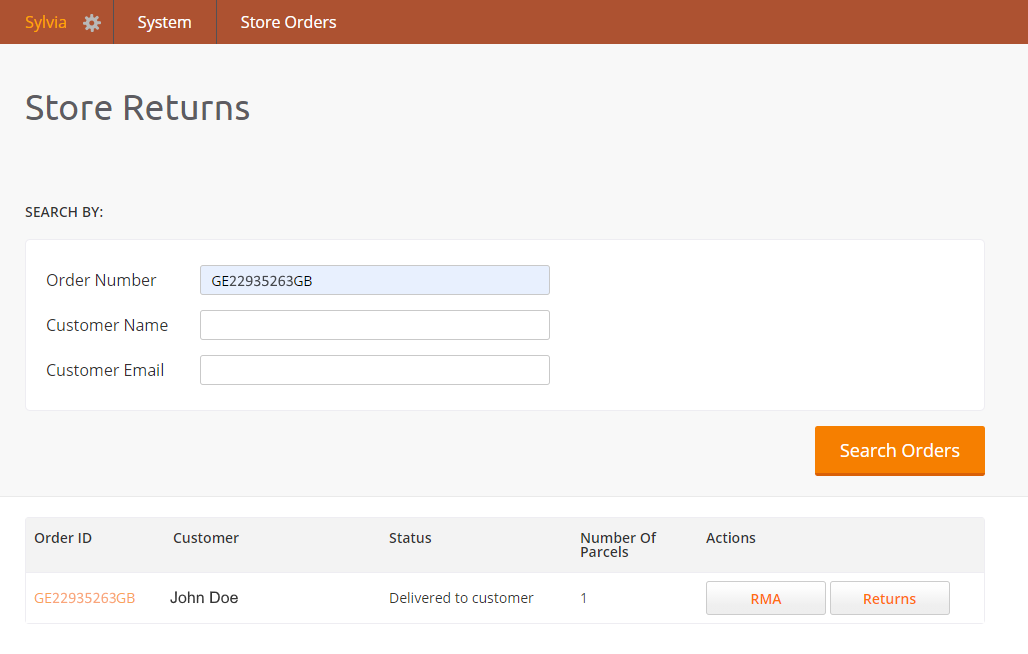 |
Finding an Order Using the Order ID
Find an Order by Name
To find an Order by Name (or email):
Enter the customer's name and click Search.
Open each order by clicking the order ID (in orange) until you find the correct order containing the items being returned. Verify that the returned items belong to the order.
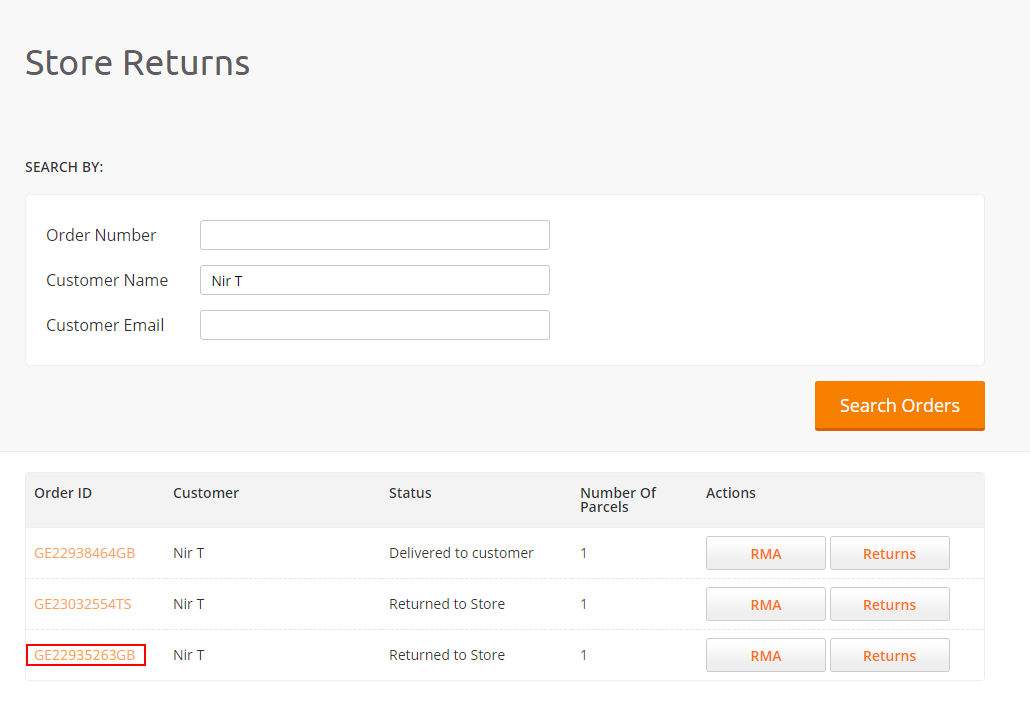 |
Finding an Order by Name
View the Details of an Order
To view the contents of an order:
Click the order ID (in orange) to view the order details.
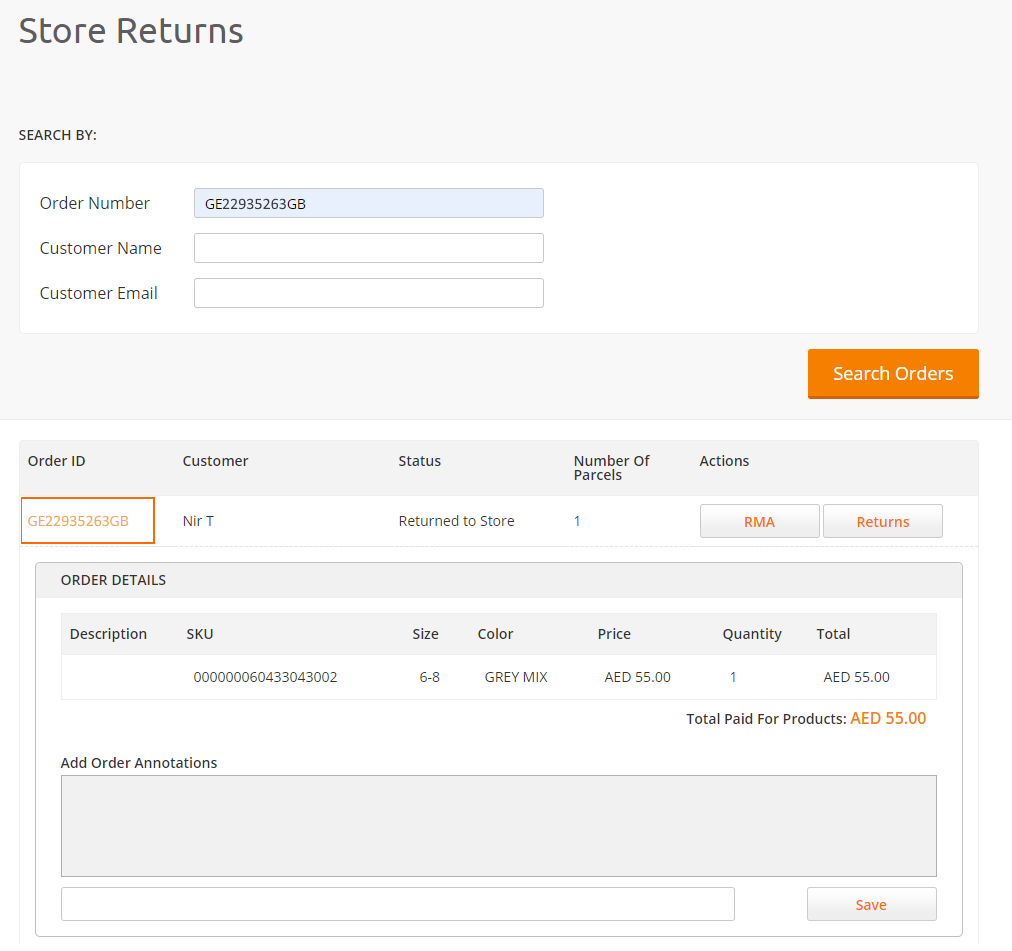 |
Viewing the Details of an Order